
IPTV Canada on Firestick: Complete Setup Guide
Learn how to set up IPTV on Amazon Fire TV Stick step by step. This guide explains what you need, how to install an IPTV player, how to enter your subscription details and what to check if streaming does not work as expected.
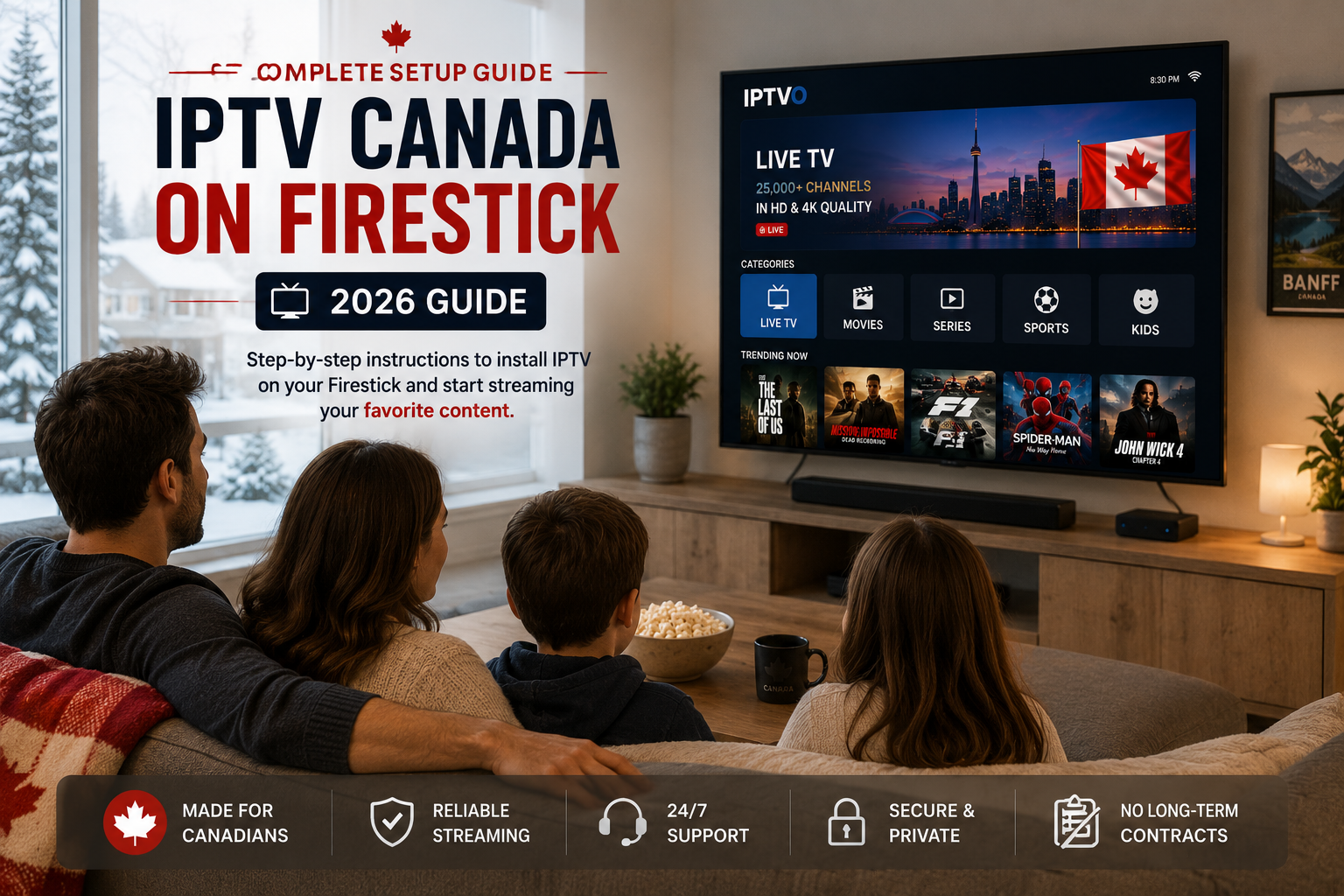
Why Use a Firestick for IPTV in Canada?
Amazon Fire TV Stick is popular because it turns a compatible television into a streaming device without requiring a complicated setup. The interface is designed for television screens, it includes a handheld remote, and it supports a wide range of streaming applications.
For viewers setting up IPTV Canada on Firestick, the device can be especially convenient when you want to watch live channels and on-demand content on a television instead of using a phone or computer.
Streaming performance still depends on several factors, including your internet connection, Wi-Fi signal, the Fire TV model, the player application and the IPTV service itself.
What You Need Before Starting
Before installing IPTV Canada on Firestick, make sure the basic pieces are ready. Having everything available first makes the Firestick setup much easier.
When installing IPTV Canada on Firestick, there are two practical situations you may encounter. First, check whether the player you want is available directly through the Amazon Appstore. Availability can vary by app and region. If it is not available, you can use the Downloader method.
Amazon Appstore
Search the Fire TV Appstore first. If the application appears, installing directly from the store is the recommended method because Amazon handles the download and future updates.
- Open Find or Search
- Search for the exact player recommended for your account
- Confirm the application and developer name
- Select Download or Get, then open the player
- Enter the valid login details supplied with your service
Downloader App
If your preferred IPTV player is not listed in the Amazon Appstore, Downloader can be used to install an APK from a trusted source.
- Install Downloader
- Allow installation when required
- Use the official or trusted download address
- Install the player
Firestick Setup With Downloader
For an IPTV Canada on Firestick setup using Downloader, the exact menu wording can change slightly between Fire OS versions, but the general process remains similar.
Open Search on Fire TV
From the Fire TV home screen, open Find or Search and enter Downloader. Select the Downloader application and install it.
Allow Installation When Required
Fire TV may ask you to allow installation from the Downloader application. Depending on your Fire OS version, the option may appear under developer or application settings.
Settings → My Fire TV → Developer OptionsLaunch Downloader
Open Downloader. The first time you launch it, accept the permissions required for the application to work.
Enter the Trusted Download Address
Enter the official download address supplied by the app developer or by IPTVO support. Avoid downloading APK files from random websites or unknown links.
Download and Install the Player
When the APK download finishes, Fire TV should display the installation screen. Choose Install, wait for completion, then select Done or Open.
Remove the APK File After Installation
If Downloader asks whether you want to delete the downloaded APK after installation, you can remove it to recover storage space. The installed application remains on the Firestick.
How to Add Your IPTV Subscription
After the player for your IPTV Canada on Firestick setup is installed, open the application. IPTV Smarters Pro or another compatible player may offer several login methods. One common method is an API-based login using information supplied with your subscription.
Information you may be asked to enter
Depending on the login method, the application may request a profile name, username, password and server URL. Enter the information exactly as supplied because even a missing character can prevent the account from connecting.
How to Improve IPTV Streaming on Firestick
A smooth IPTV Canada on Firestick experience depends on more than installation. If video freezes, buffers or takes a long time to start, check the network and device before assuming there is a problem with the subscription.
Use a strong Wi-Fi connection
Firestick performance can drop when the device is far from the router or surrounded by interference. If possible, place the router closer to the television or improve your home Wi-Fi coverage. A nearby 5 GHz connection is often faster, while Ethernet with a compatible adapter can provide more consistent playback.
Match quality to your device and connection
Do not force 4K when your television, Fire TV model or connection is better suited to HD. Automatic quality is often the most reliable starting point. For more guidance, read our Internet Speed for IPTV Canada guide .
Restart the Firestick periodically
Restarting can clear temporary problems and free resources. You can restart from the Fire TV settings rather than disconnecting the device every time.
Keep some free storage available
A Firestick with almost no available storage may feel slower. Delete applications you no longer use and remove unnecessary downloaded installation files.
Close unused applications
If multiple applications have been used during the same session, restarting the Firestick is a simple way to begin again with a cleaner device state.
Firestick IPTV Troubleshooting
Most IPTV Canada on Firestick setup problems fall into a few common categories. Use this quick table before reinstalling everything.
Use IPTV Apps Responsibly
IPTV is a delivery technology. The availability of particular channels, programs and streaming services can depend on licensing, distribution rights and geographic restrictions. The CRTC explains how distribution rights and geoblocking can affect online content availability in Canada .
Choose services that provide clear information about their offering, pricing and support. Avoid installing unknown applications simply because a website promises unlimited free television or access that sounds unrealistic.
Before subscribing, you can also read our Best IPTV Canada 2026 buyer’s guide for a broader checklist of factors to compare.
IPTV Canada on Firestick: FAQ
Can I use IPTV on an Amazon Firestick?
Fire TV devices support streaming applications, including compatible IPTV player apps. You still need the appropriate application and valid subscription credentials.
Do I need IPTV Smarters Pro specifically?
No. IPTV Smarters Pro is one example of a player. Other compatible applications may also work depending on the login format supplied by your service.
Why can’t I find an IPTV app in the Amazon Appstore?
App availability can vary by application, country and Fire TV software version. If an app is unavailable, check the developer’s official installation instructions.
Why does IPTV buffer on Firestick?
Buffering can be caused by Wi-Fi quality, internet congestion, device performance, the streaming source or the service itself. Testing several channels and restarting your network equipment can help identify the problem.
Can I use the same IPTV account on several devices?
That depends on the subscription terms and the number of simultaneous connections included in your plan. Check your provider’s rules before streaming on multiple devices at once.
Is a VPN required for IPTV on Firestick in Canada?
A VPN is not automatically required and can sometimes reduce speed. It also does not make unauthorized content legal. Follow Canadian law and the terms of the streaming services you use.
Where can I find Amazon’s official Fire TV app instructions?
See Amazon’s official guide to downloading and installing apps on Fire TV .
Where can I find the full IPTVO installation guide?
Visit our IPTV Canada Installation Guide for additional device instructions and setup information.
Ready to Set Up IPTV on Your Firestick?
If you are preparing an IPTV Canada on Firestick setup, compare available IPTVO options, check device compatibility and use our installation resources to get started.