
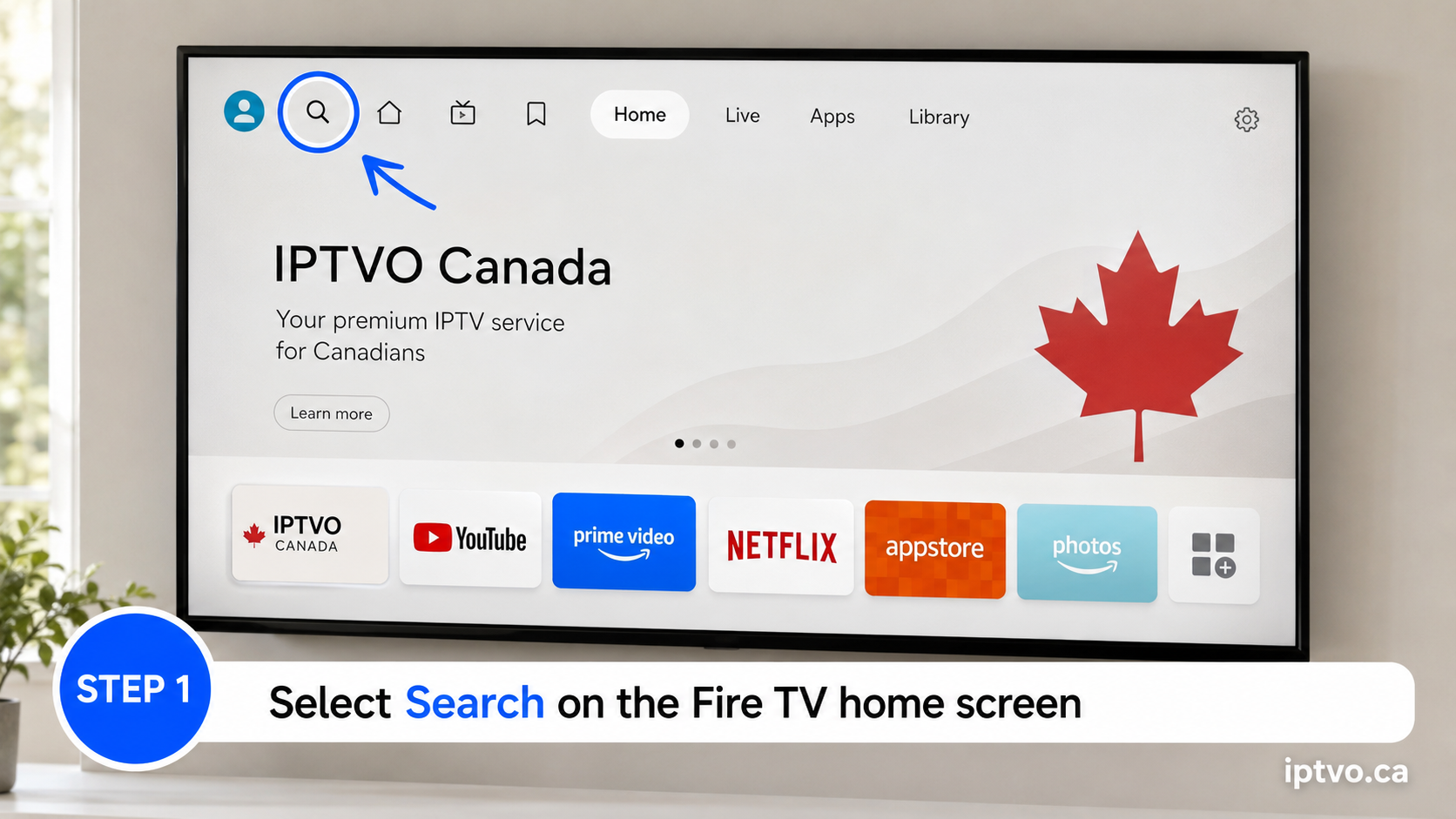
Step 1
Select Search
From the Fire TV home screen, open Search.
Select your streaming device below to open the correct step-by-step installation guide. Additional verified device guides will be added soon.
Have your IPTVO username, password and server URL ready. Menu names and screen layouts may vary slightly by device model, operating-system version and application version.
Use this method only on compatible Amazon Fire TV devices running Fire OS. Complete each phase in order.
From the Fire TV home screen, open Search.
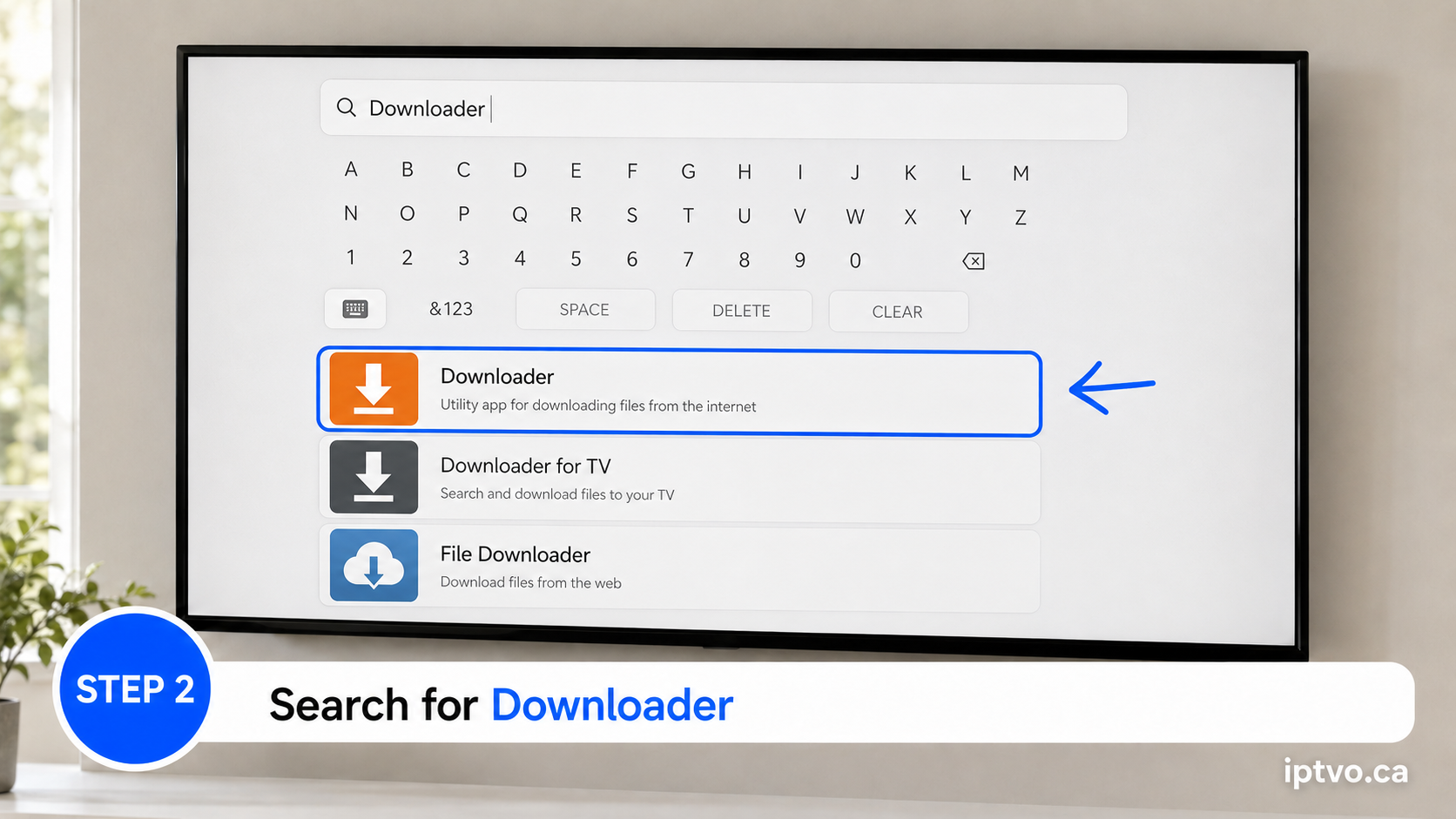
Enter “Downloader,” then select the Downloader app from the results.
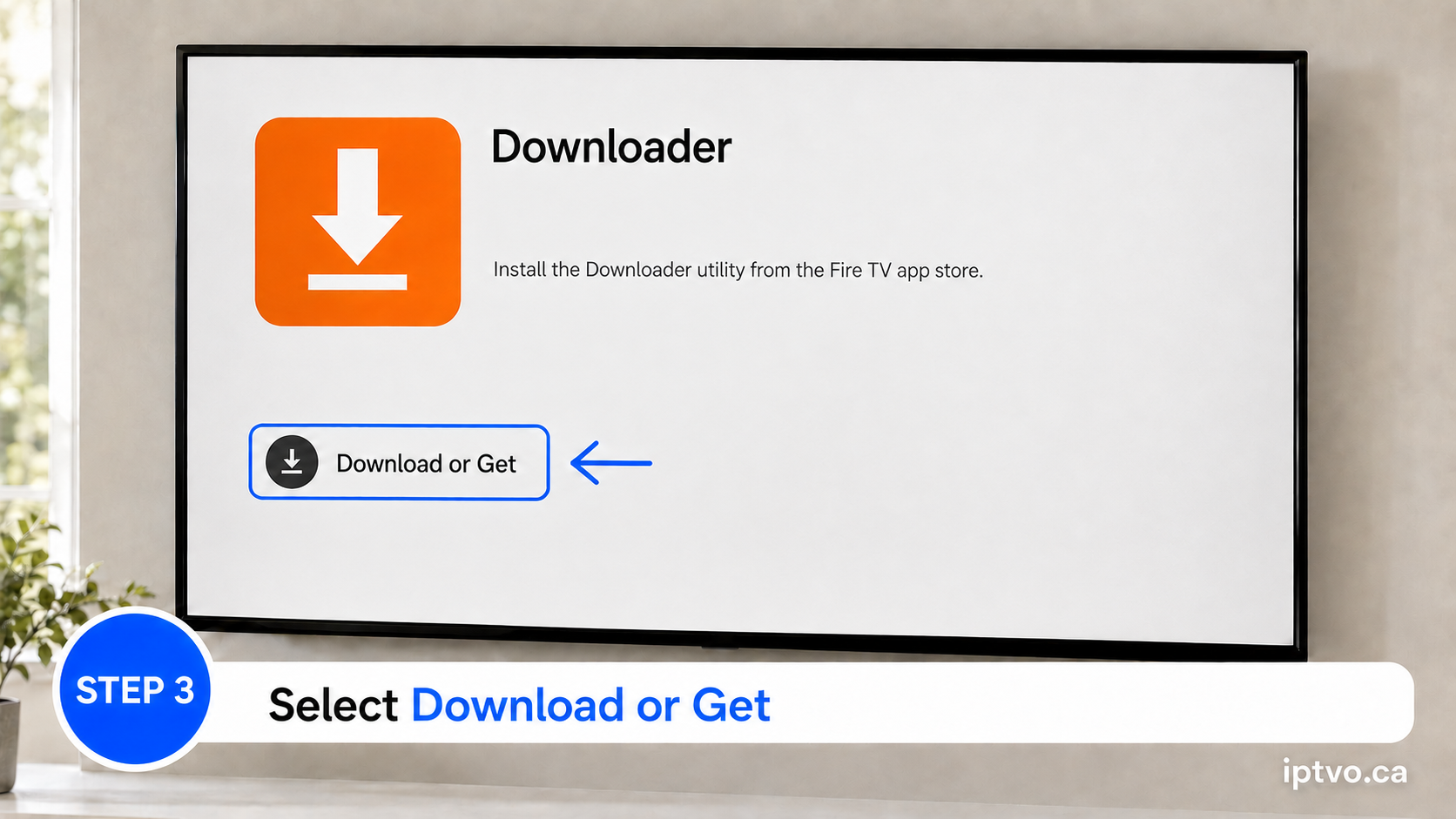
Install the Downloader app and wait for the download to finish.
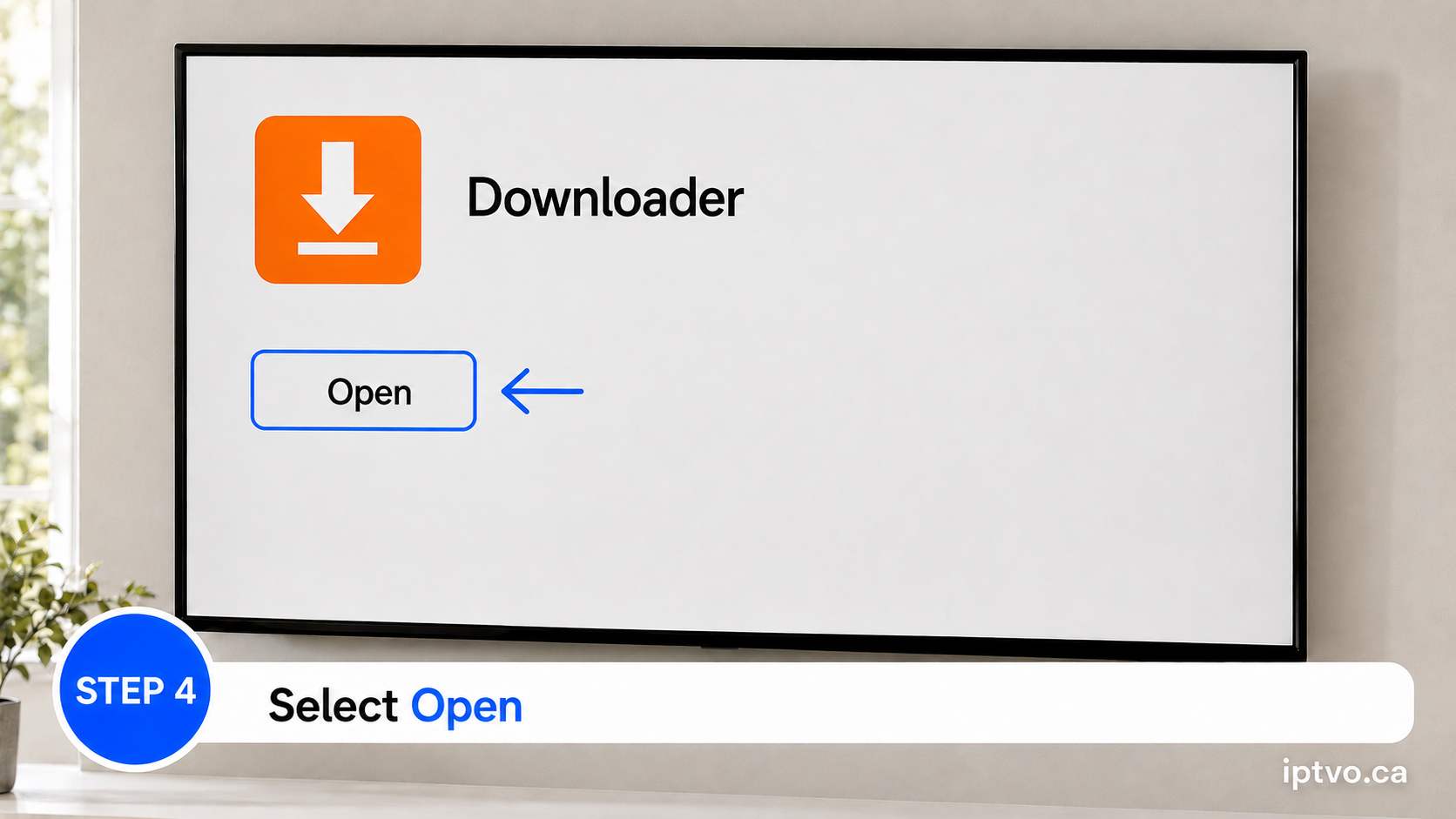
Launch Downloader after installation.
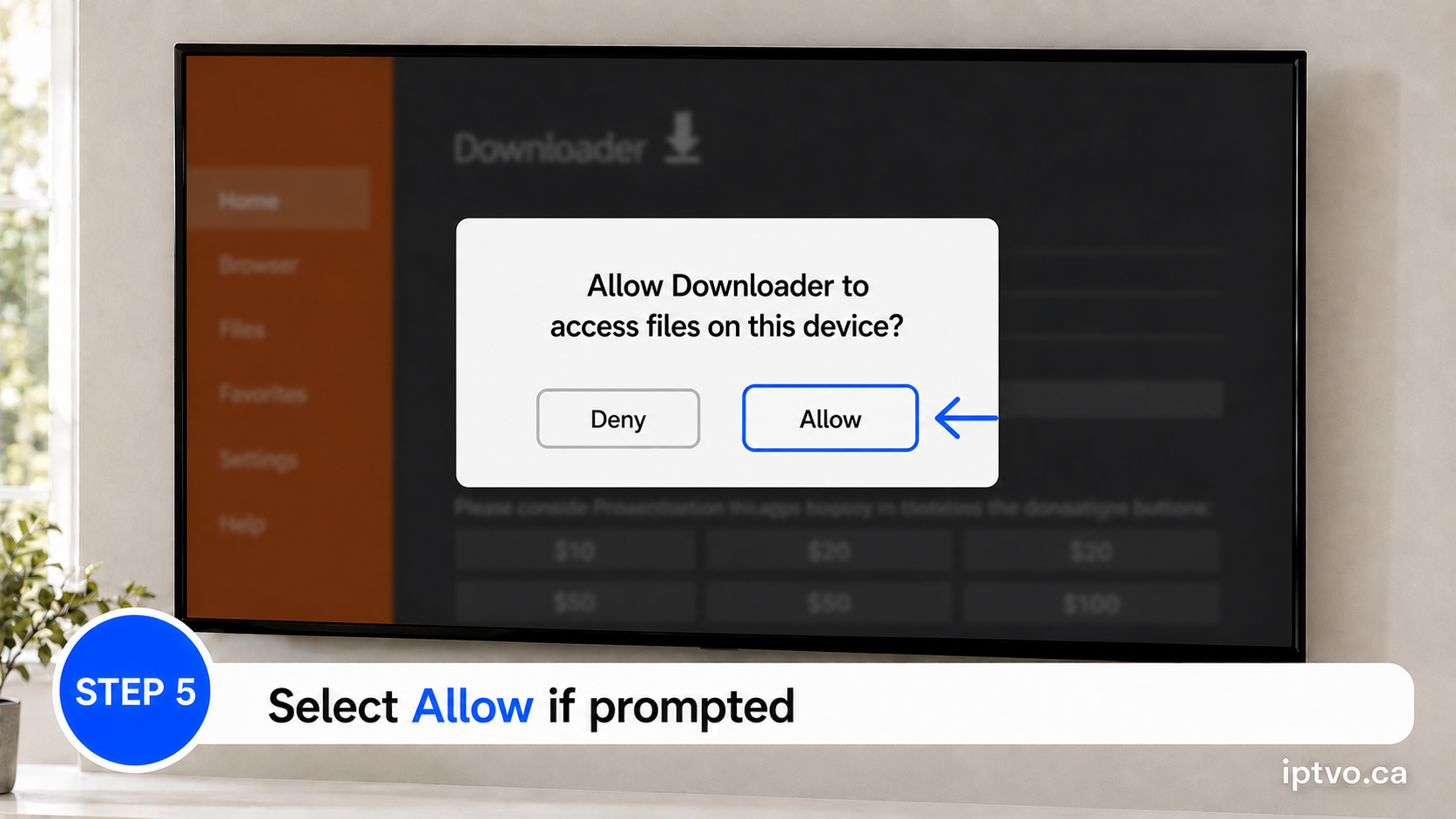
Approve the requested access so Downloader can save the installation file.
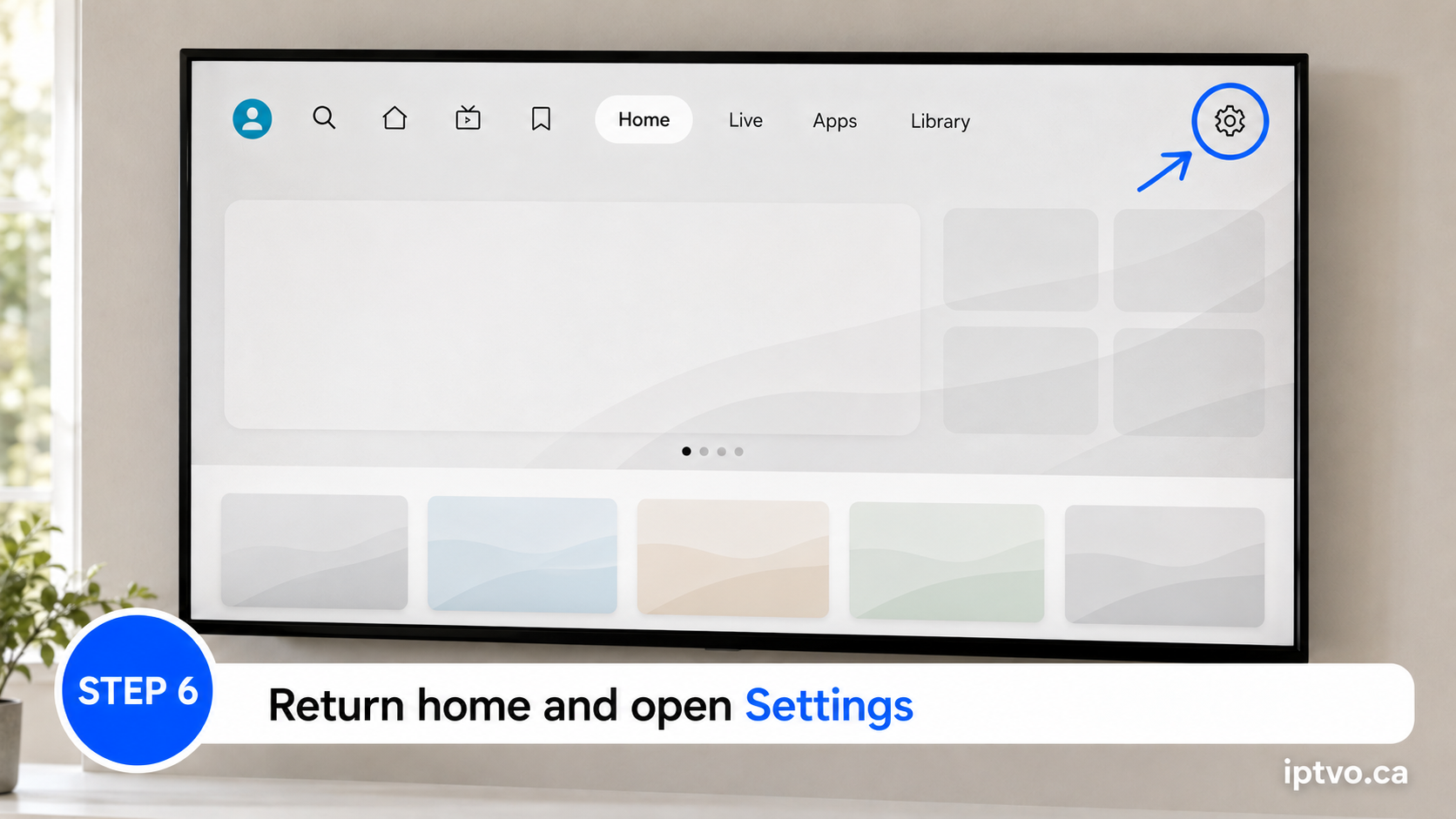
Return to the Fire TV home screen and open the Settings menu.
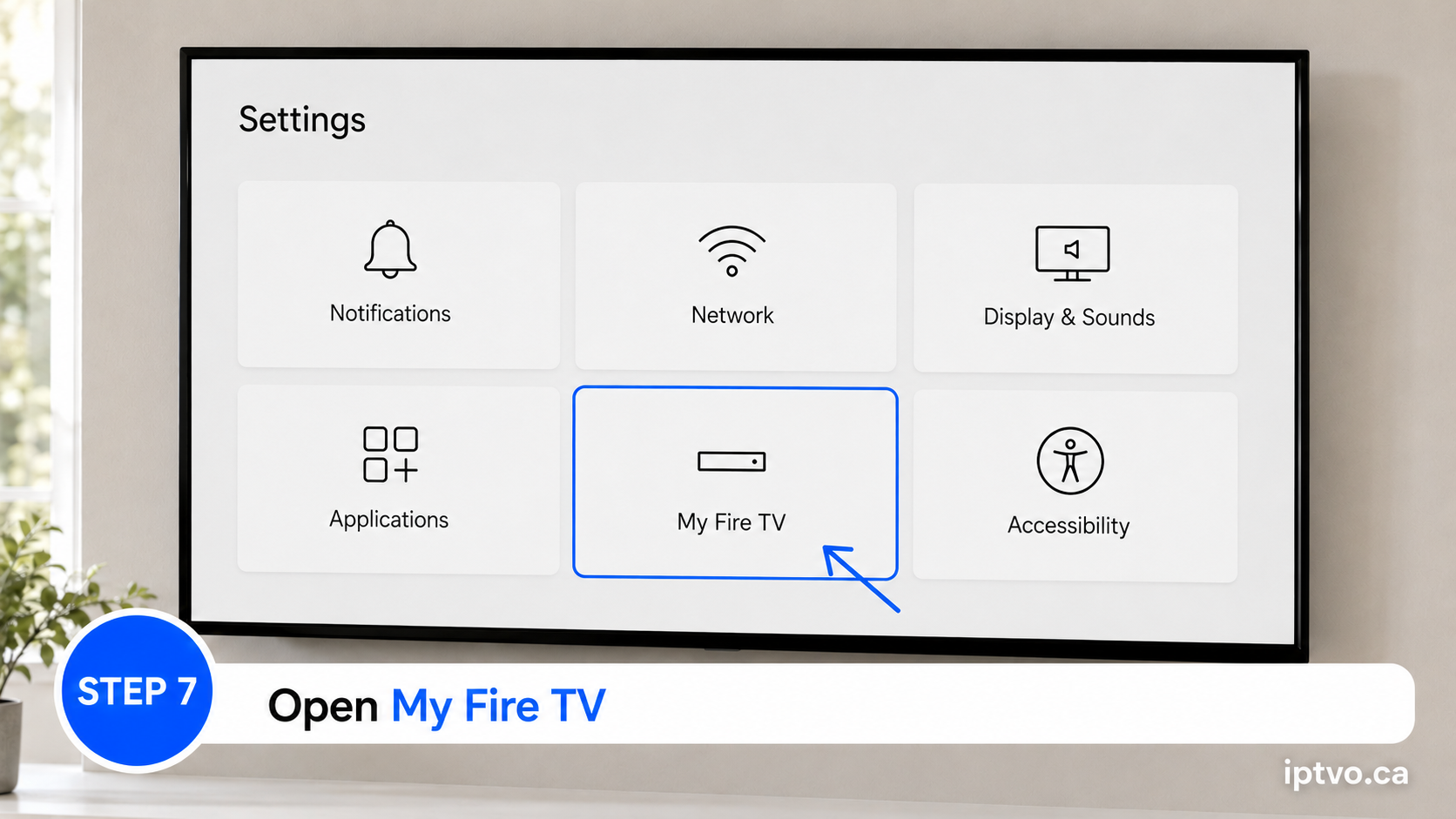
Depending on the model, this option may be named “Device” or “Device & Software.”
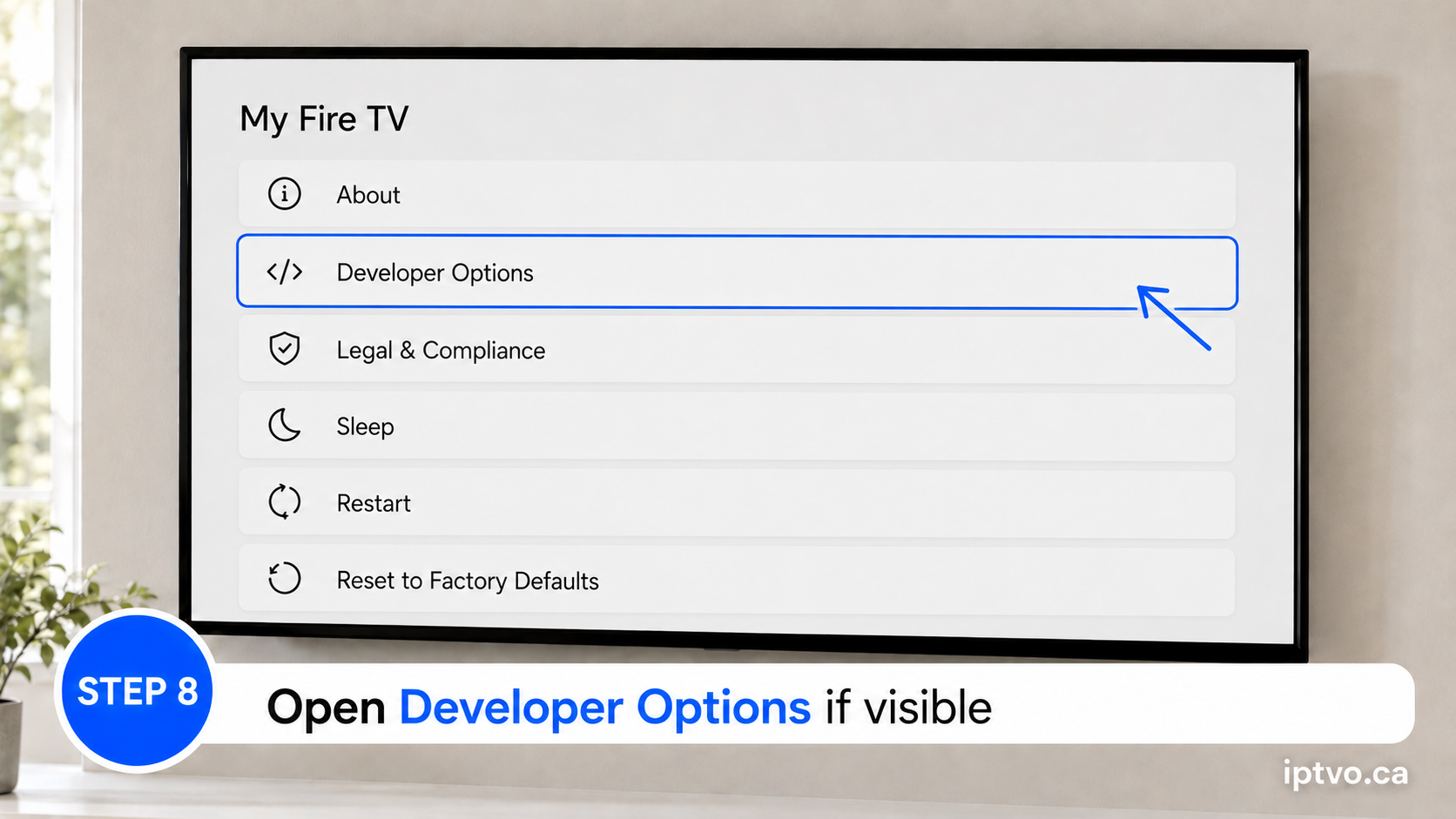
If Developer Options is visible, open it and continue to Step 10.
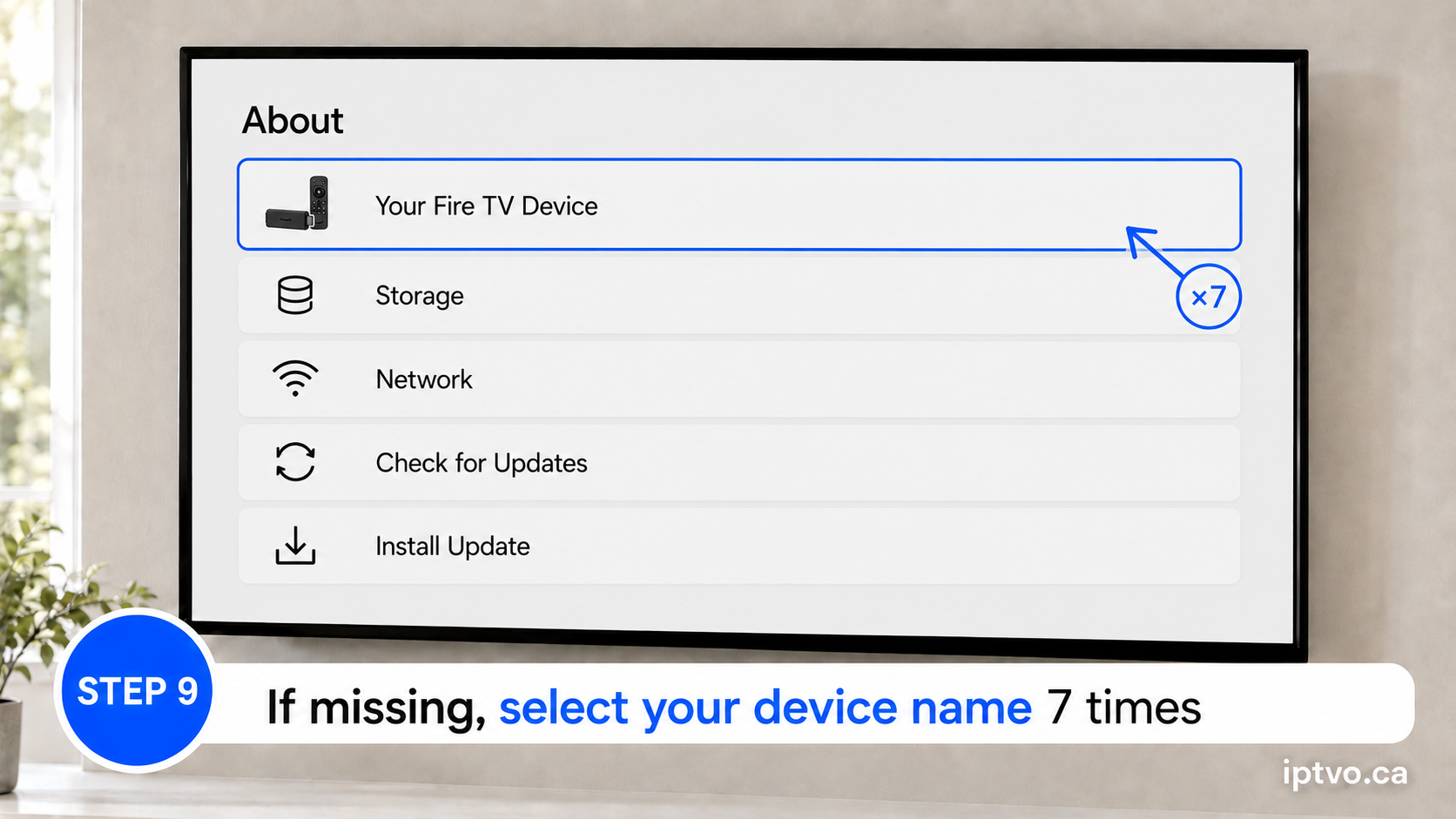
Open About, highlight your device name, and press the centre/select button seven times. Then go back one screen.
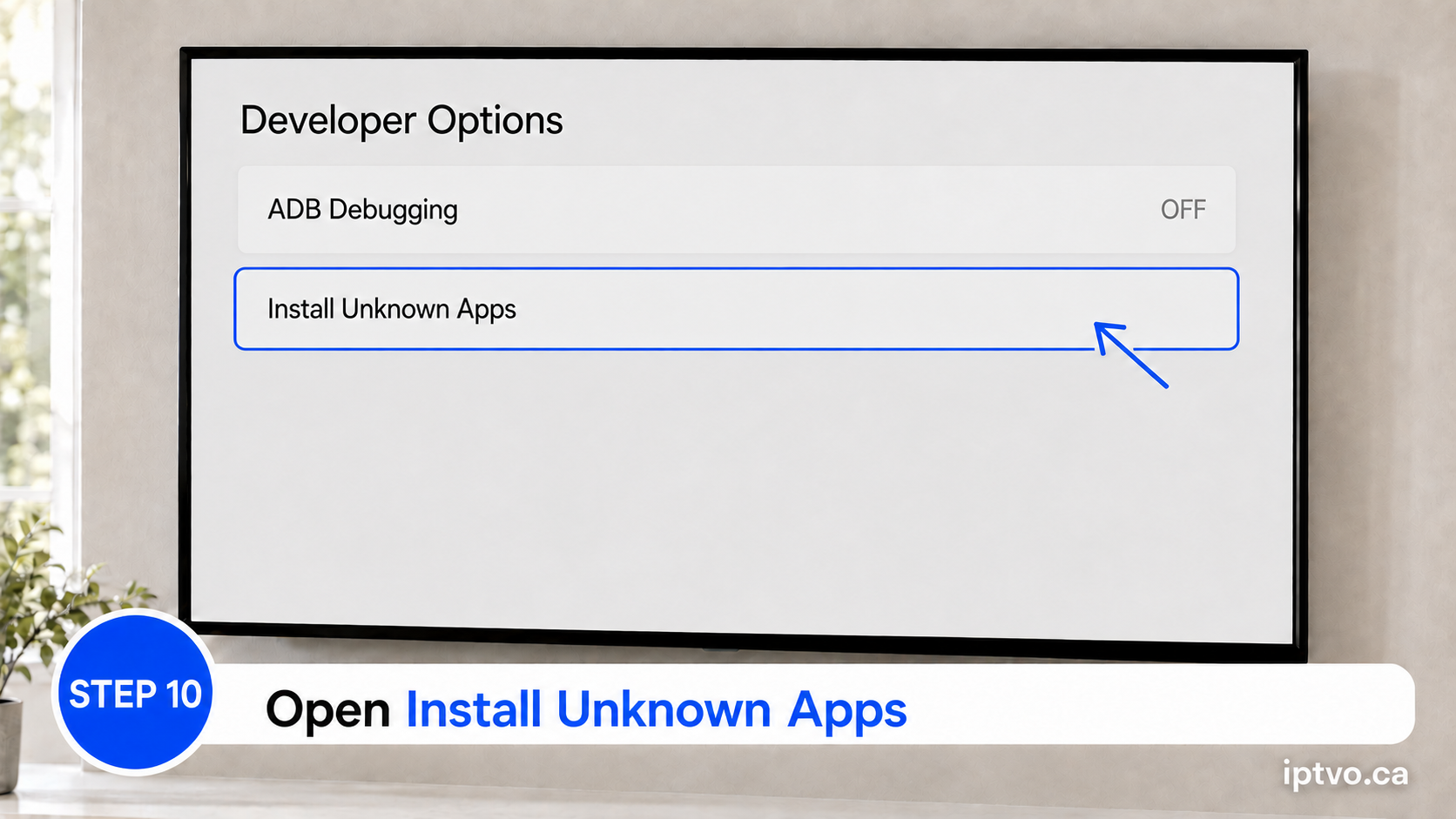
On older Fire OS versions, the option may instead be called “Apps from Unknown Sources.”
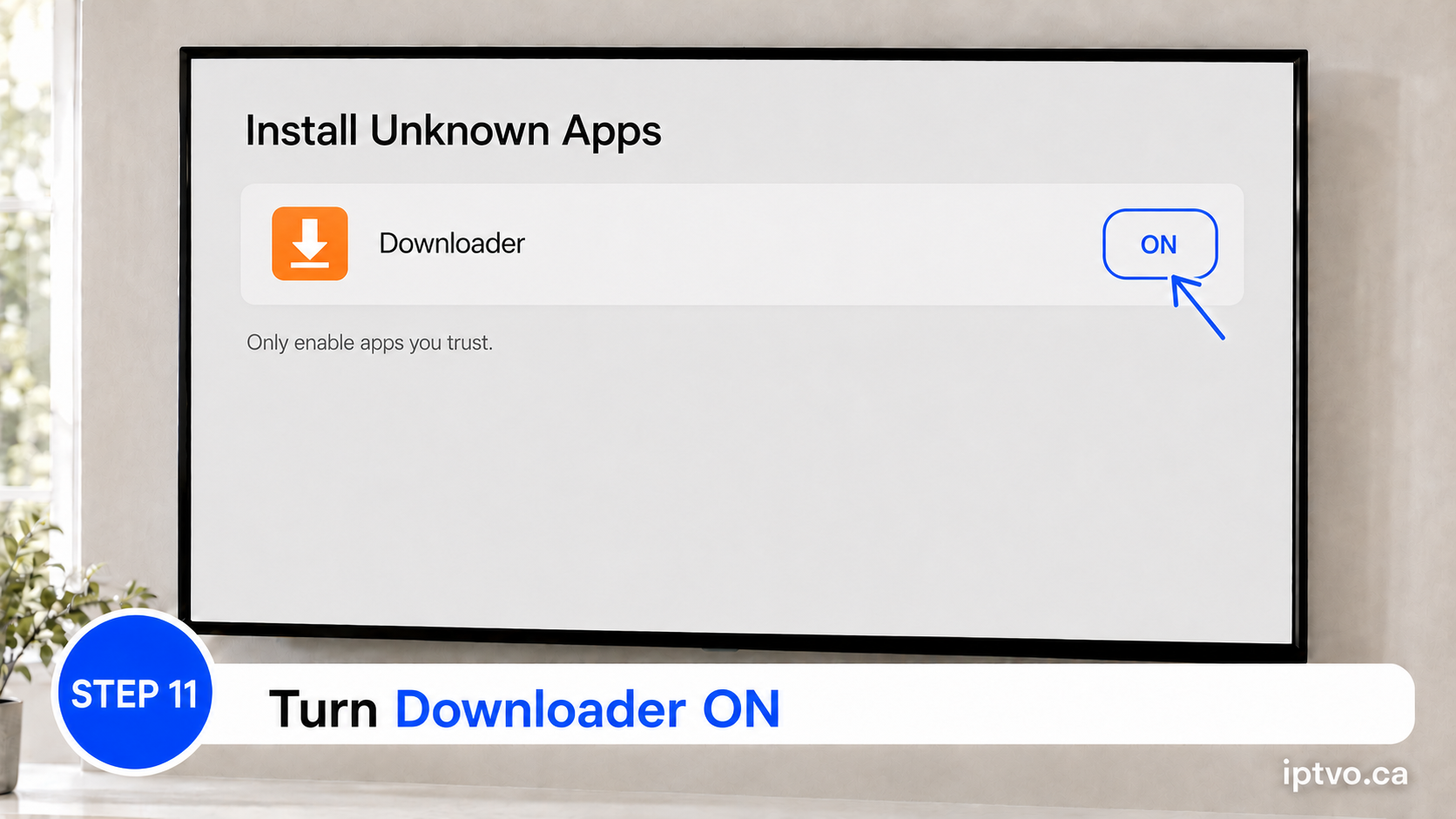
Allow Downloader to install the application file.
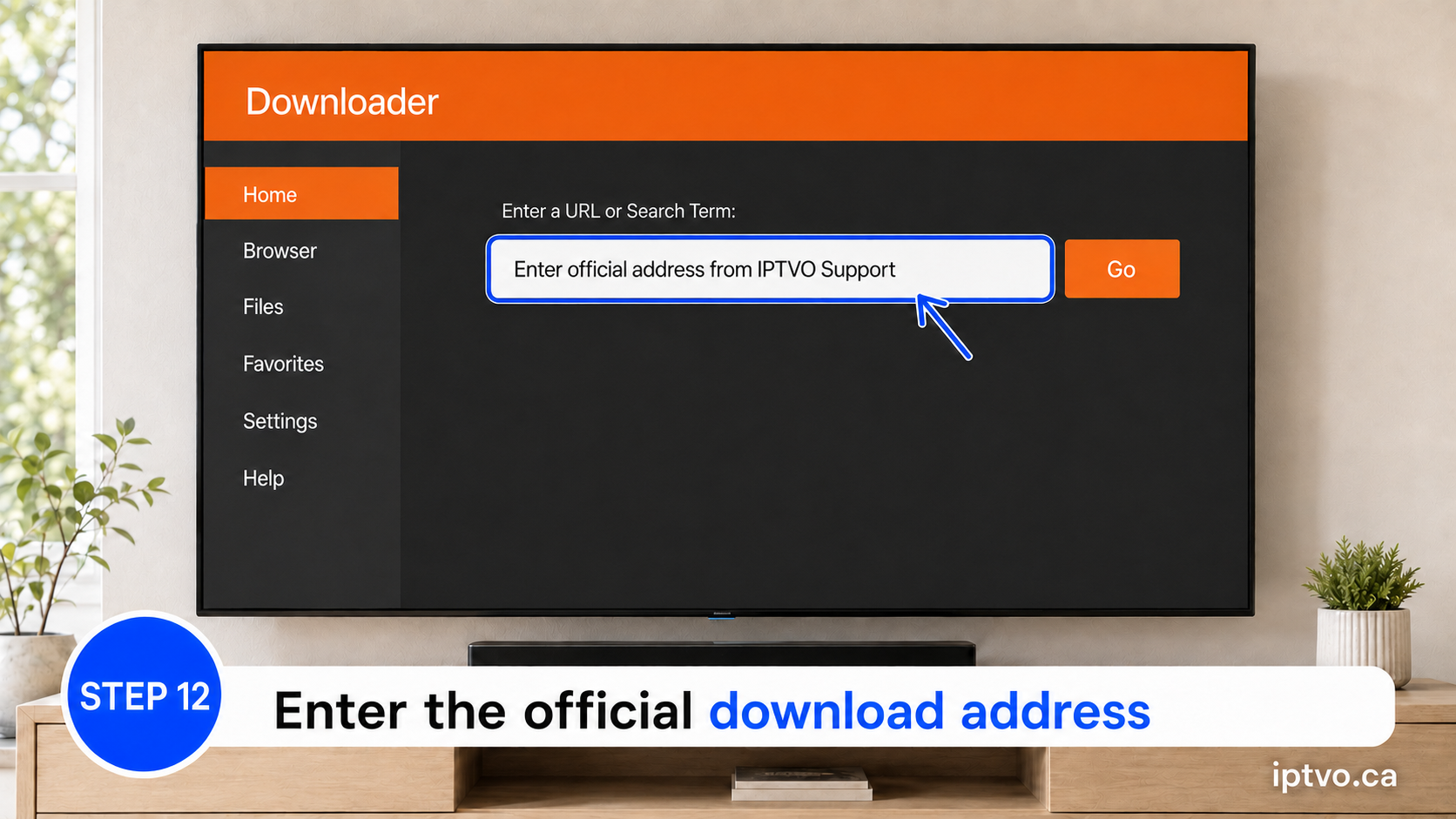
Open Downloader and enter the address supplied by IPTVO Support exactly as provided.
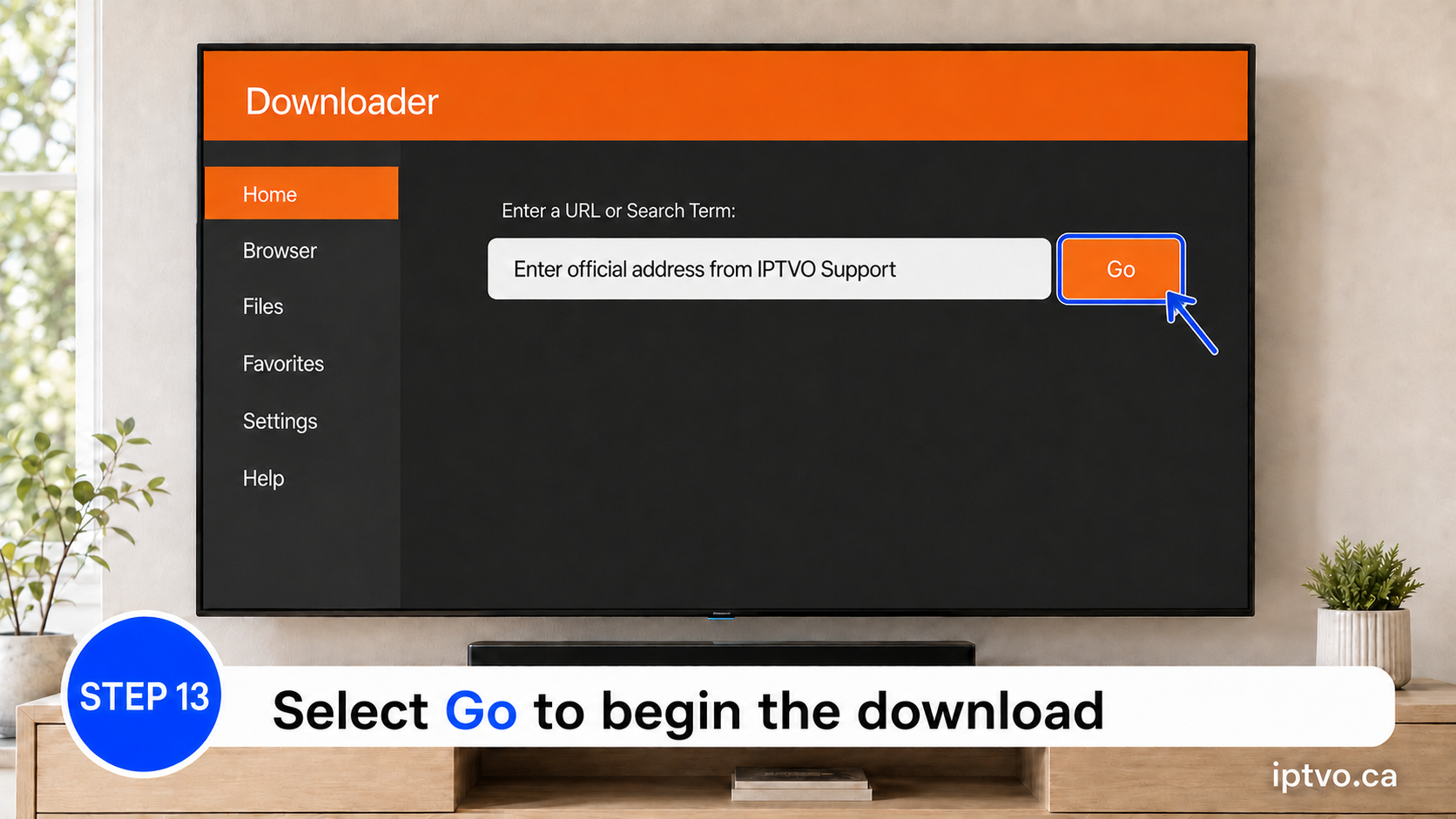
Downloader will retrieve the installation file from the supplied address.
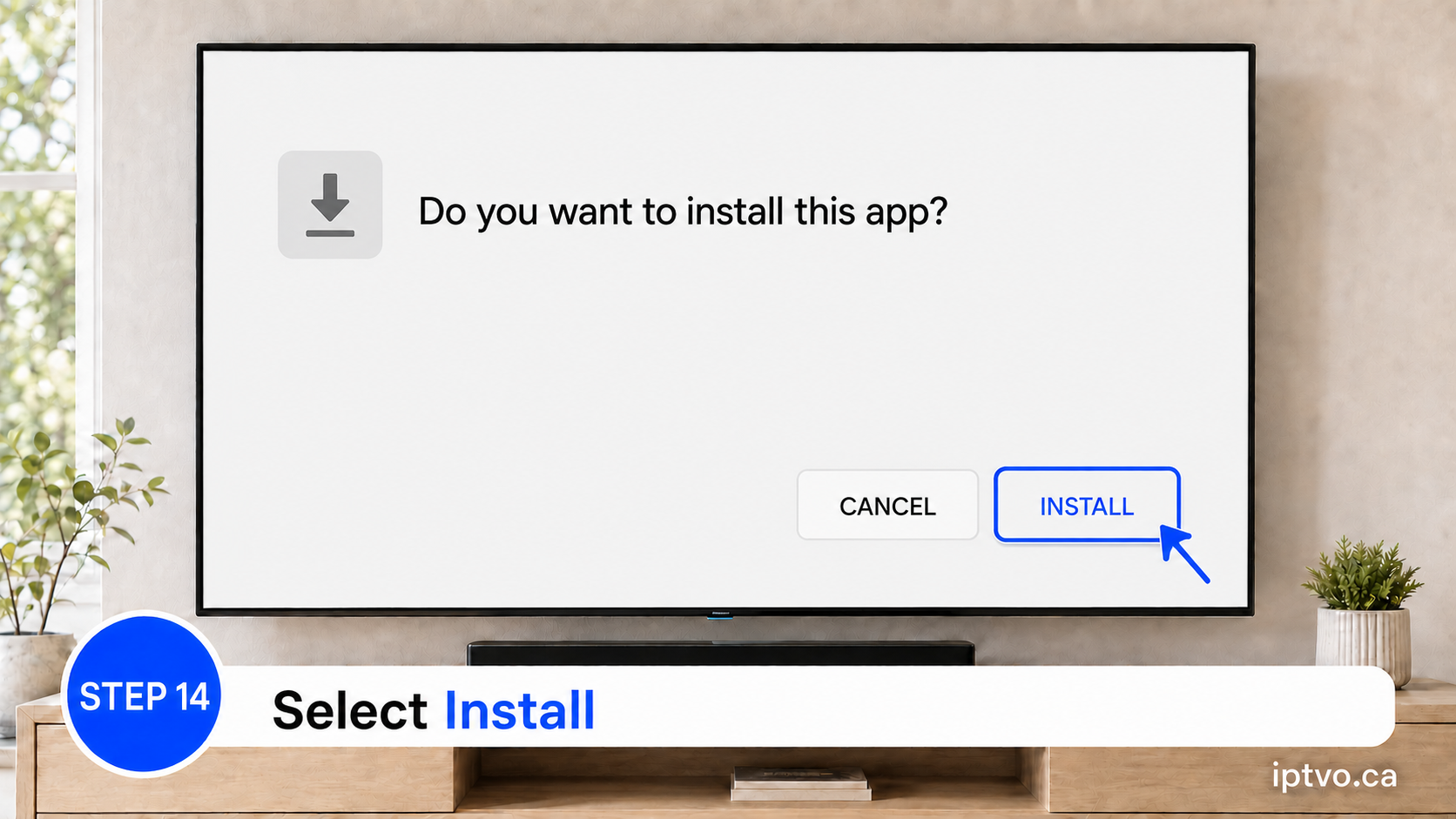
Review the system prompt and begin installation.
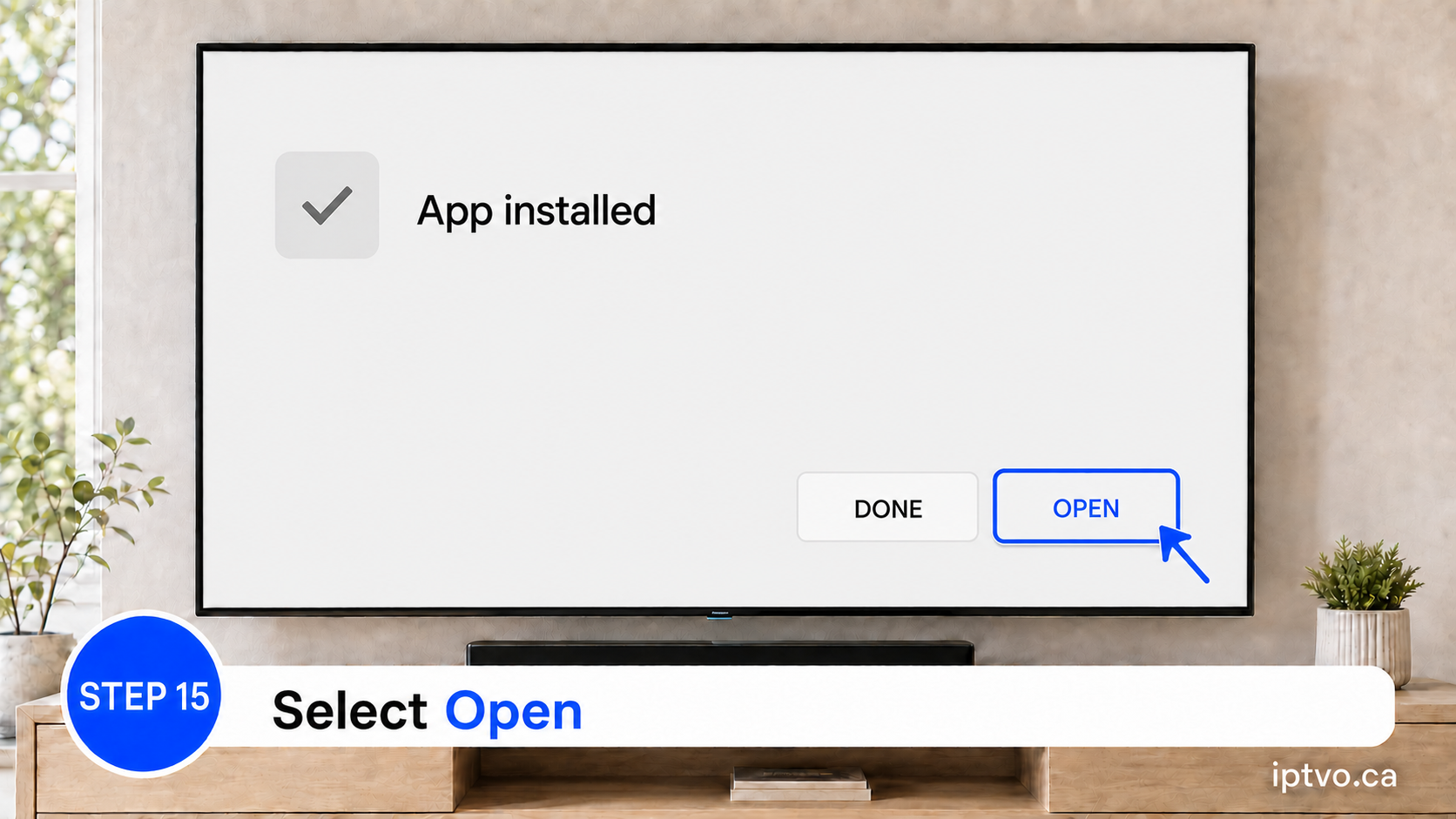
Launch Smarters Pro, then continue to the shared account setup below.
This shorter method is recommended for devices that include Google Play Store, such as Android TV, Google TV and compatible Android boxes.
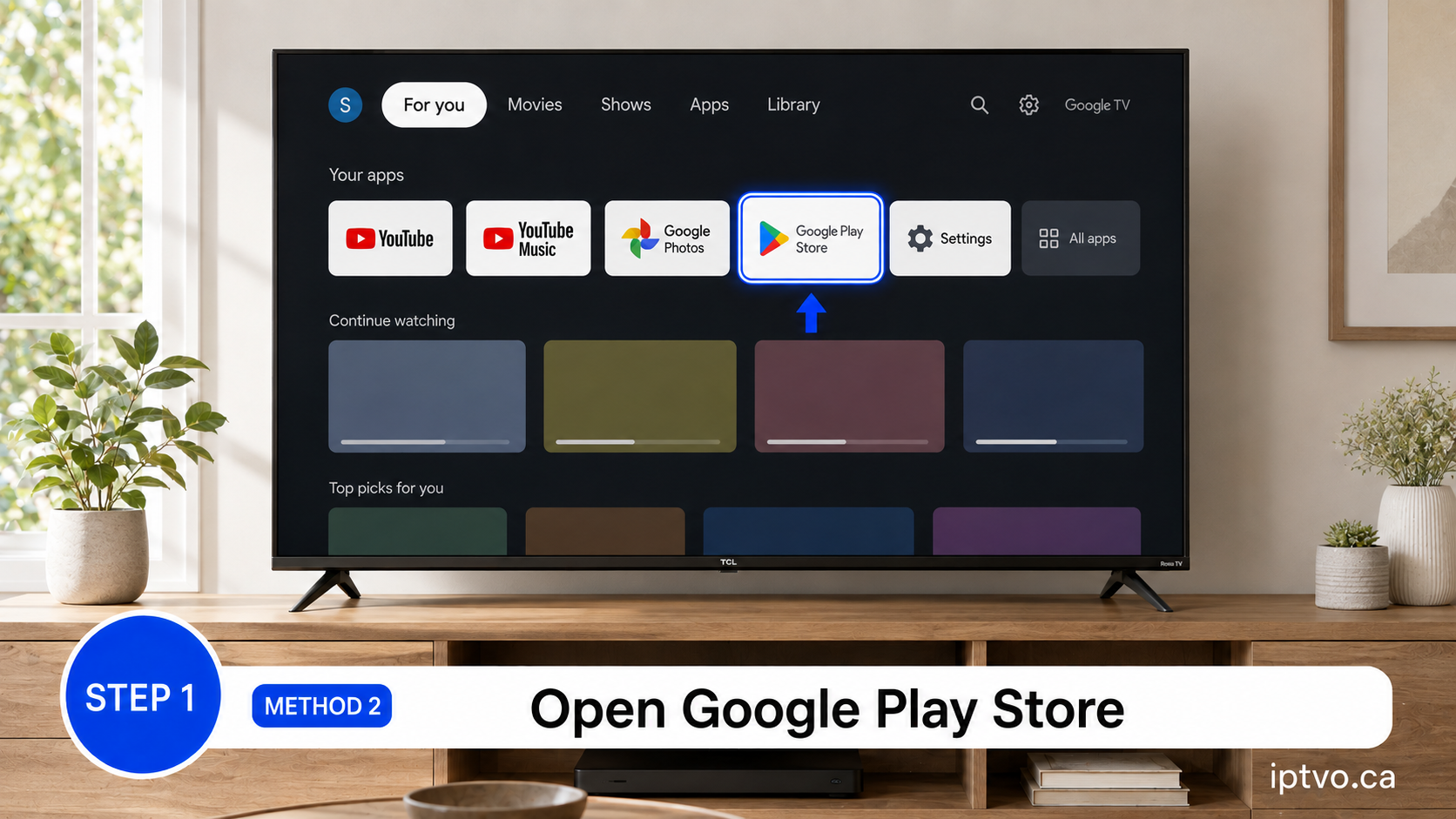
Open the Play Store from your device’s Apps section.
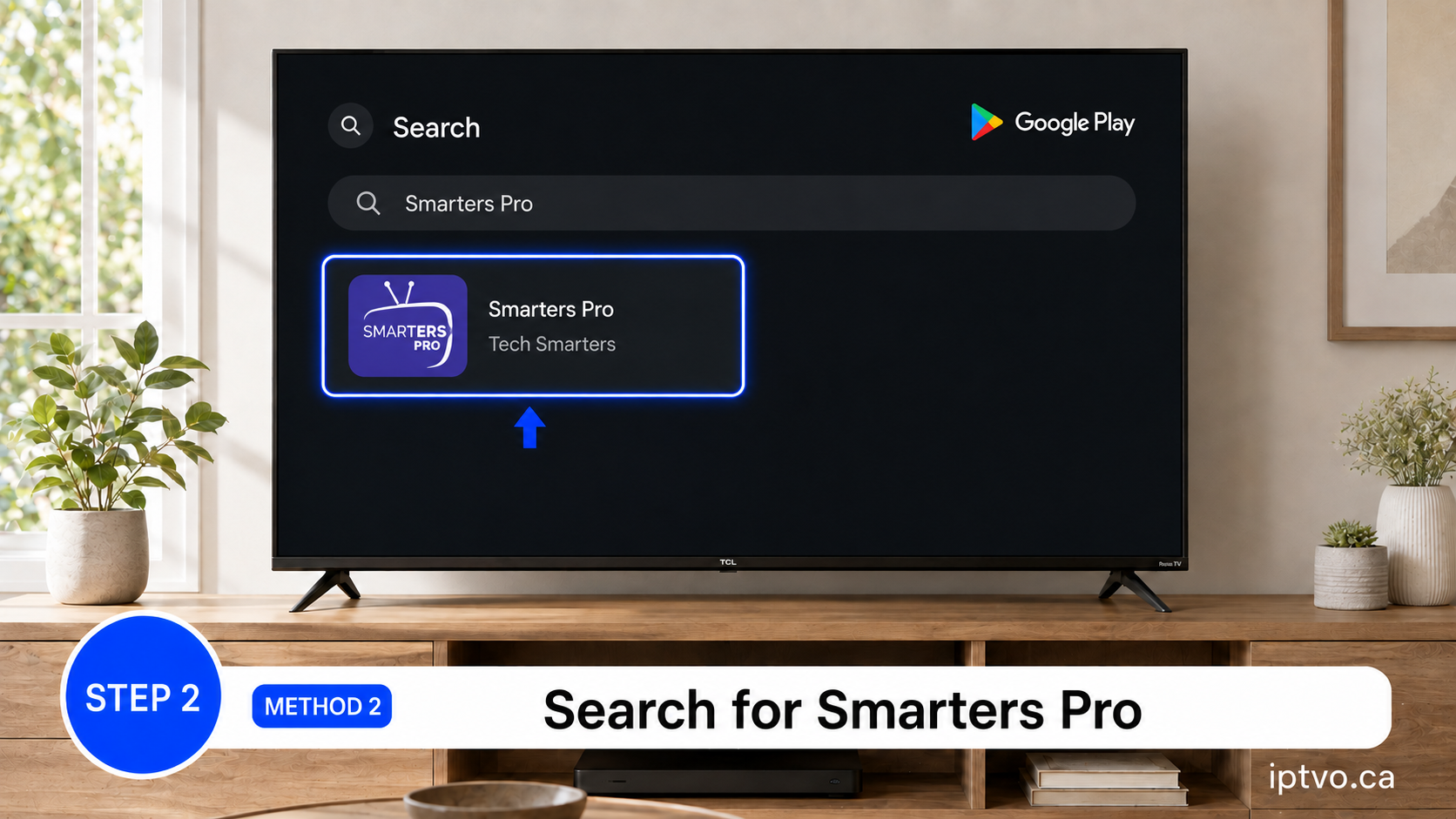
Select “Smarters Pro” and verify that the developer shown is “Tech Smarters.” Avoid similarly named applications from other developers.
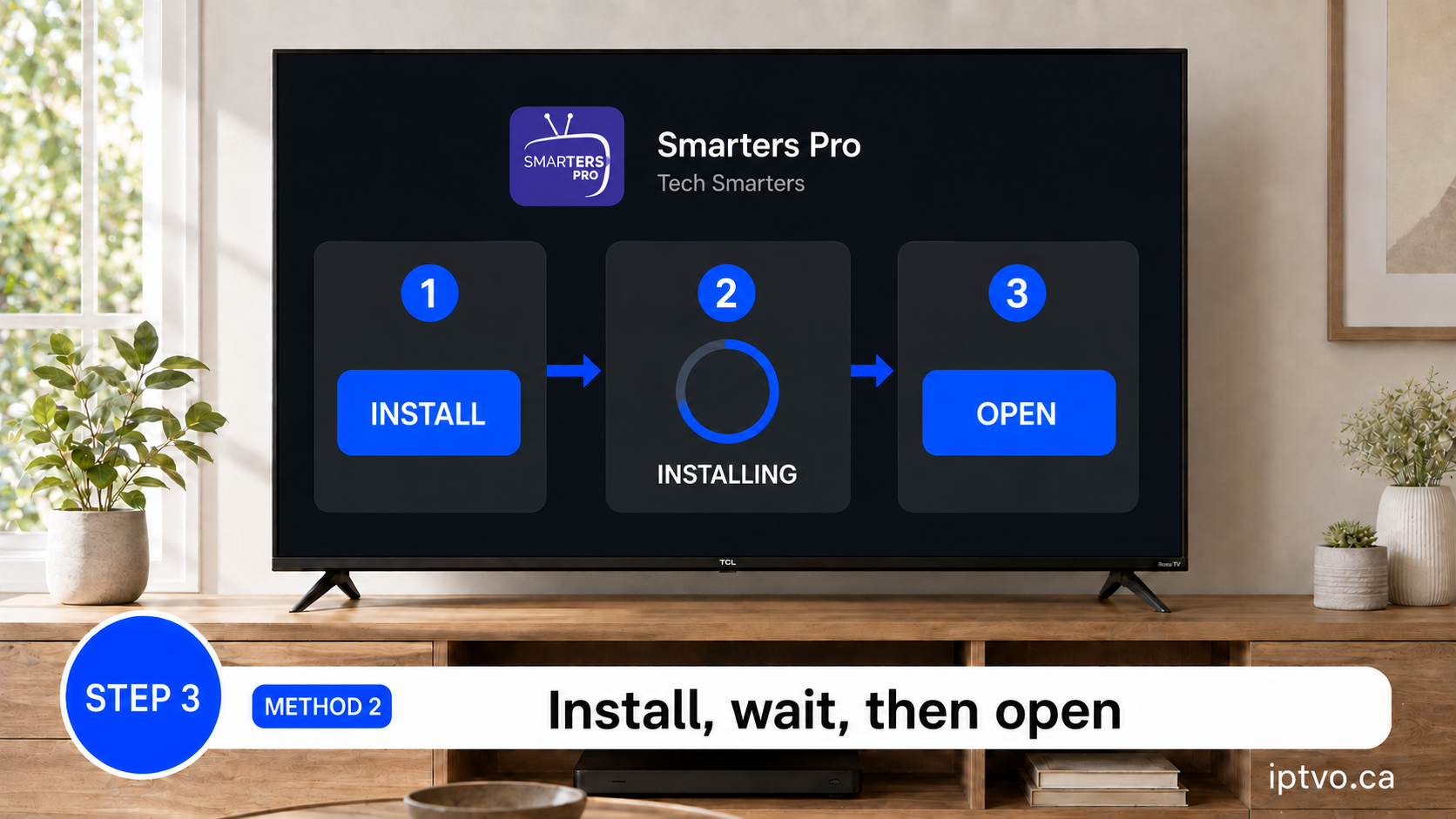
Select Install, wait for completion, then select Open. Continue to the shared account setup below.
Use the MYTVOnline application included with compatible Formuler and Dreamlink boxes. The exact menu name may differ slightly by device model and software version.
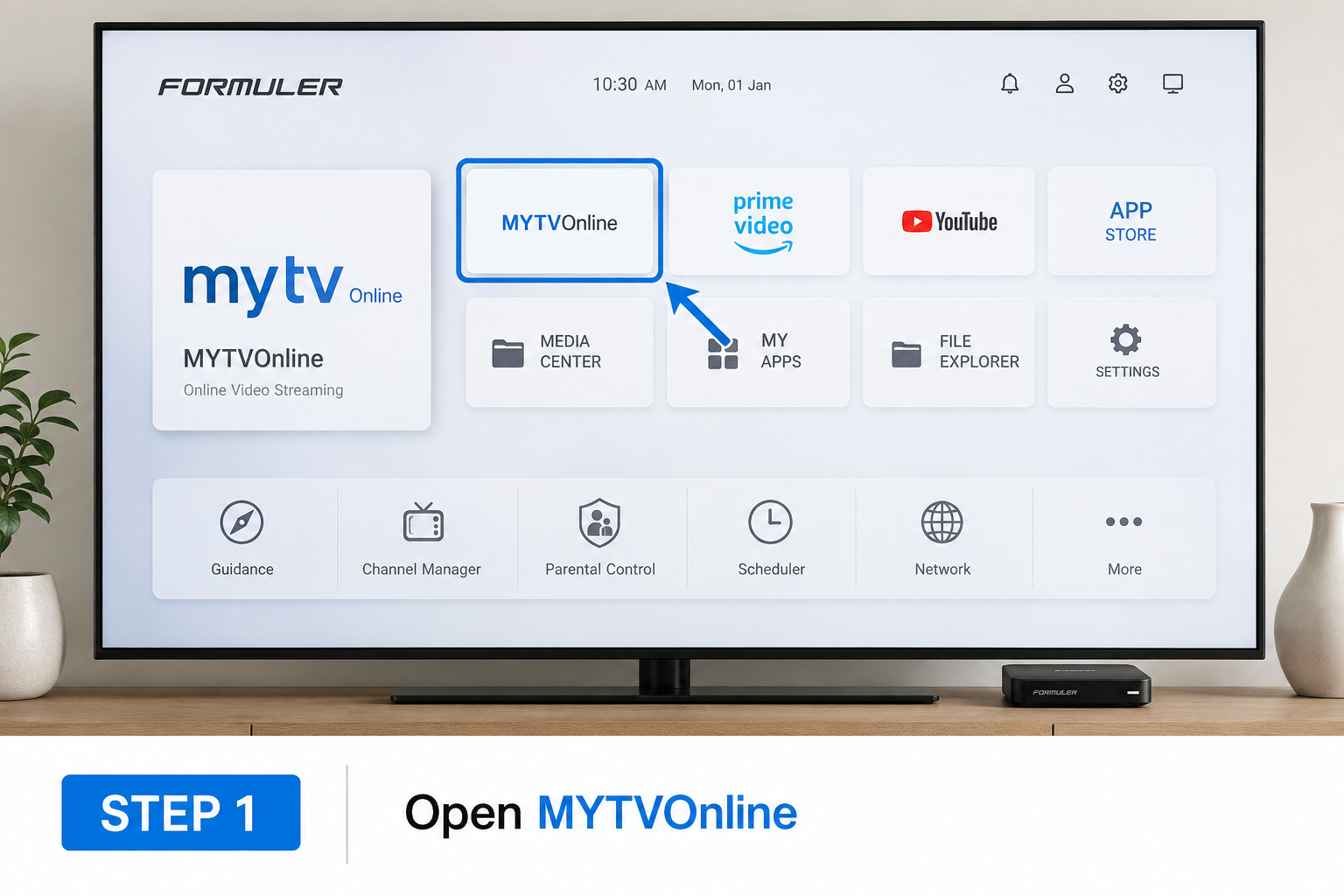
From the device home screen, open MYTVOnline 3. Some compatible models may display a different MYTVOnline version.
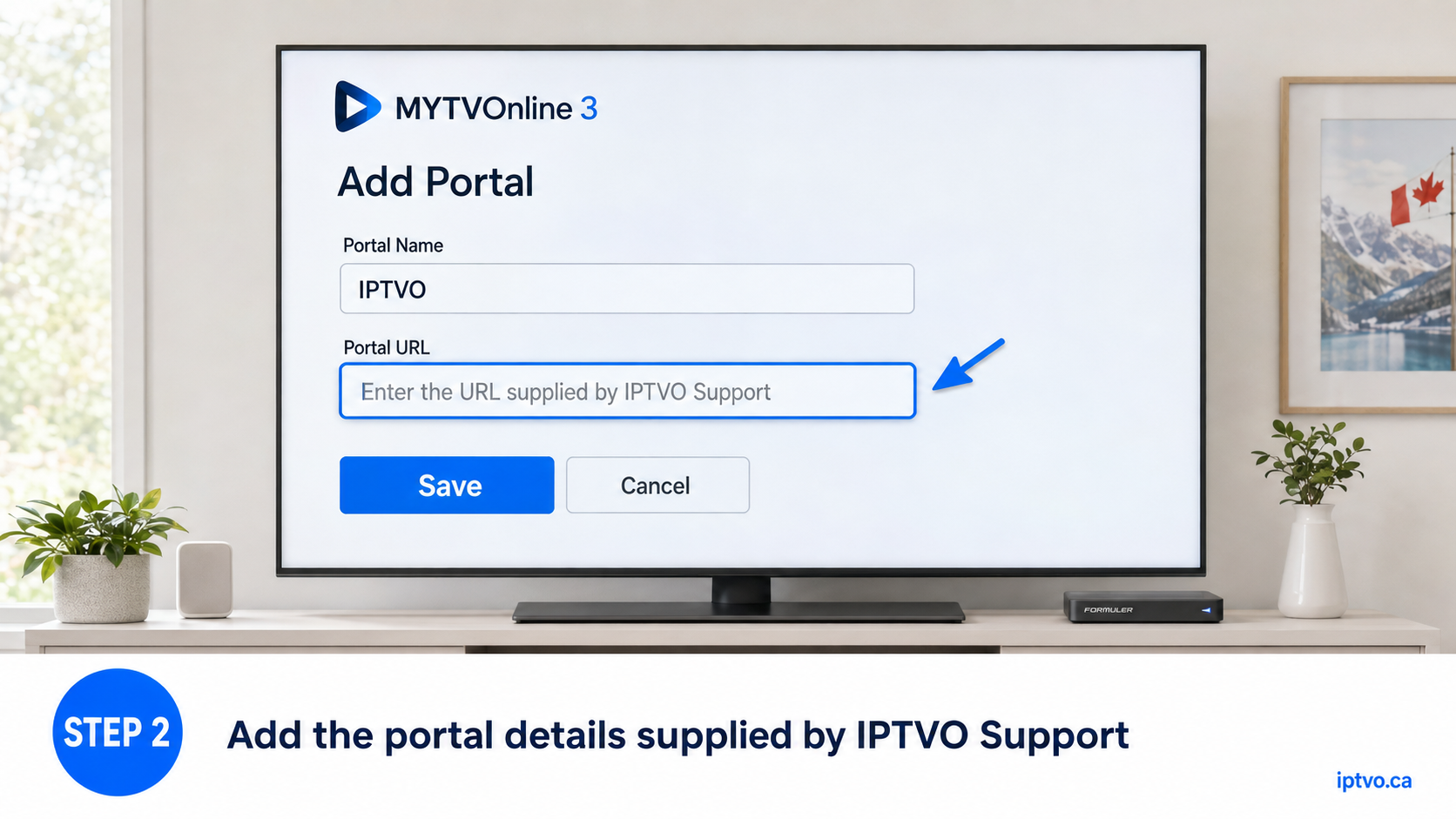
Select Add Portal. Use IPTVO as the portal name, then enter the complete portal URL supplied privately by IPTVO Support.
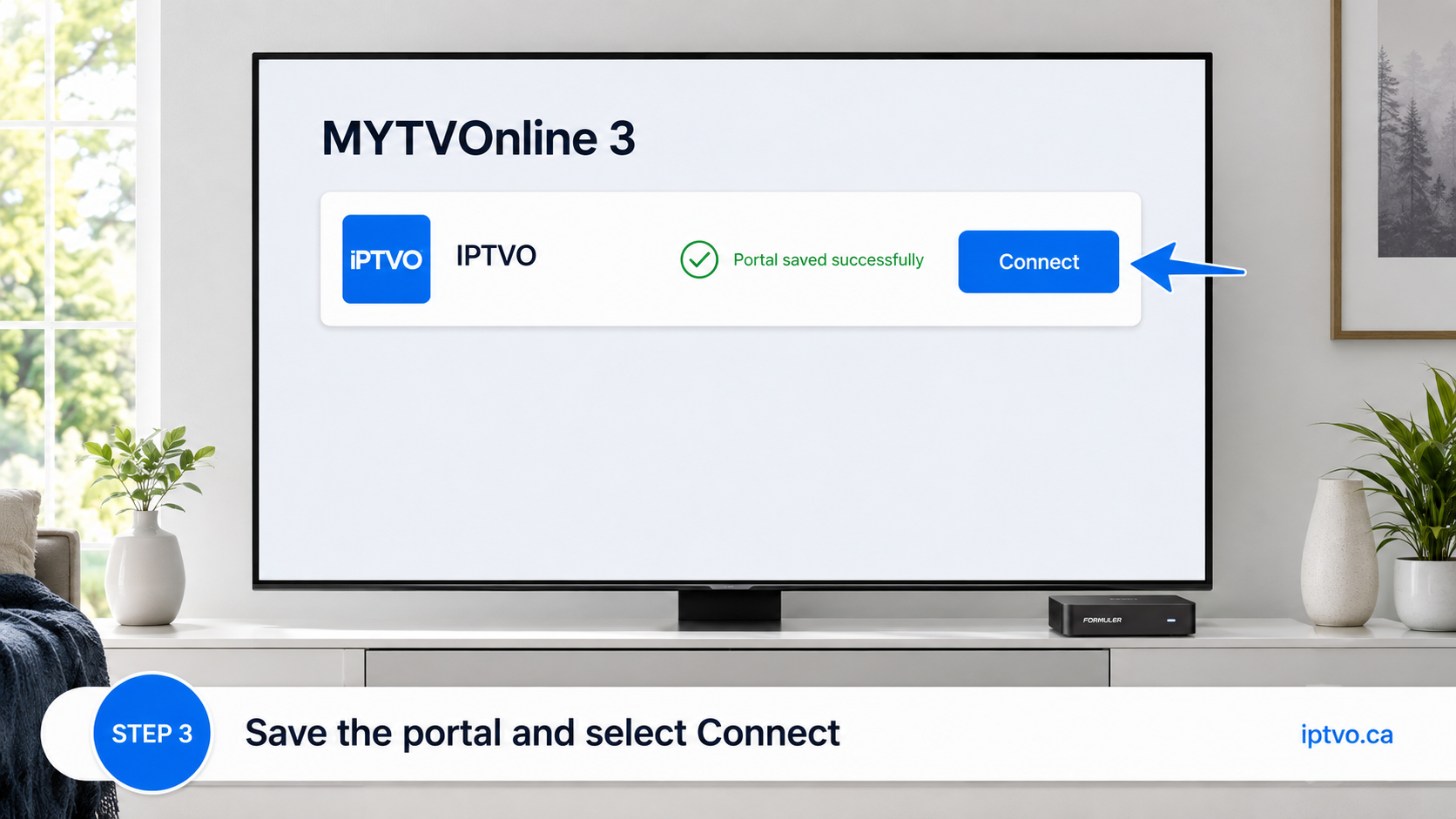
Check the portal address carefully, select Save, then choose Connect. Keep the application open while your authorized content loads.
Choose the instructions for your television. Install only from the official app store built into the TV.
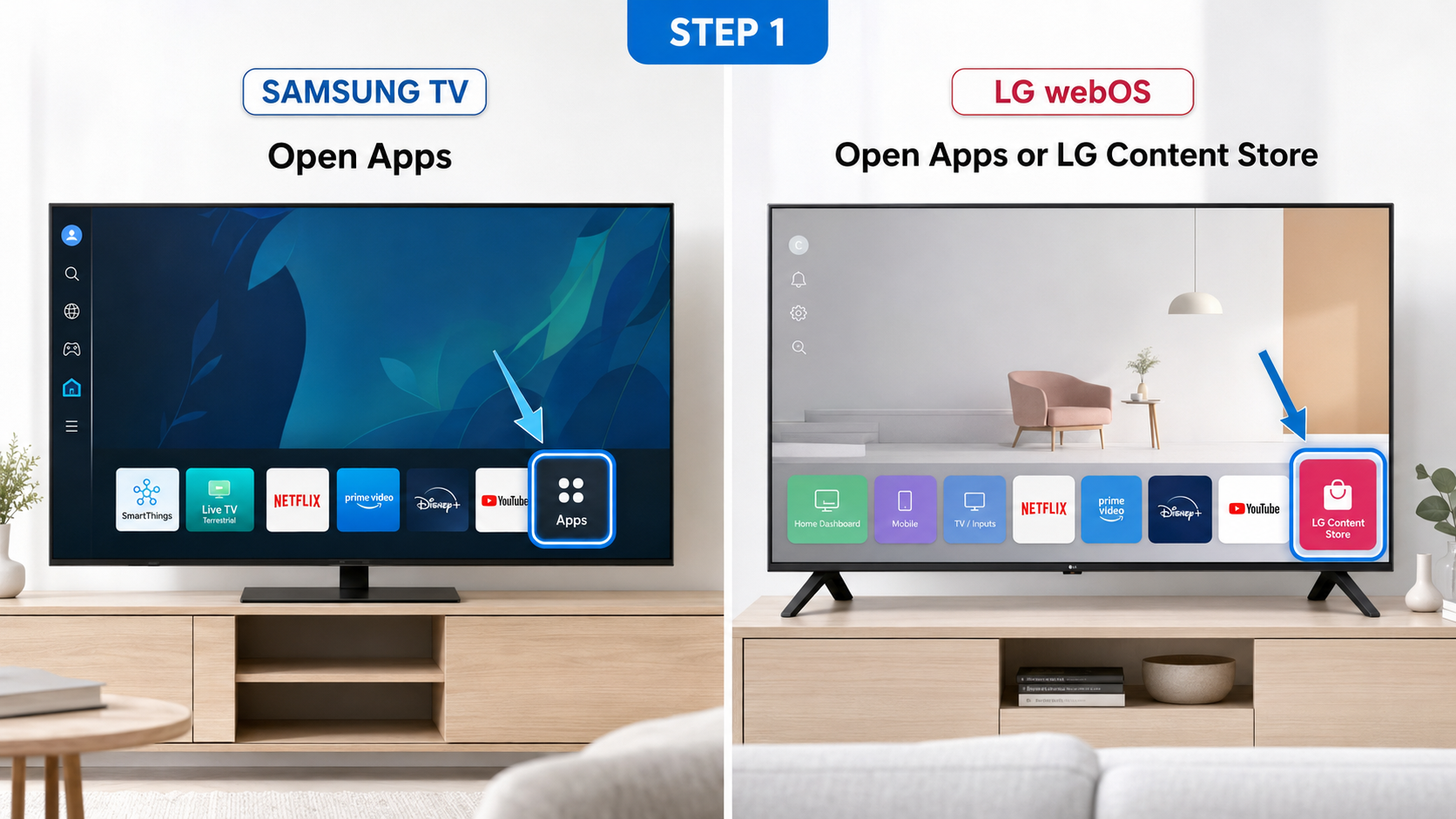
On Samsung, open Apps. On LG webOS, open Apps or LG Content Store. Menu placement can vary slightly by television model.
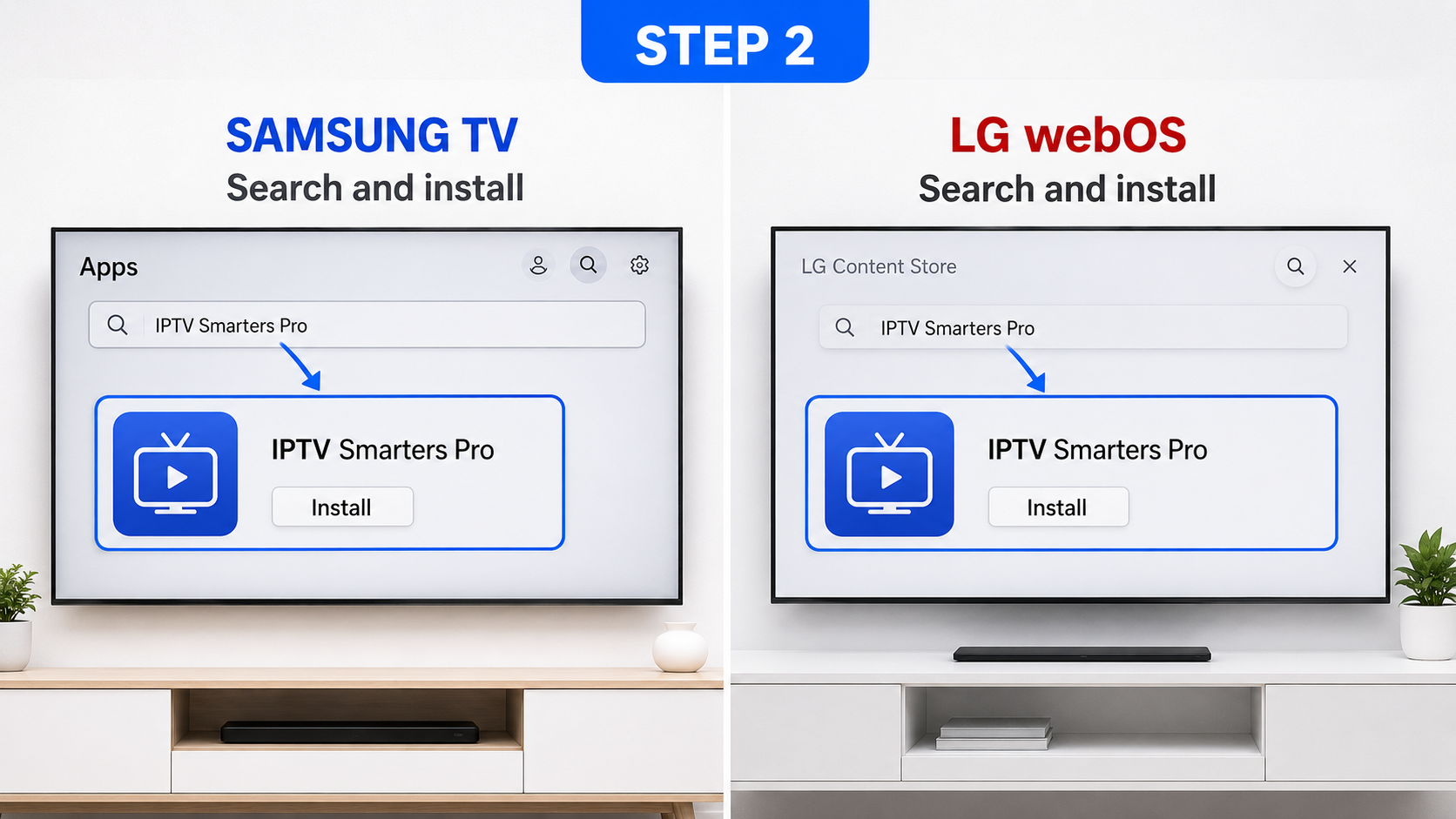
Search for IPTV Smarters Pro, verify the official app-store listing, select Install, and open the app when installation finishes.
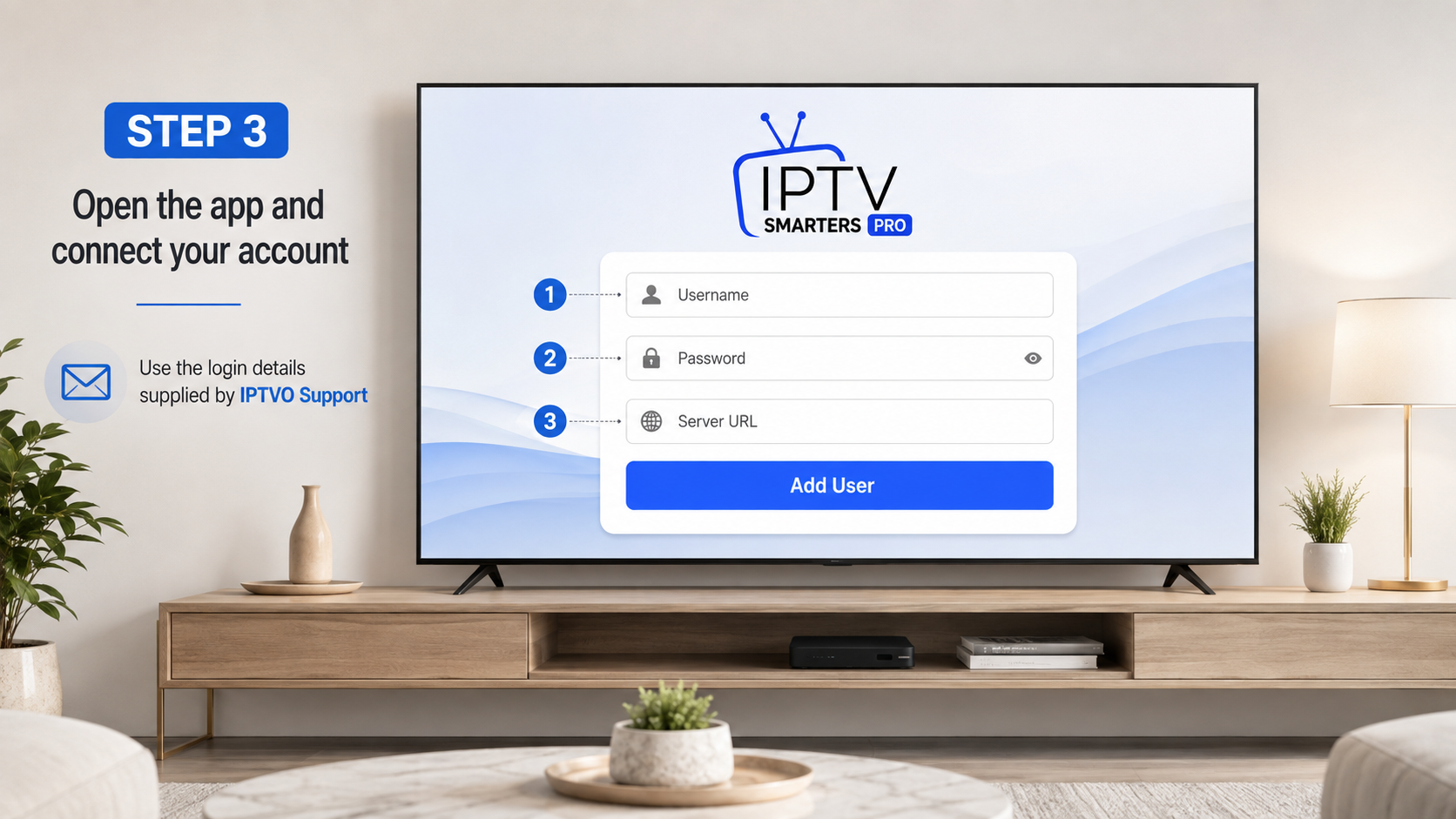
Open the app and enter the username, password and server URL supplied privately by IPTVO Support. Never share these details publicly.
Install the verified Smarters Pro application from the Apple App Store, then connect it using the login details supplied privately by IPTVO Support.
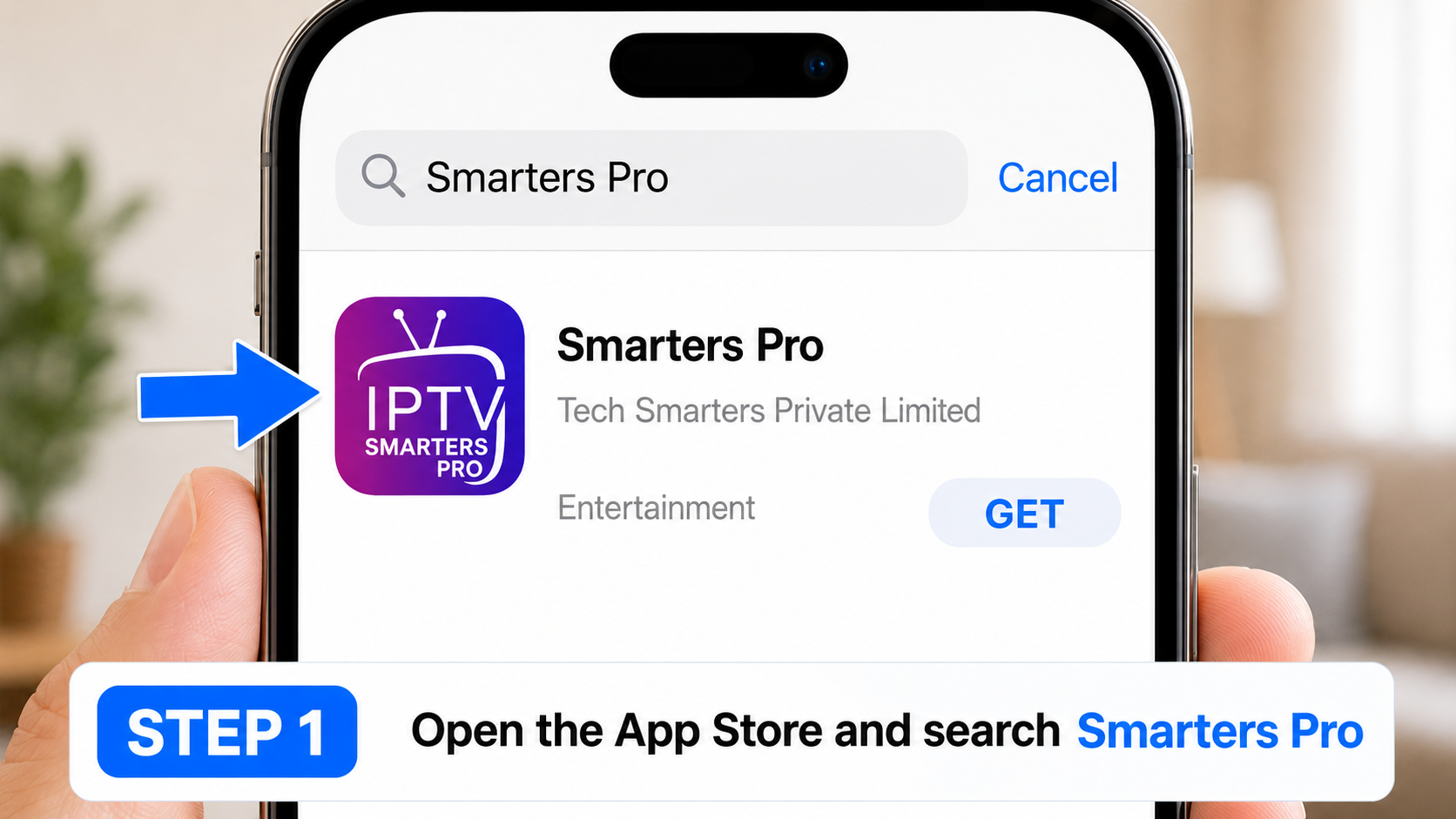
Open the App Store, search for Smarters Pro, and confirm the developer is Tech Smarters Private Limited.
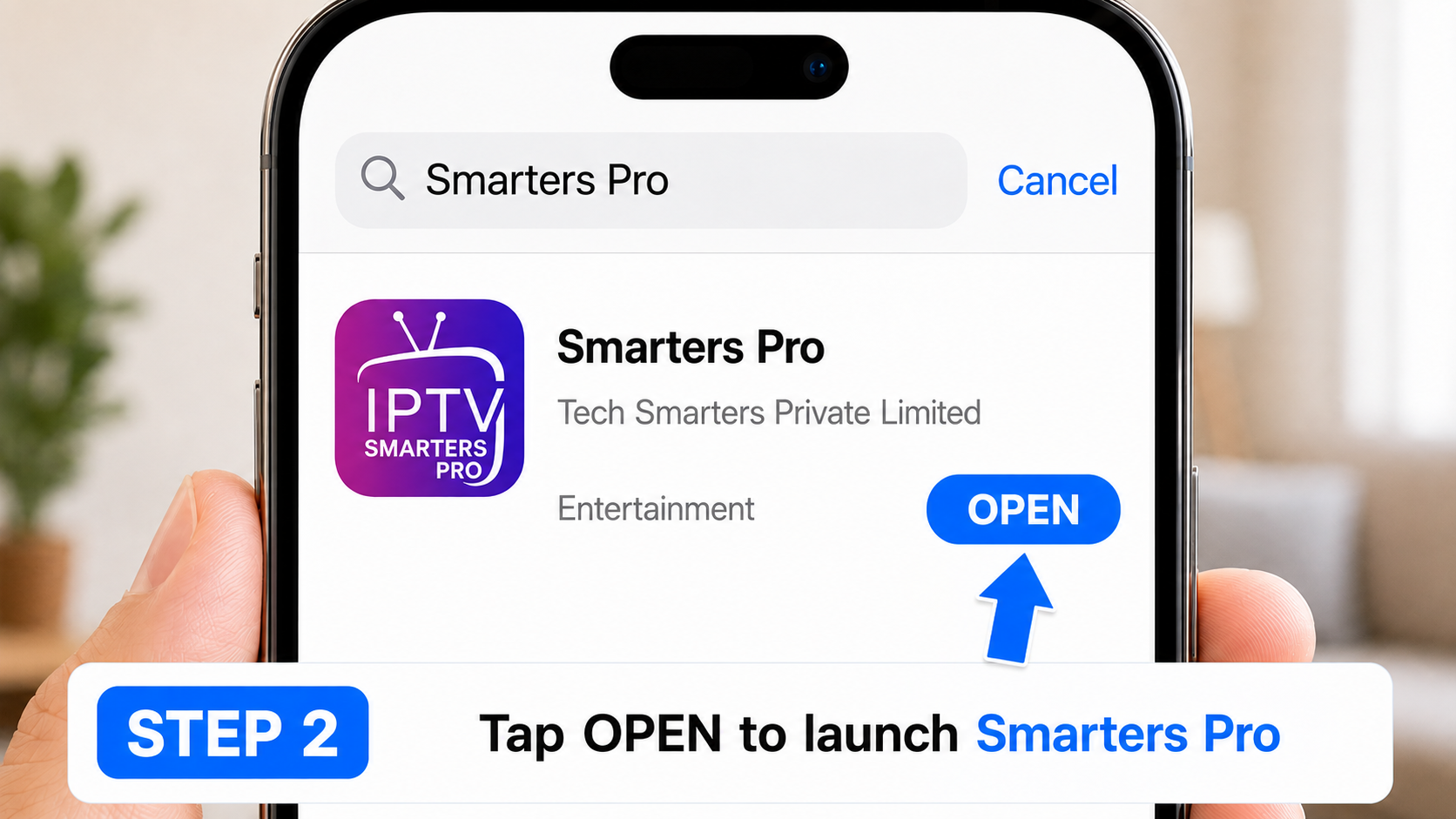
Select Get to install the application. When installation finishes, select Open.
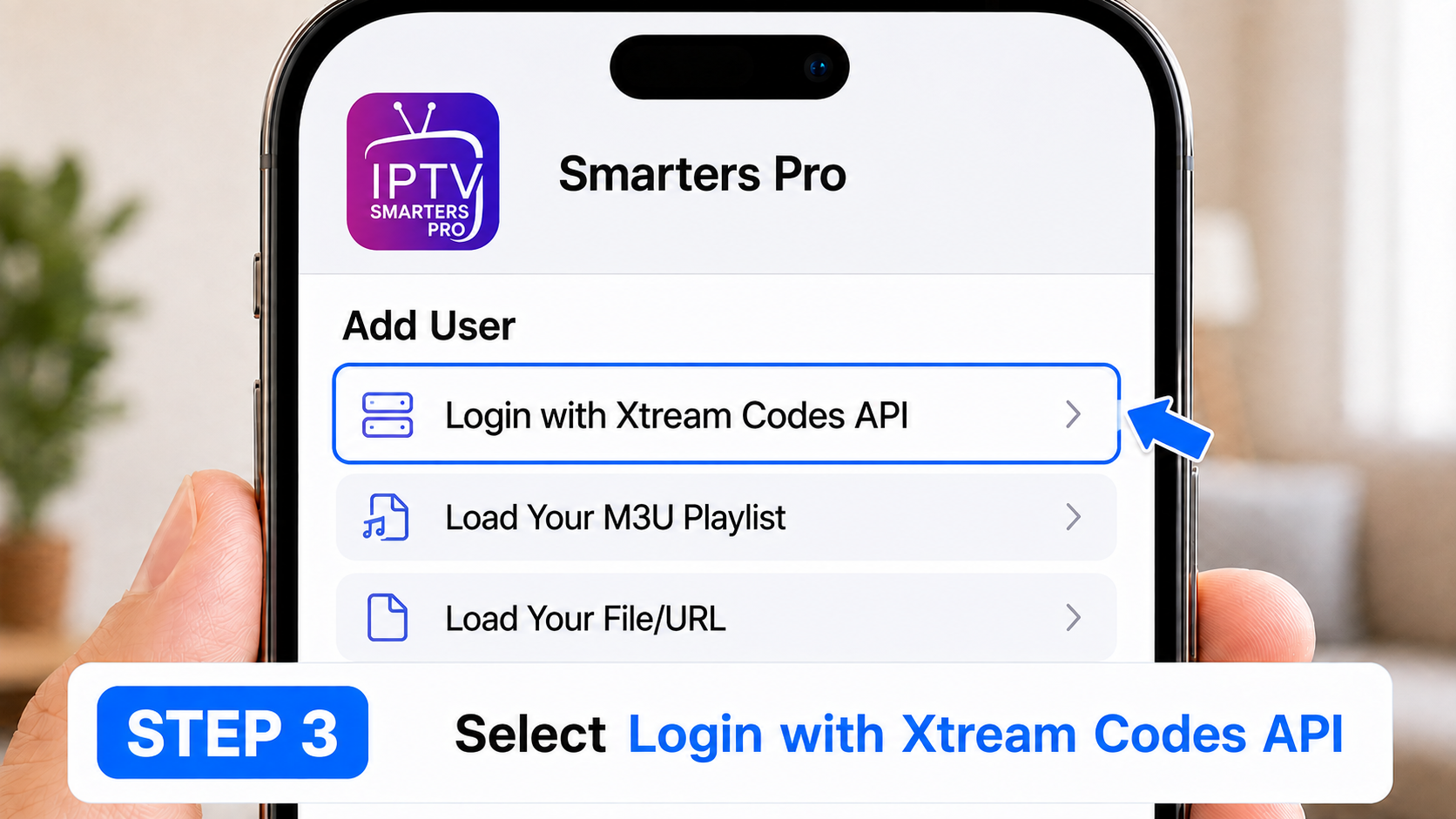
From the Add User screen, select Login with Xtream Codes API.
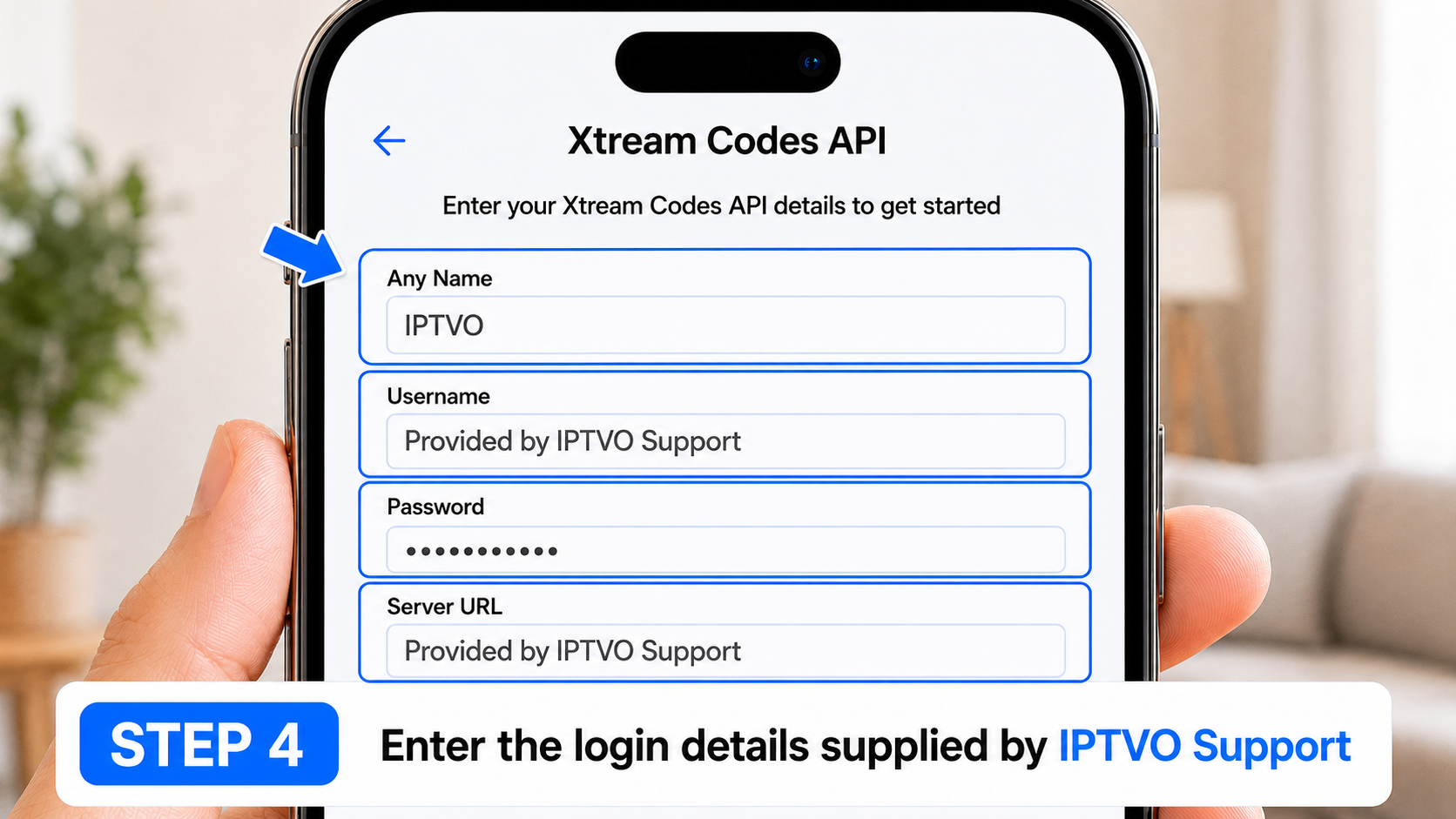
Enter a recognizable account name, then add the username, password and server URL supplied privately by IPTVO Support.
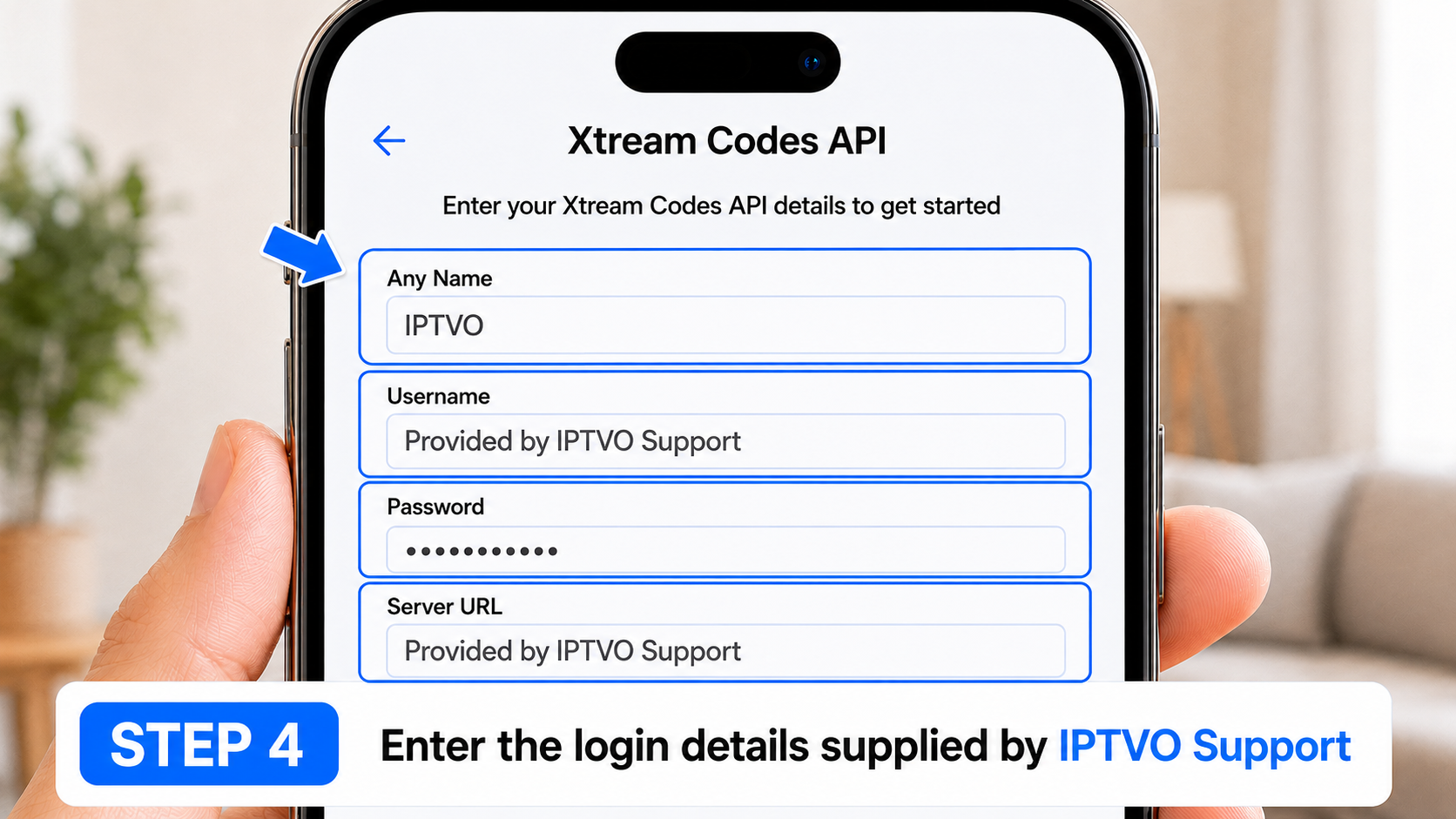
Check every field, select Add User, and keep the application open while your authorized content loads.
Choose the instructions for your computer. Desktop releases may be labelled Beta, and filenames or screen layouts may change when the application is updated.
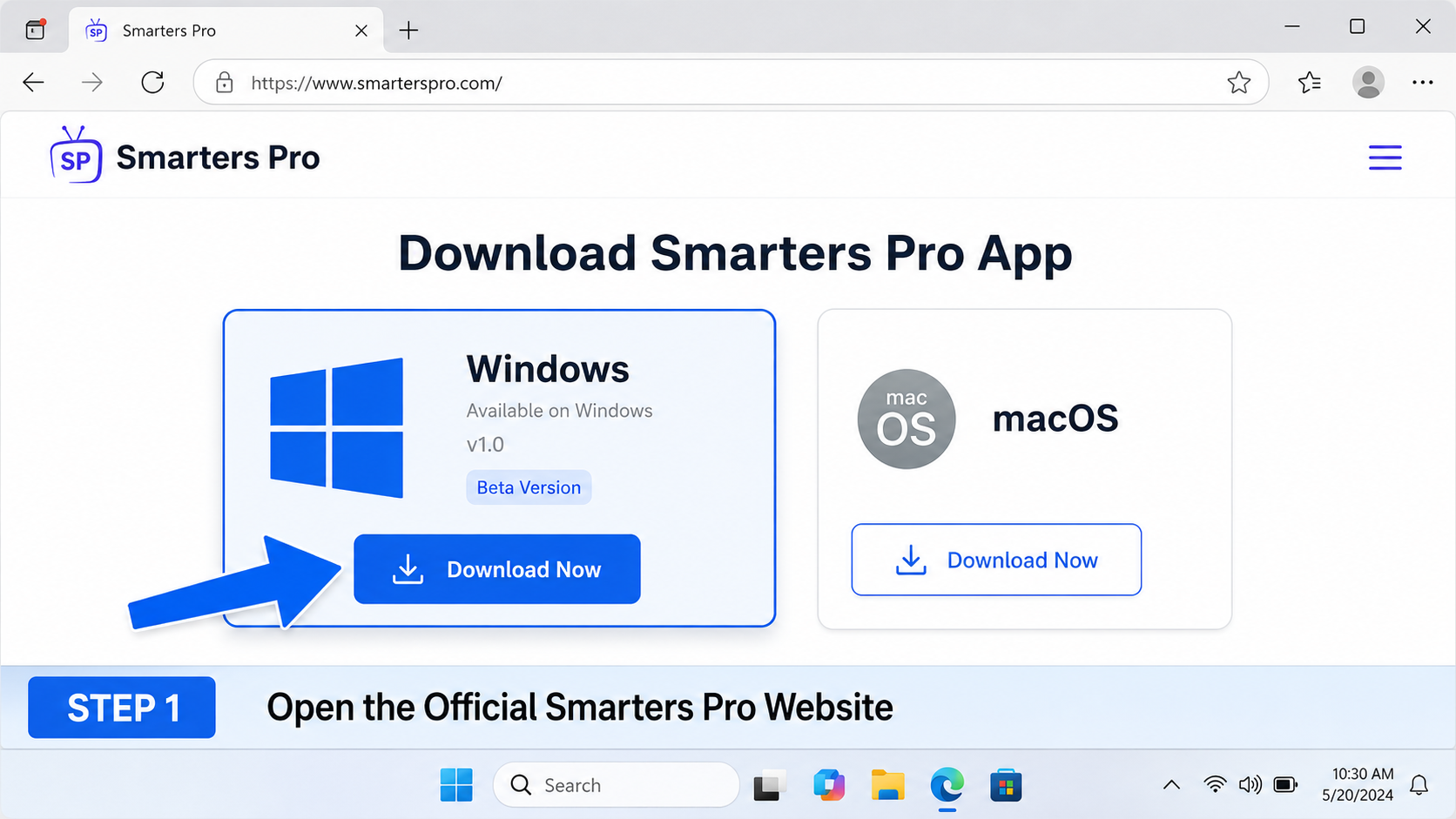
Visit the official Smarters Pro website, choose Windows, and download the official setup file.
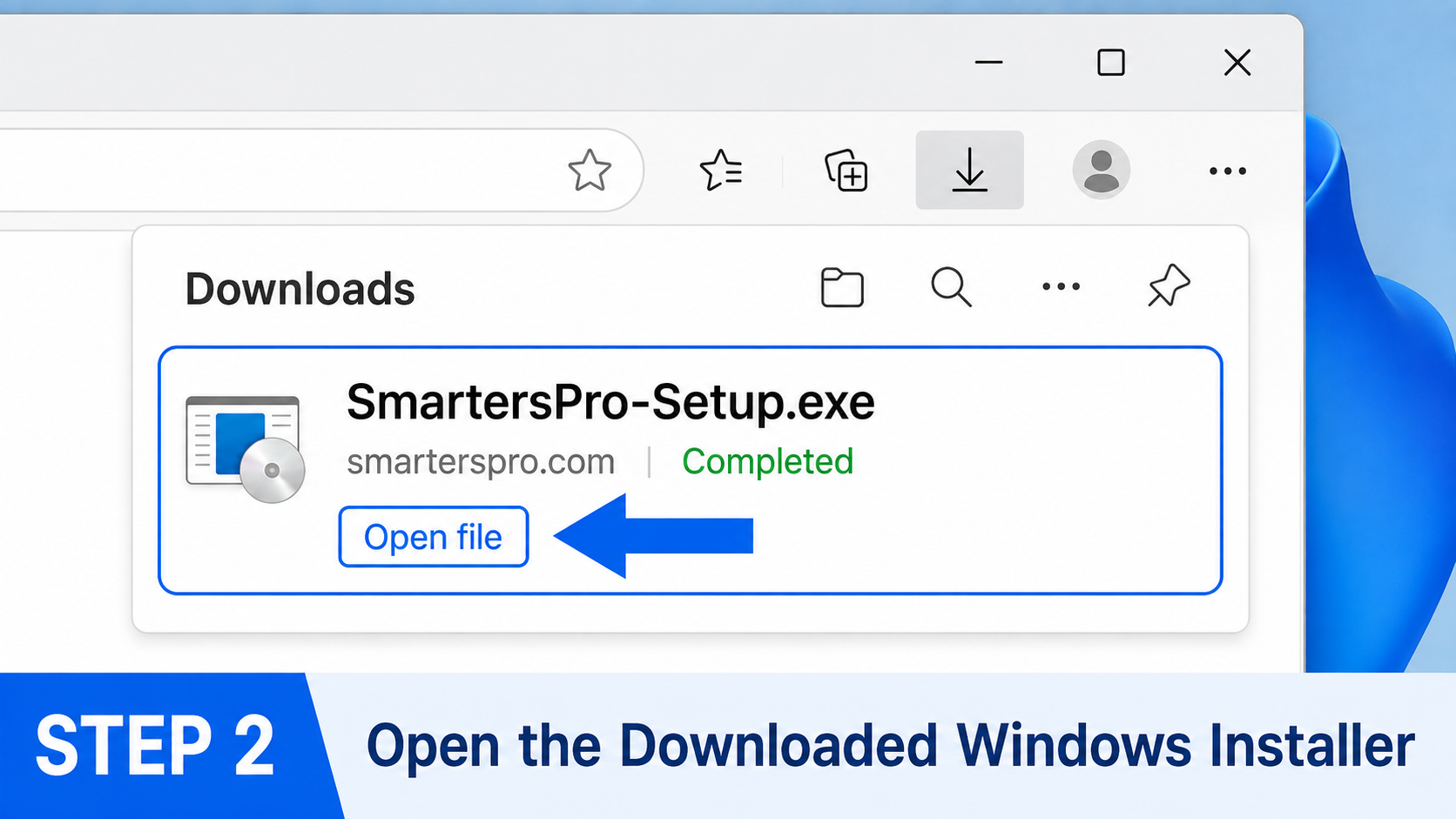
Open your Downloads folder and double-click the official Smarters Pro .exe installer.
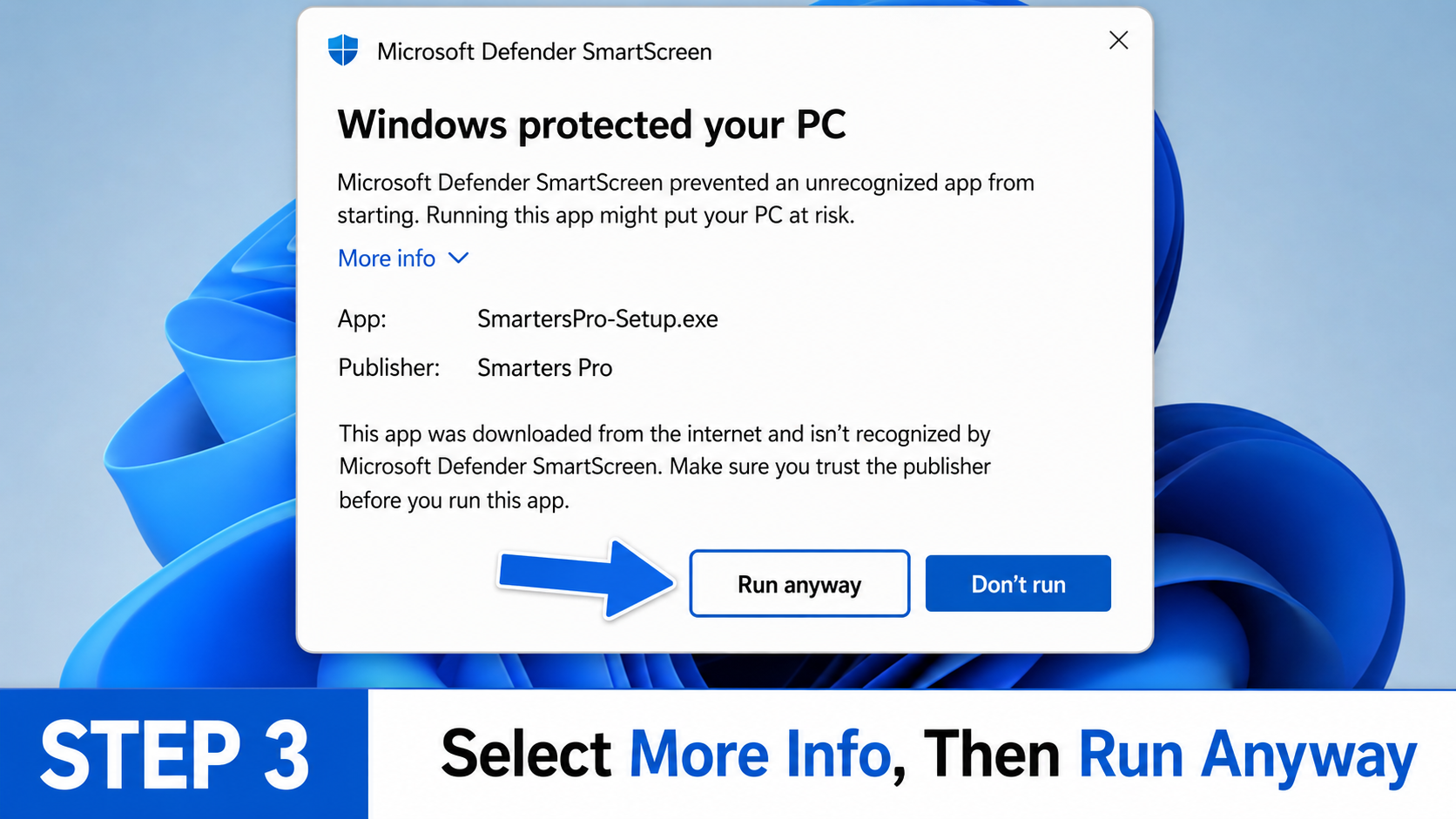
Continue only when the installer came directly from the official website. If SmartScreen appears, select More info, then Run anyway. If the source is uncertain, cancel.
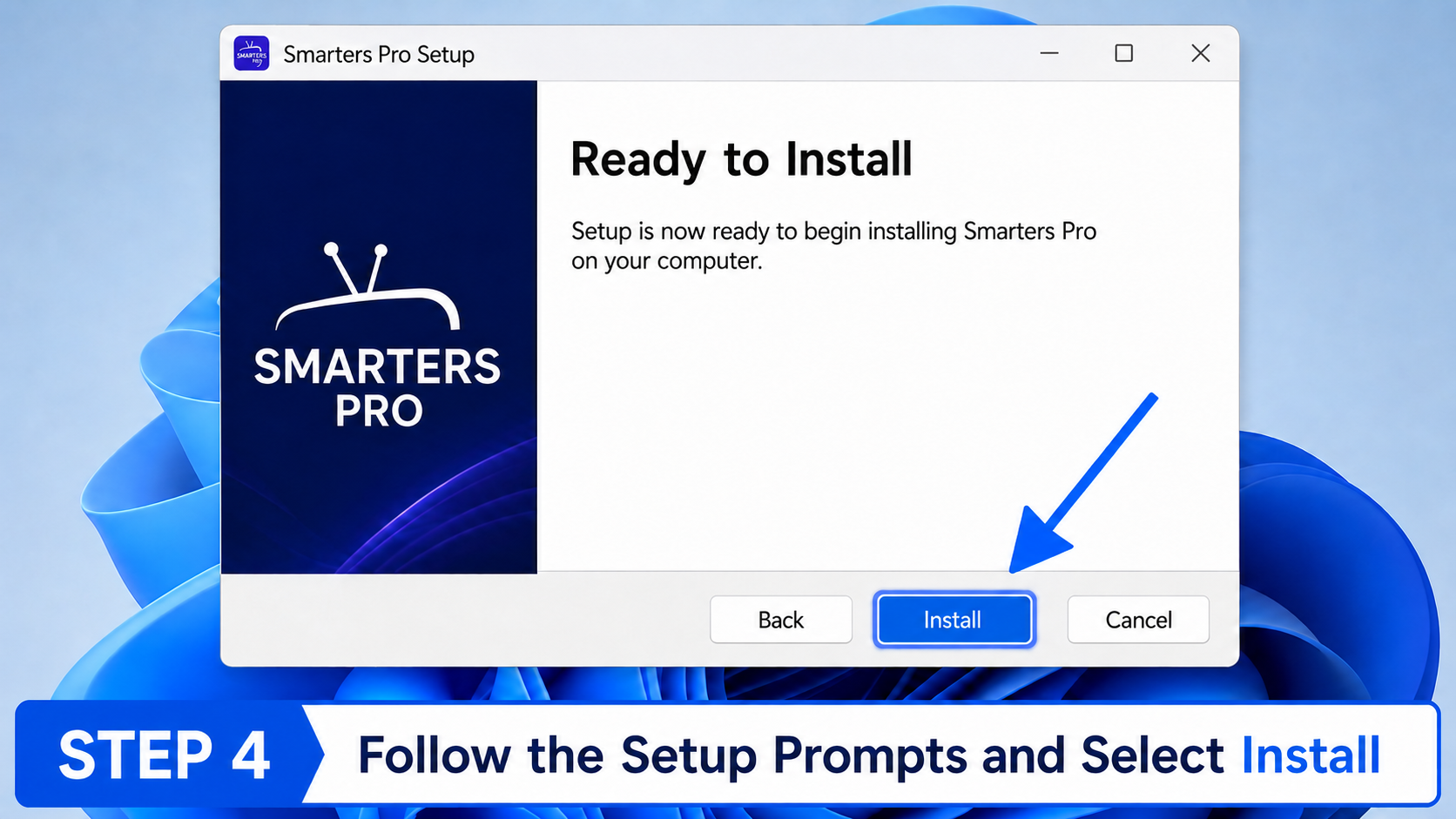
Review the installer, select Install, and wait while Windows completes the installation.
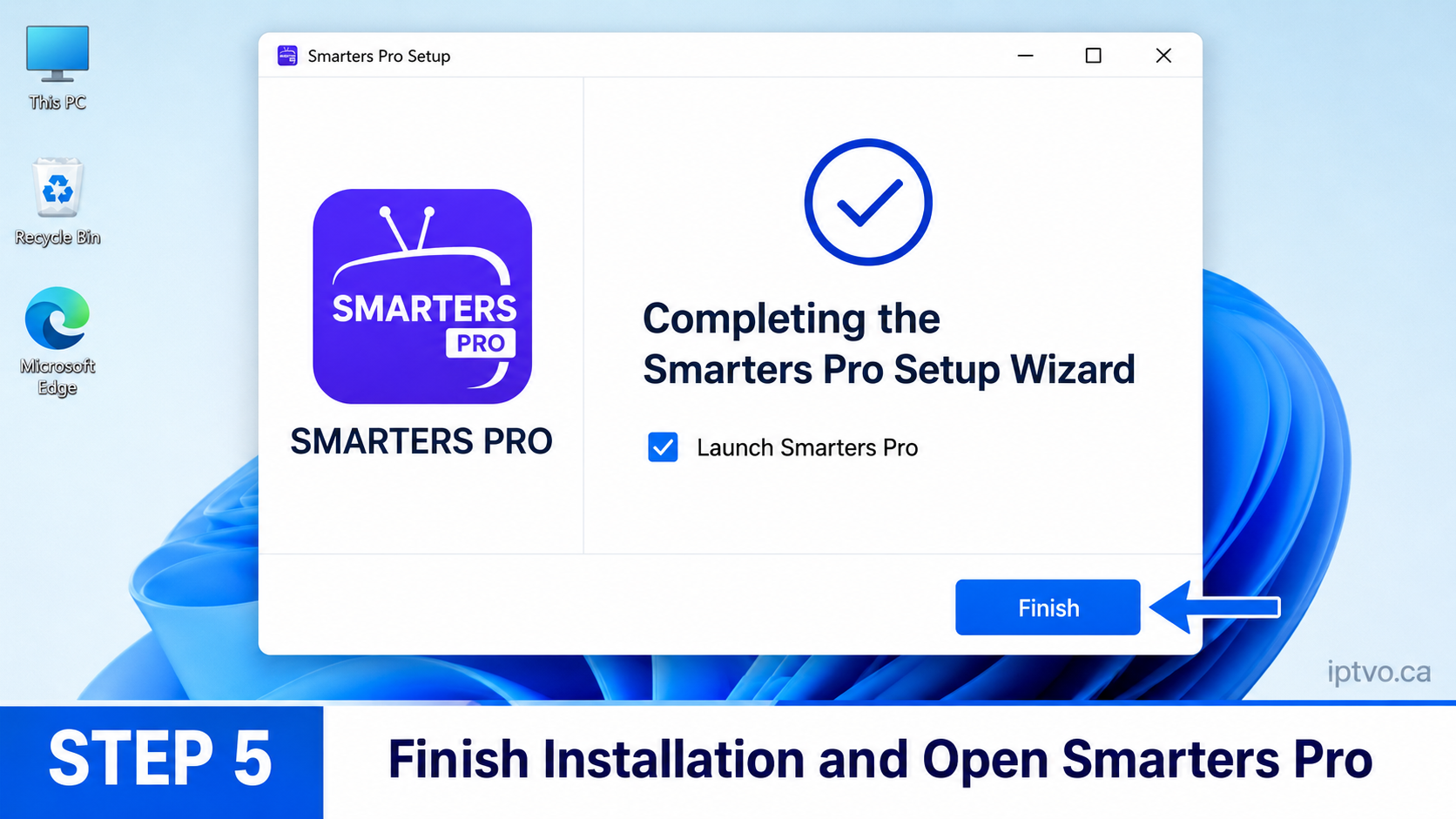
Leave Launch Smarters Pro selected, choose Finish, and wait for the application to open.
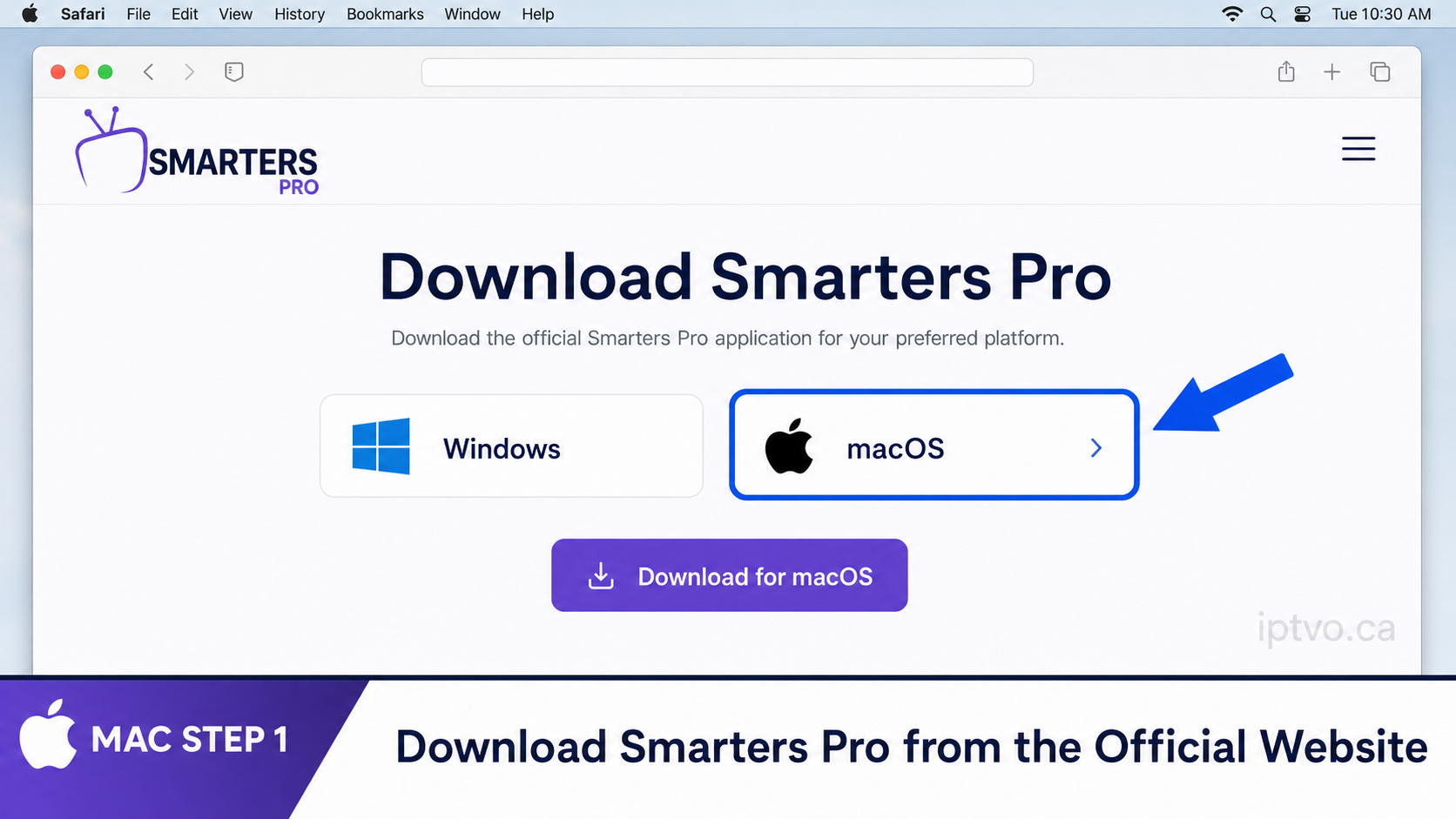
Visit the official Smarters Pro website, choose macOS, and download the official .dmg file.
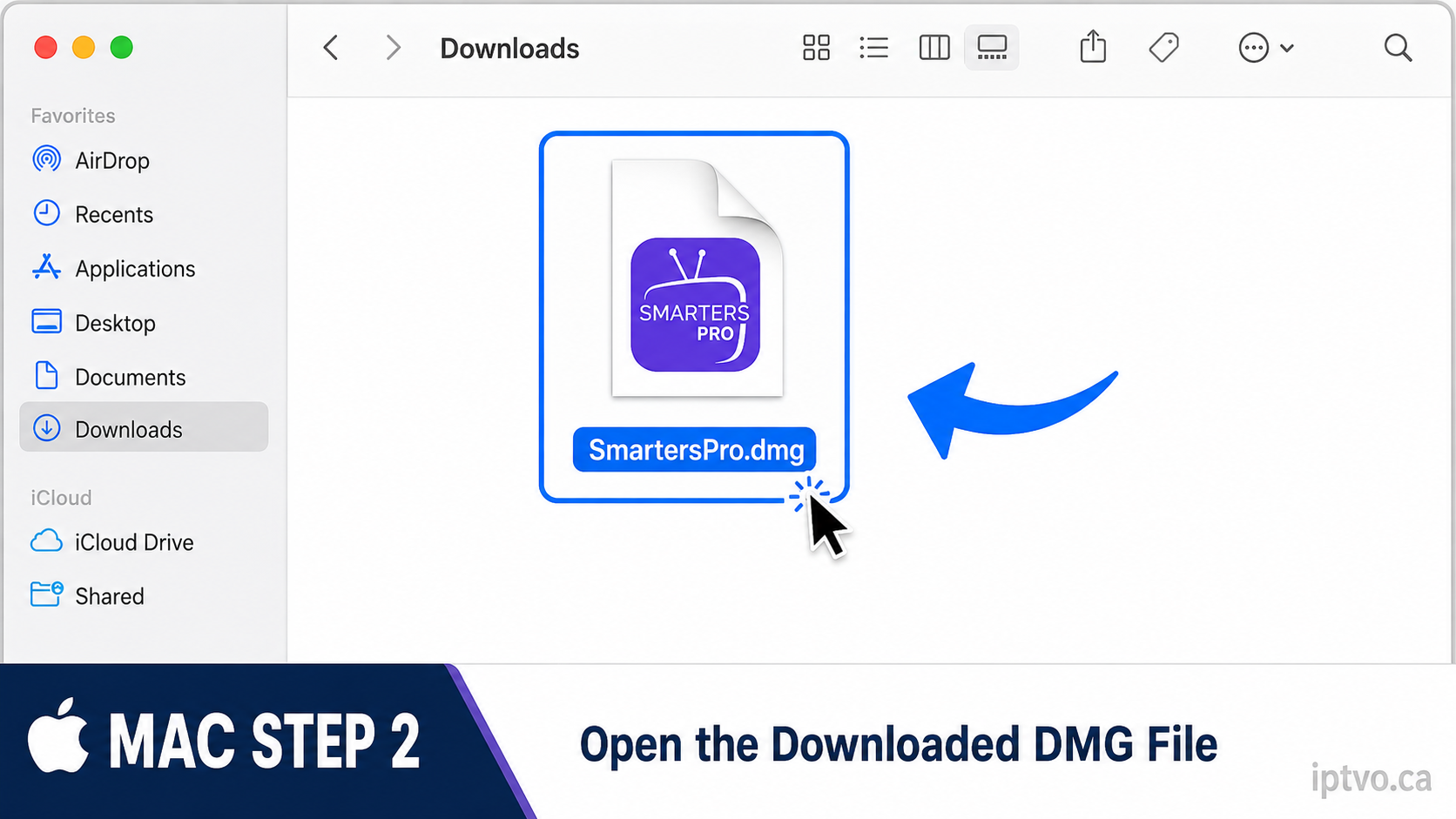
Open your Downloads folder and double-click the official Smarters Pro .dmg file.
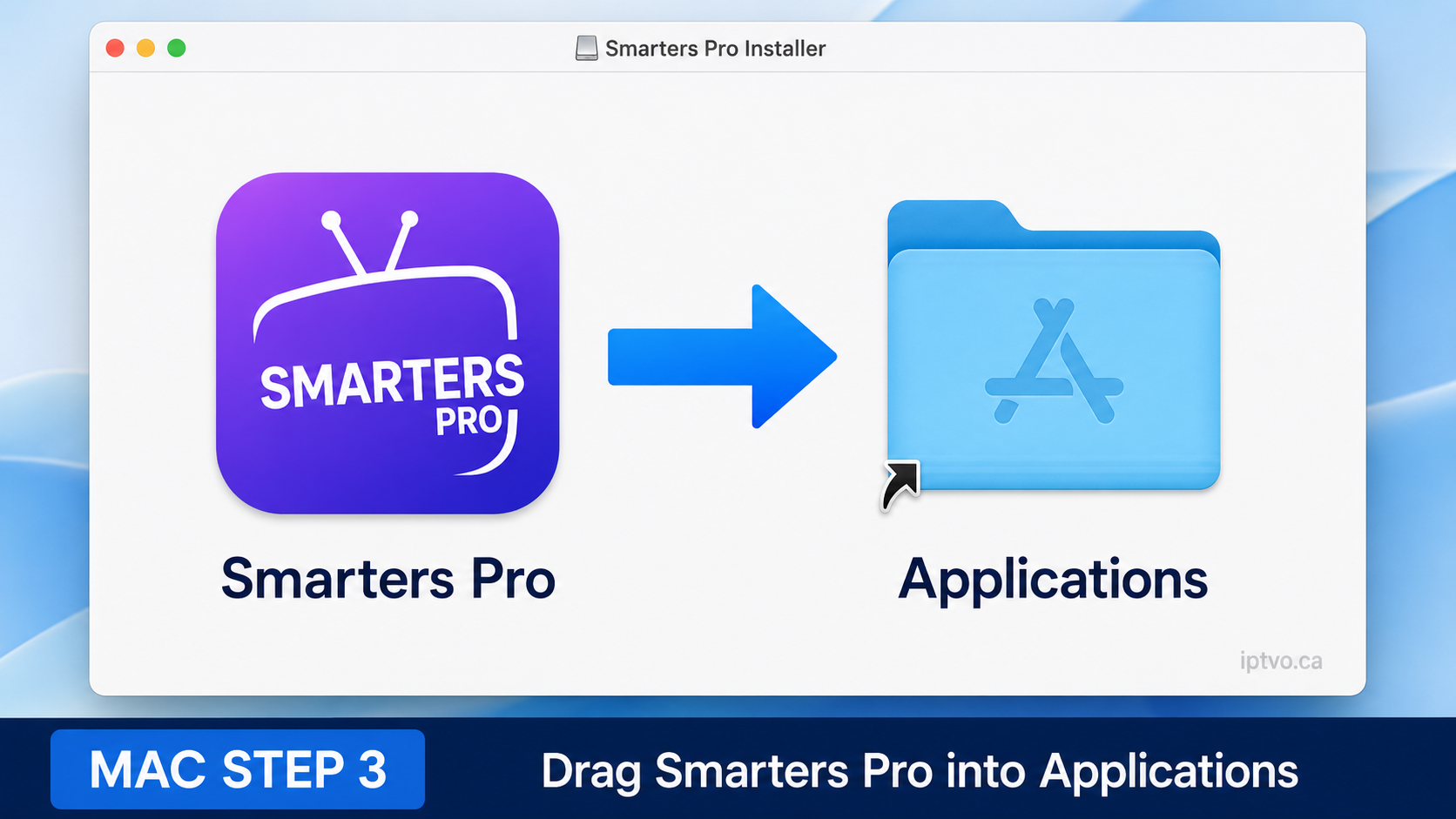
In the installer window, drag the Smarters Pro icon into the Applications folder.
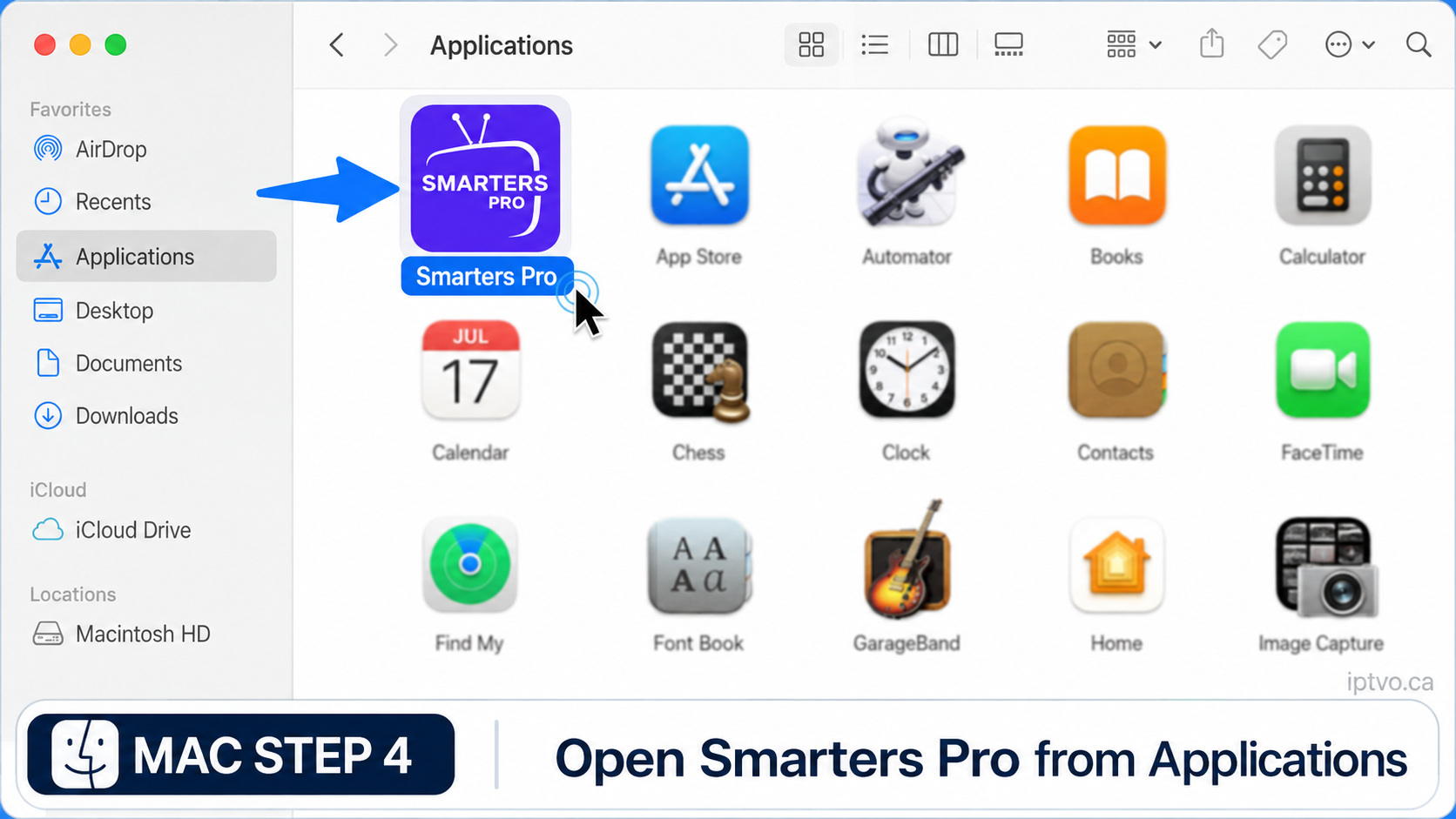
Open Applications, select Smarters Pro, and confirm Open if macOS asks you to verify the application.
Use the Google Play Store method on compatible Samsung, Google Pixel, Xiaomi and other Android phones. Store screens and button positions may vary slightly by phone model and Android version.
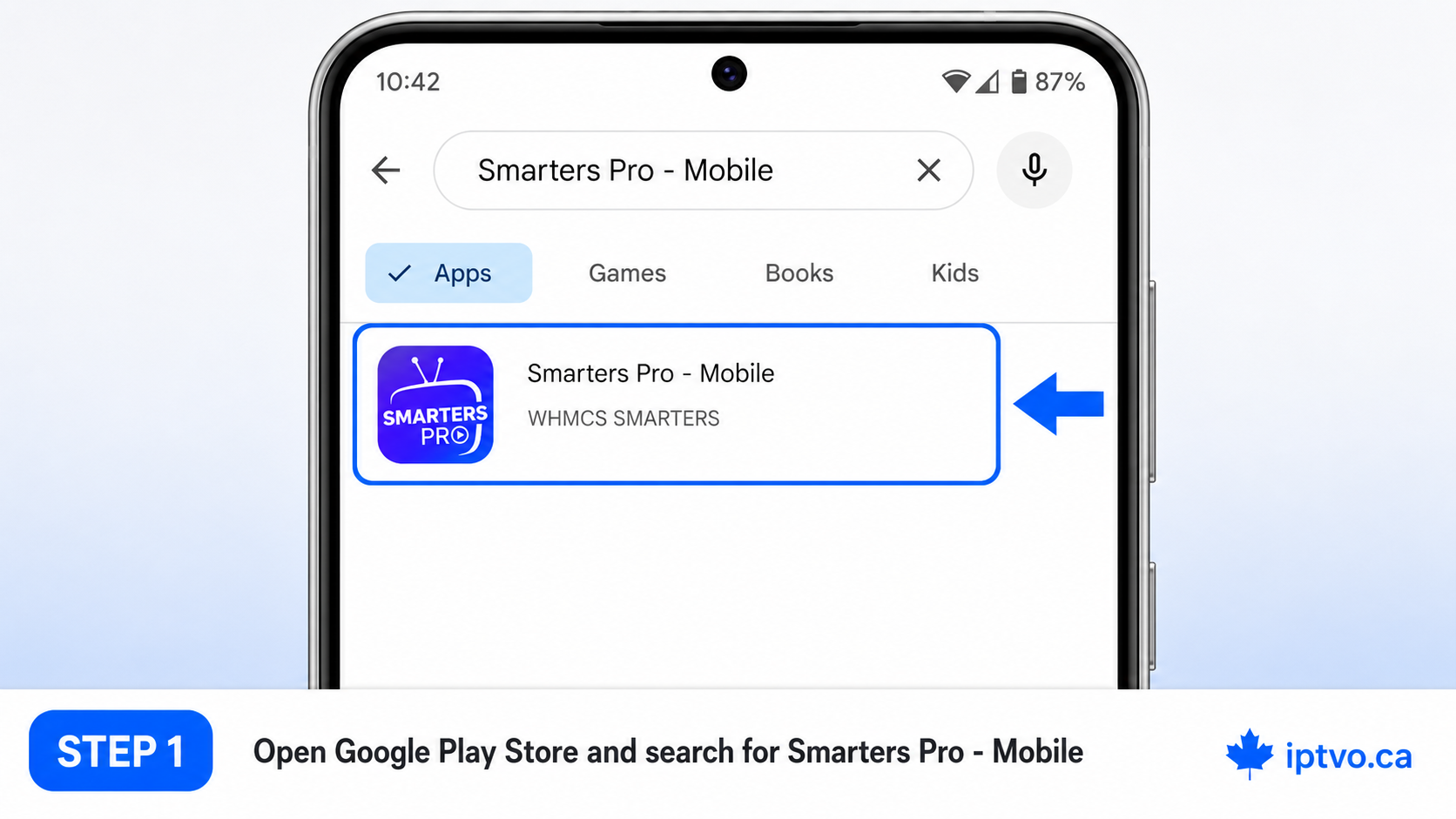
Open the Google Play Store, tap the search field, and search for Smarters Pro.
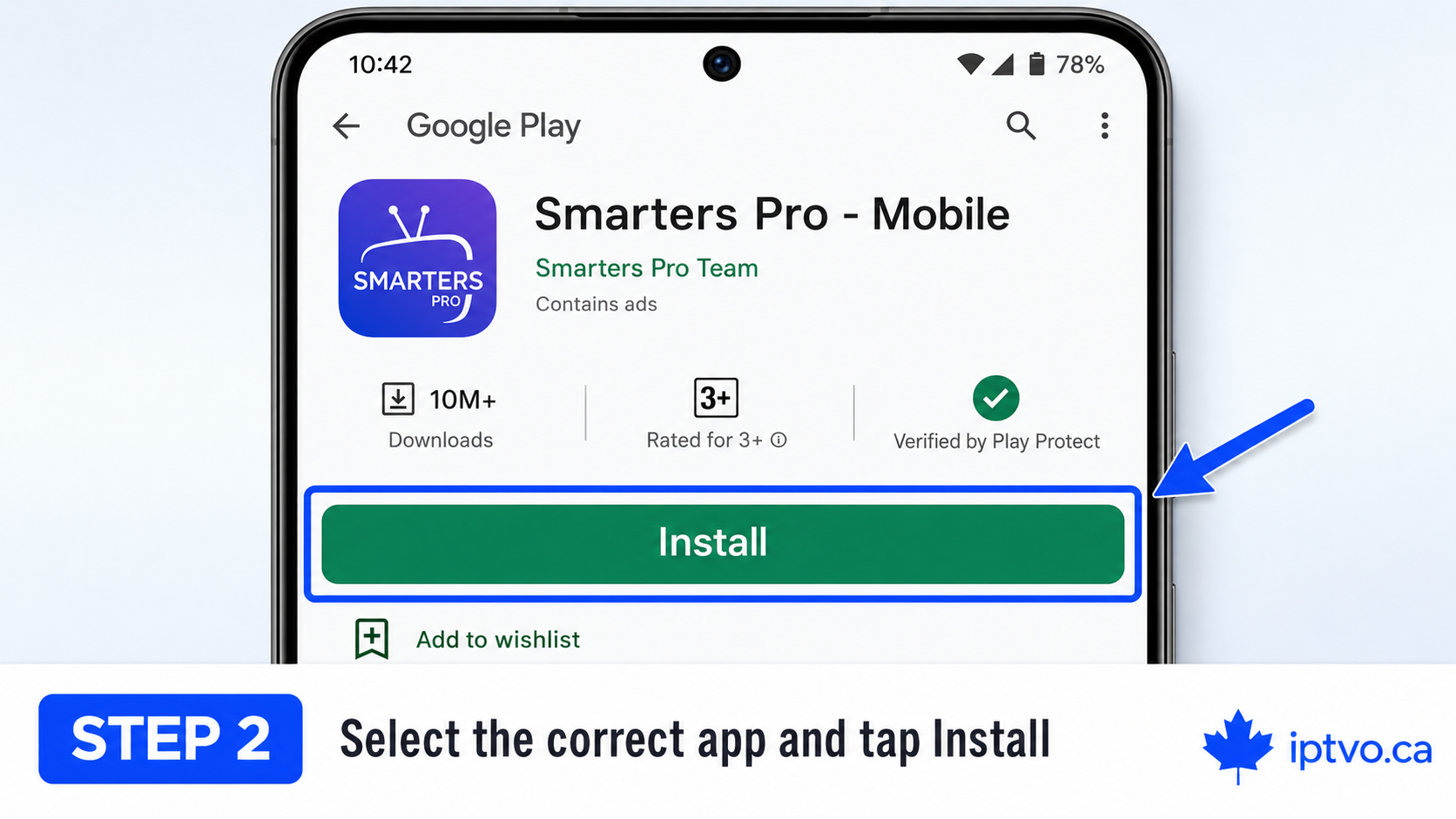
Select the correct result and confirm the app name and developer shown in the official Google Play listing before continuing.
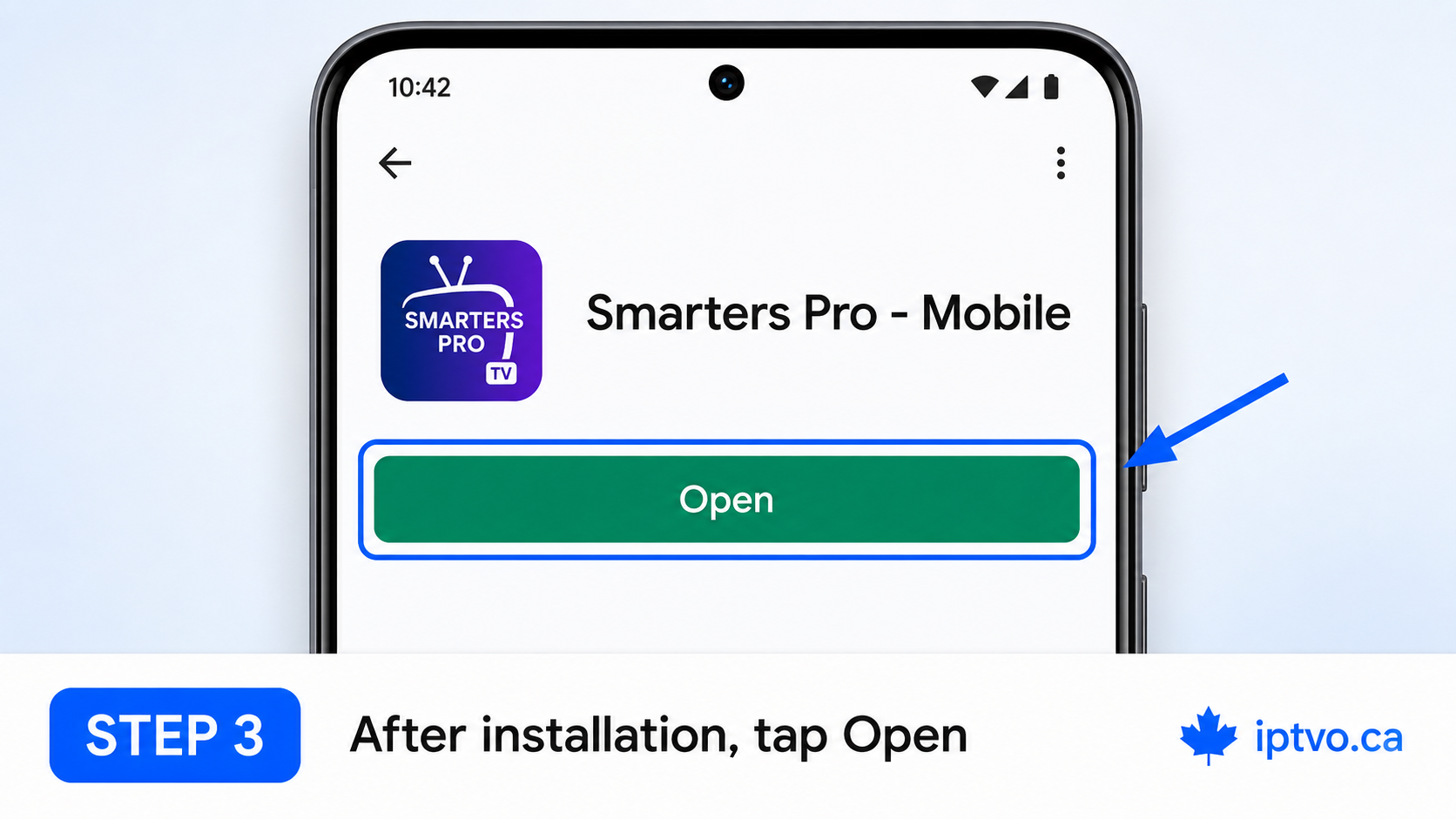
Tap Install and wait for Google Play to download and install the application.
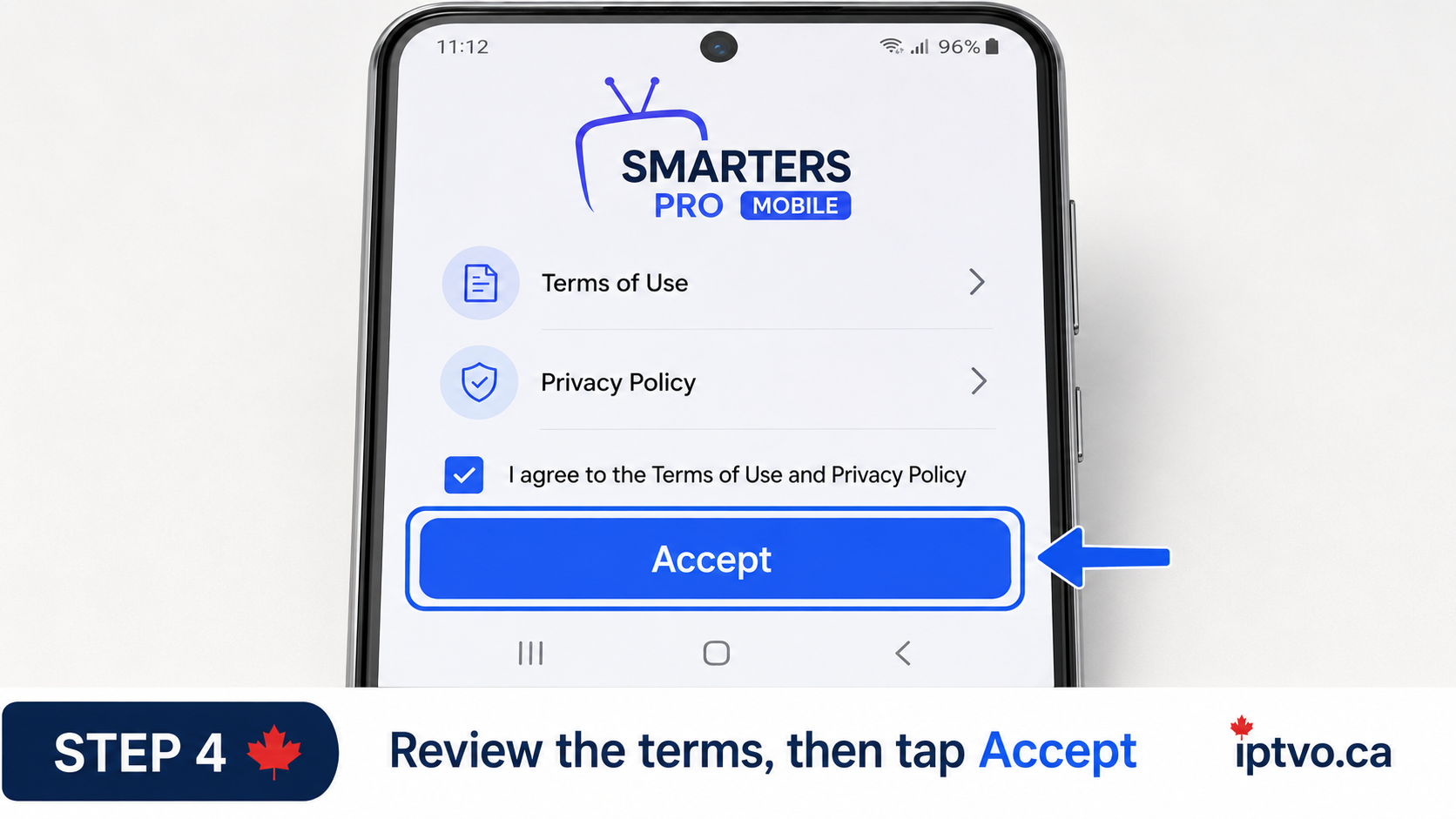
Tap Open. Read and accept the application terms if they appear before moving to the login screen.
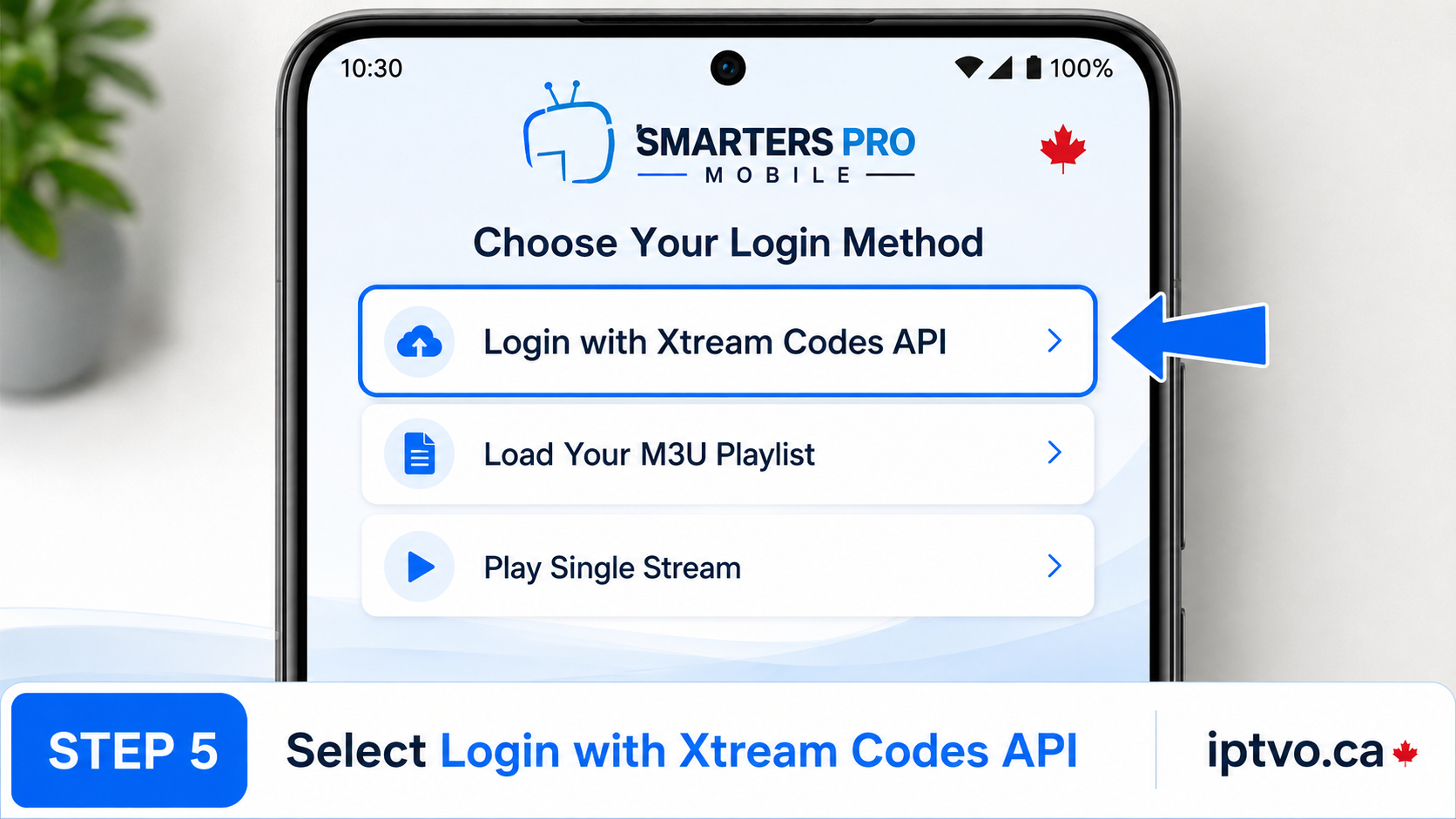
Choose Login with Xtream Codes API to open the username, password and server-address fields.
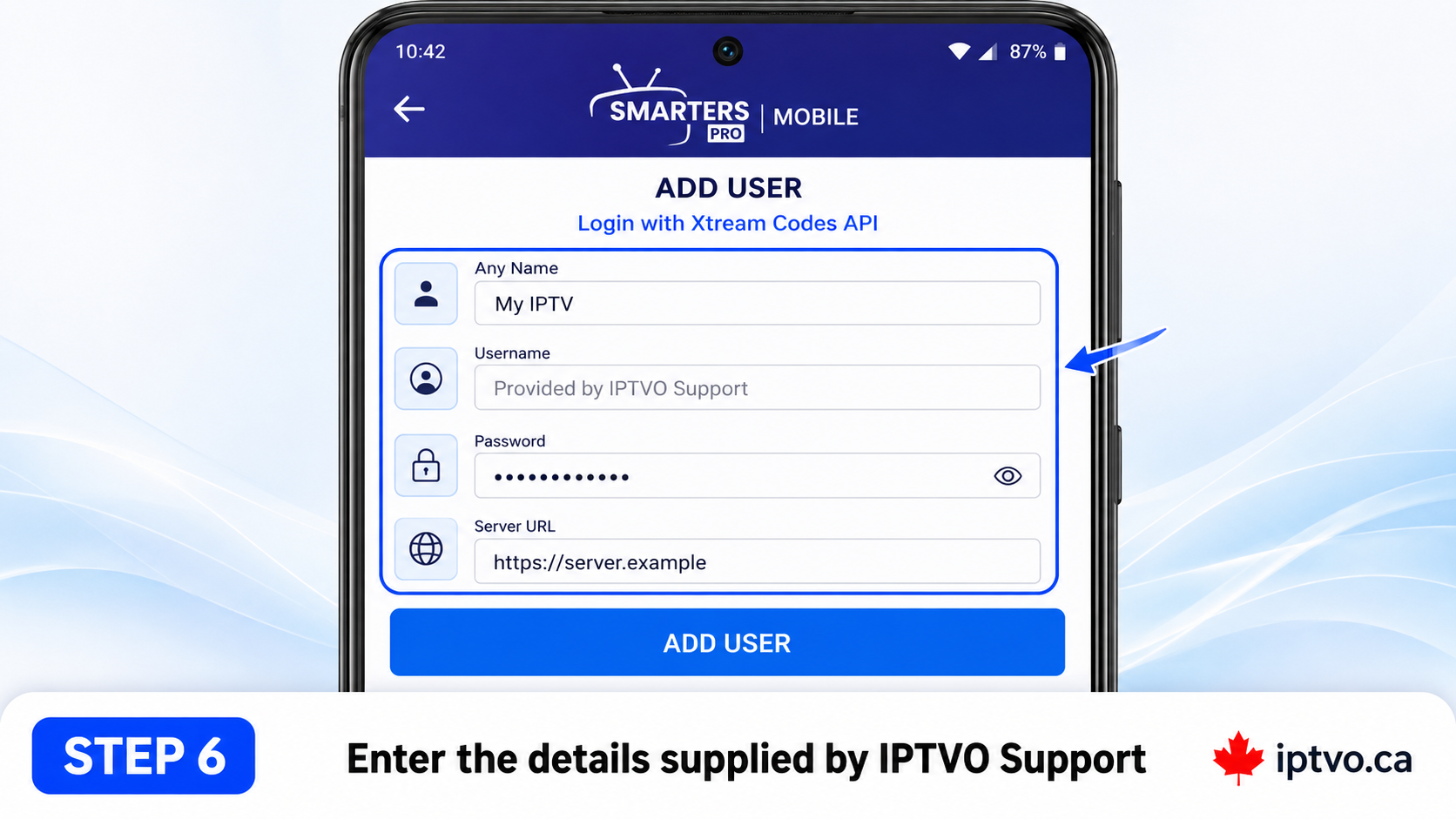
Enter a recognizable account name, then add the username, password and server URL supplied privately by IPTVO Support. These fields may be case-sensitive.
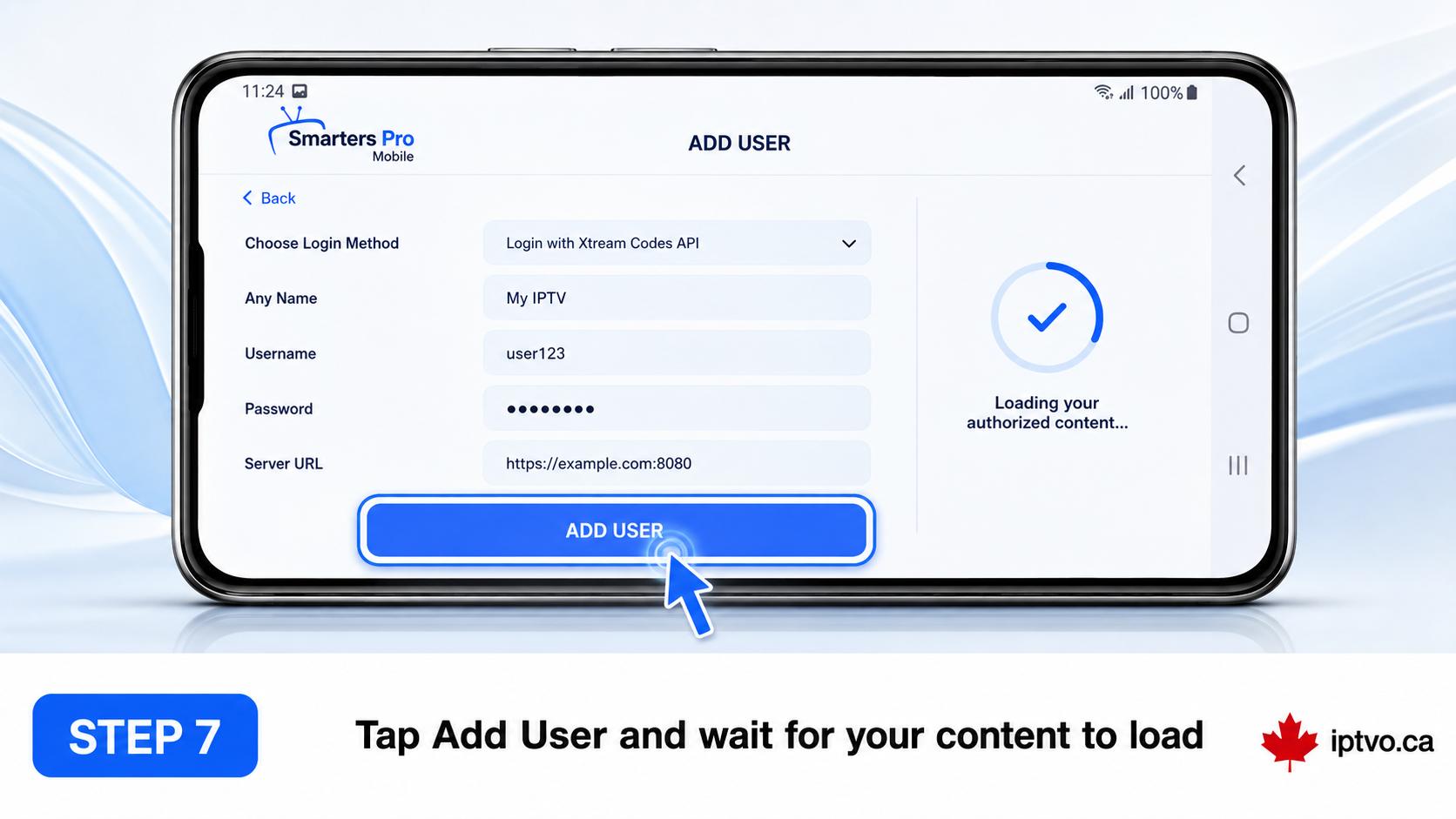
Review the information, tap Add User, and keep the app open while it connects and loads the authorized account content.
This verified walkthrough uses the BuzzTV 5 interface and the XC API login method. BuzzTV 6, G-Series and L1/Linux menus can look different, so do not guess if your screen does not match.
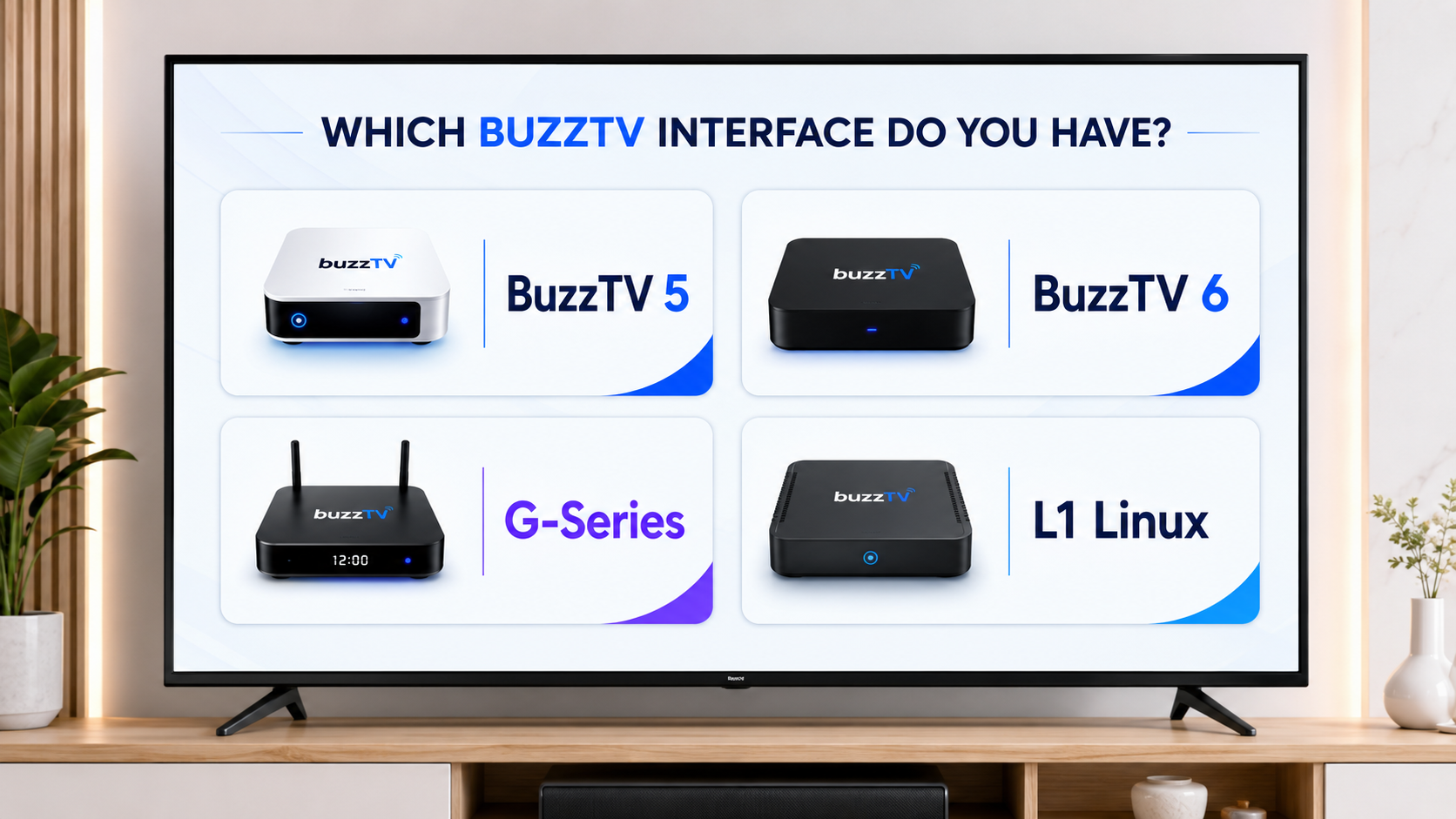
The steps below are for BuzzTV 5. If your device uses BuzzTV 6, G-Series or L1/Linux and the menus differ, contact IPTVO Support with your exact model before continuing.
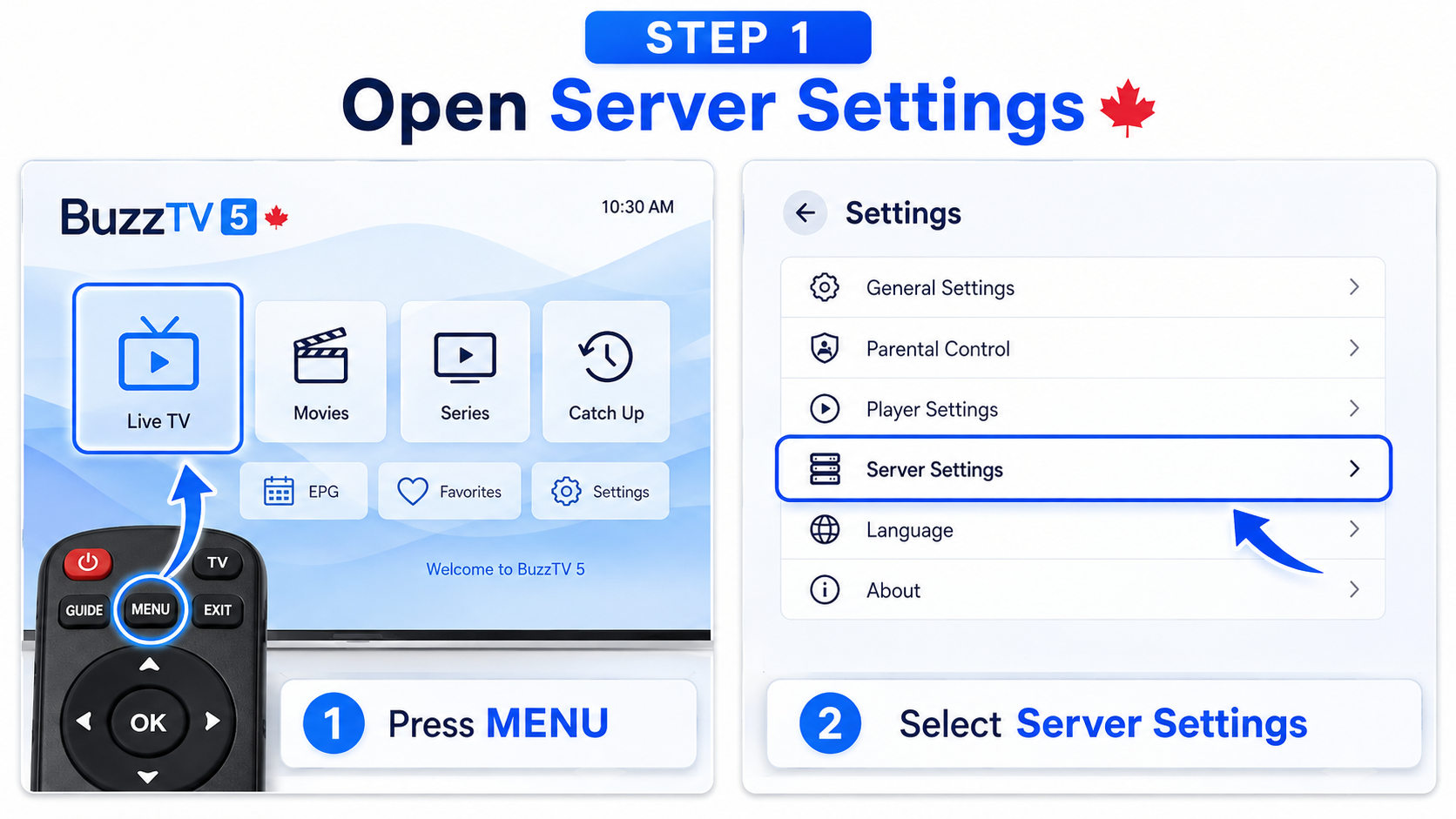
From the BuzzTV 5 home screen, press MENU, open Settings, and select Server Settings.
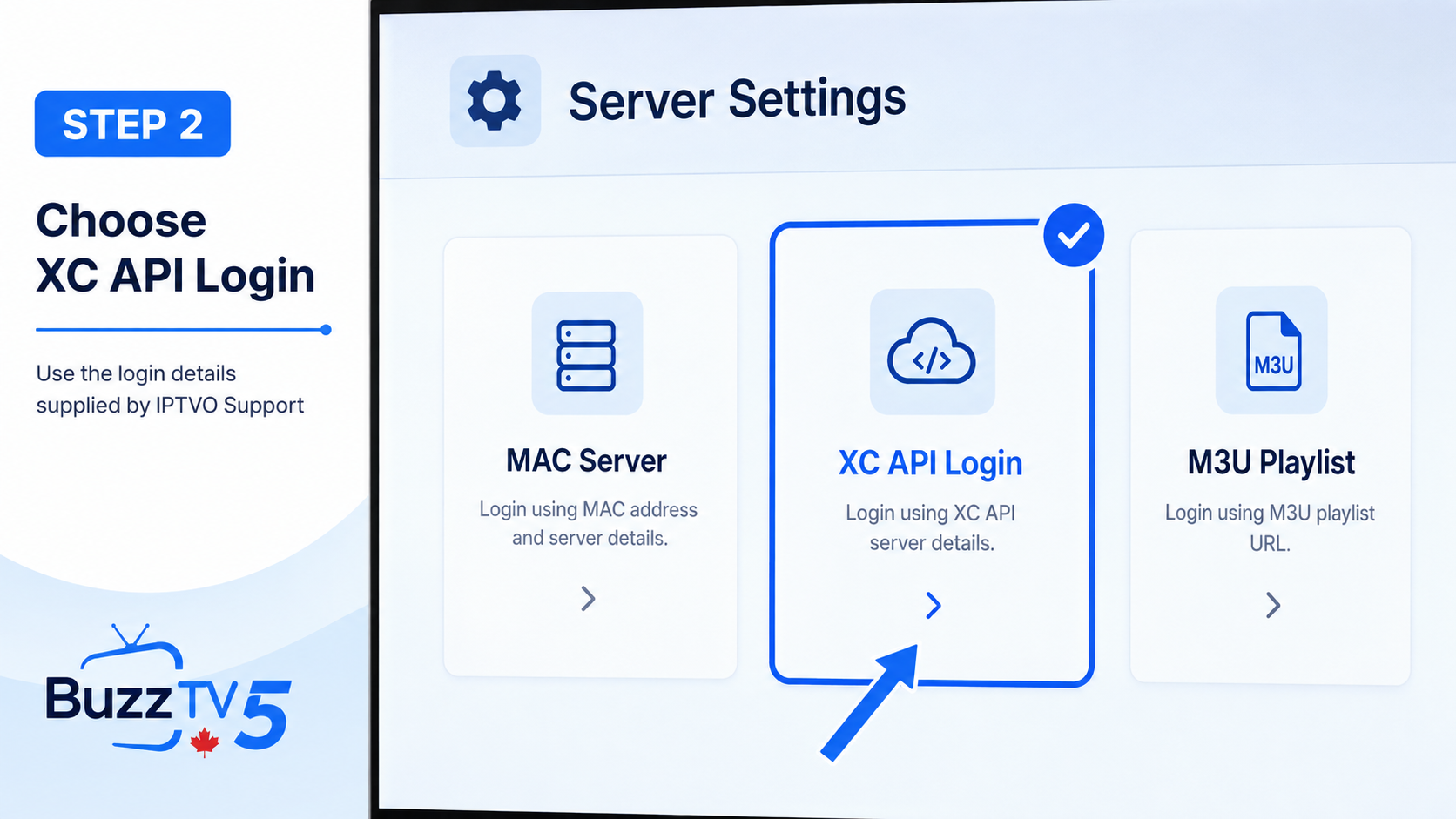
Select XC API Login when IPTVO Support has supplied a server URL, username and password.
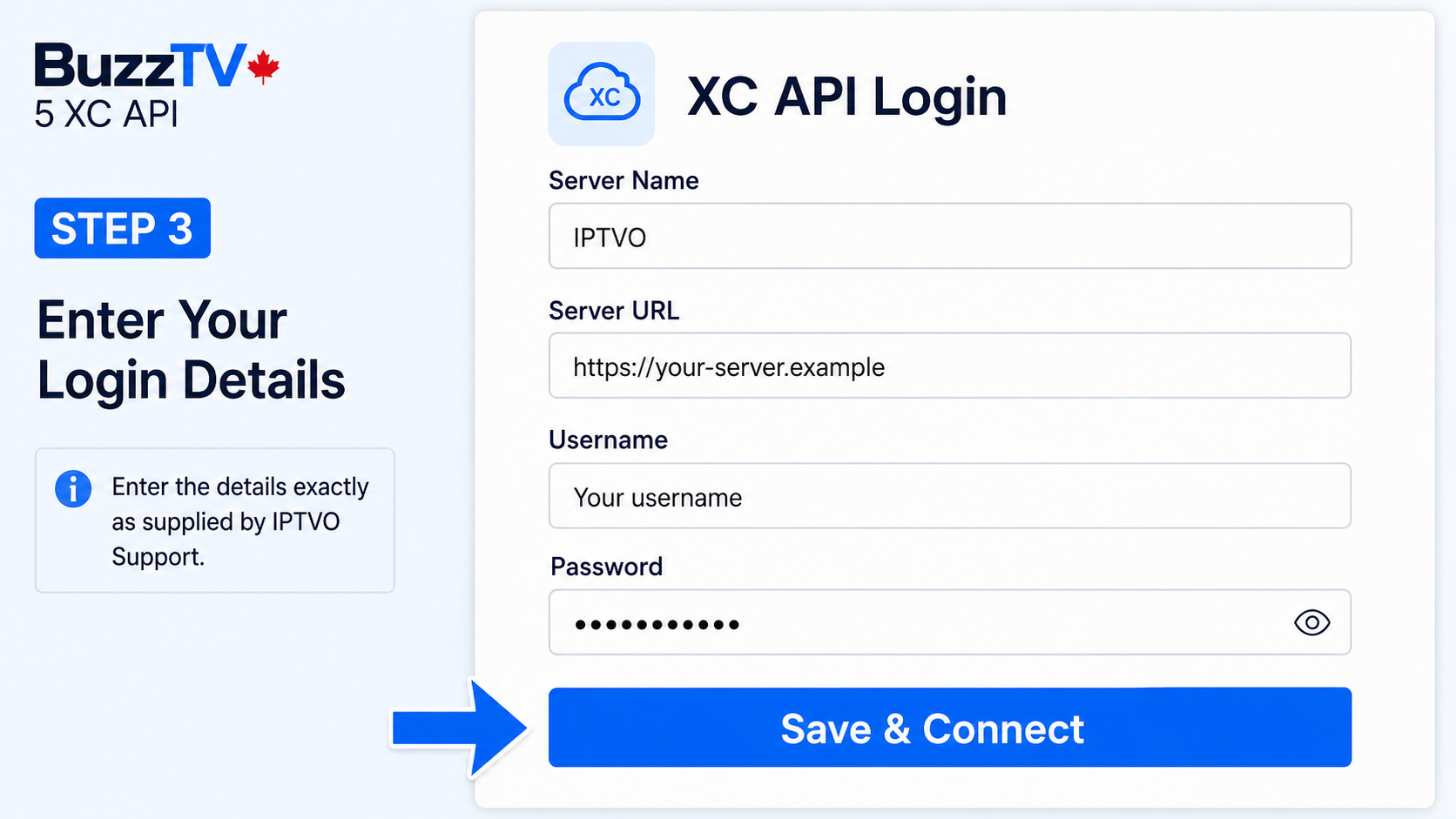
Enter IPTVO as the server name, then type the server URL, username and password exactly as supplied. Select Save & Connect and allow the account to load.
Install the player from the Roku Channel Store, note the MAC address displayed by the app, then connect the authorized account details supplied by IPTVO Support.
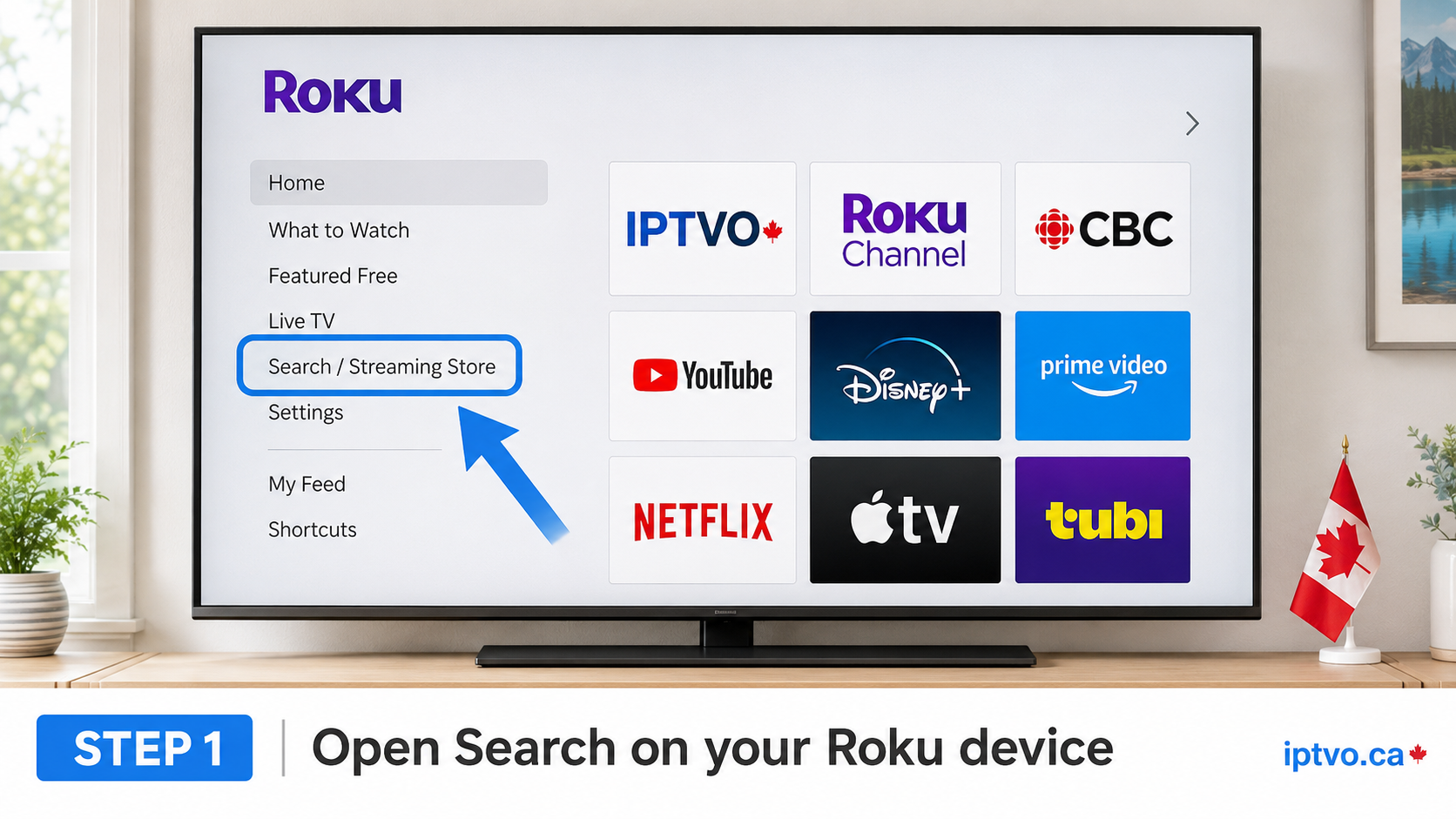
From the Roku home screen, open Streaming Store or Store, then choose Channels.
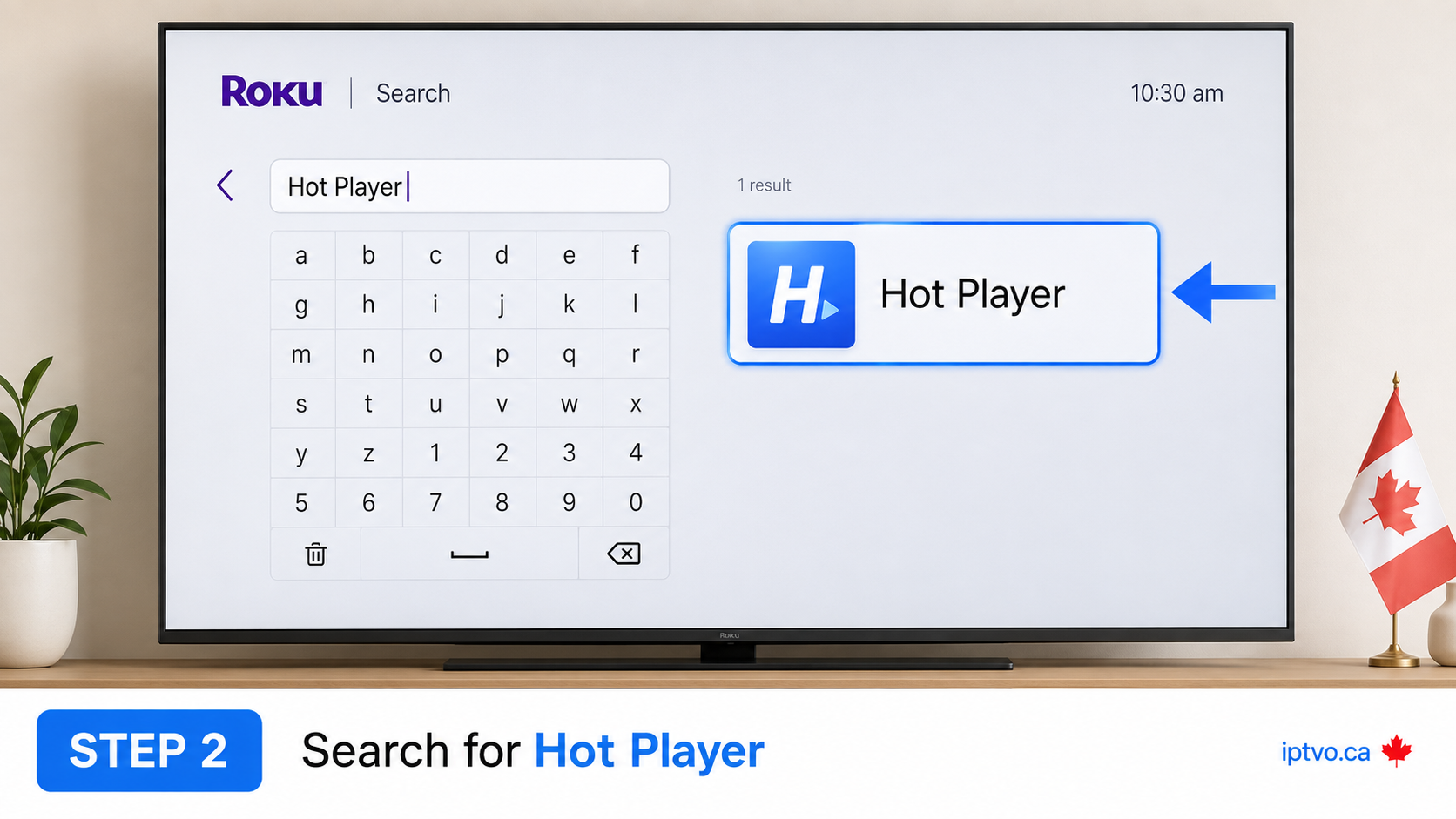
Use the Channel Store search and enter Hot Player. Confirm the app name and developer before continuing.
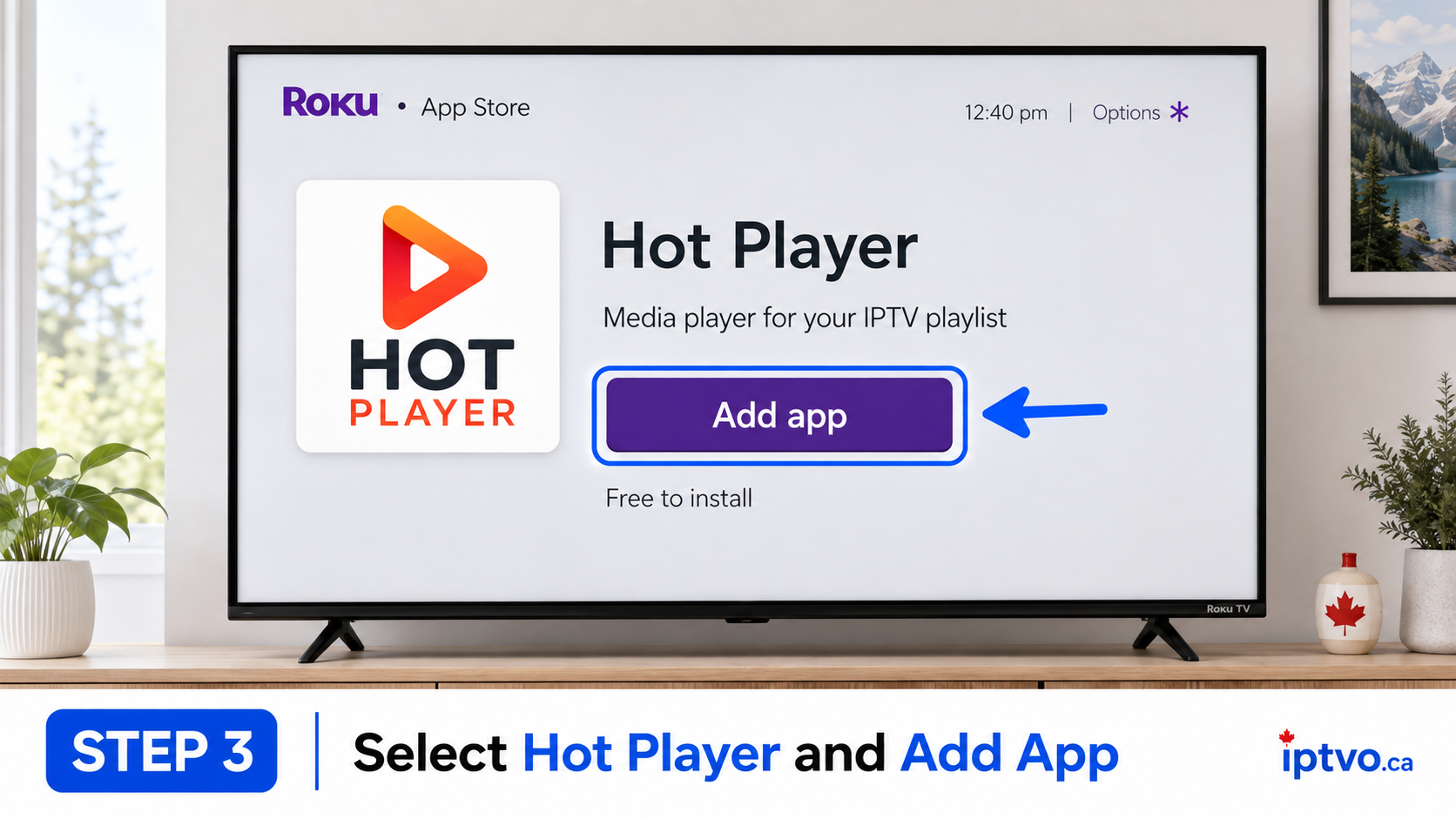
Select the verified app, choose Add channel, and wait for Roku to finish the installation.
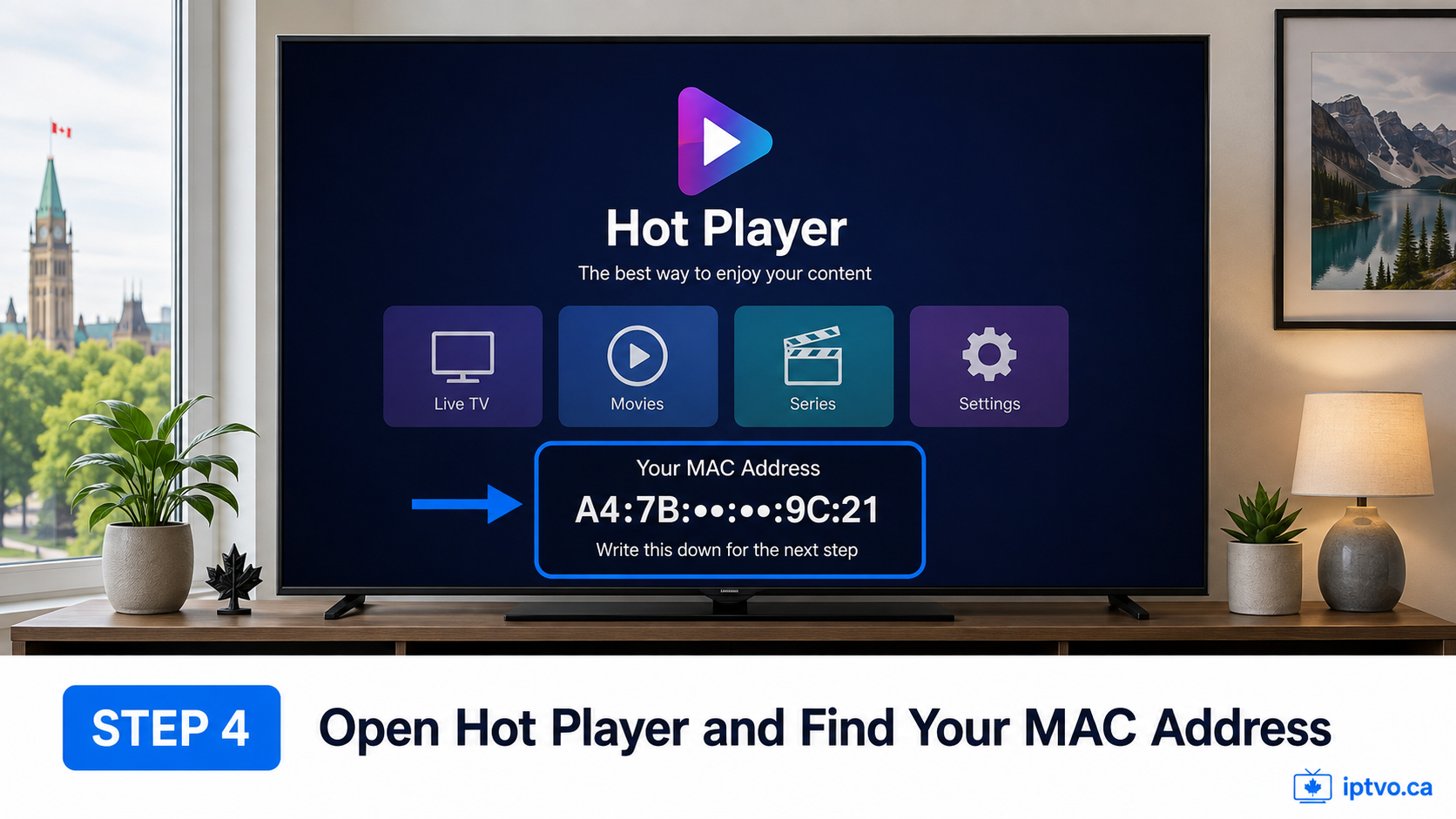
Launch Hot Player and carefully copy the MAC address shown on screen. Do not share it publicly.
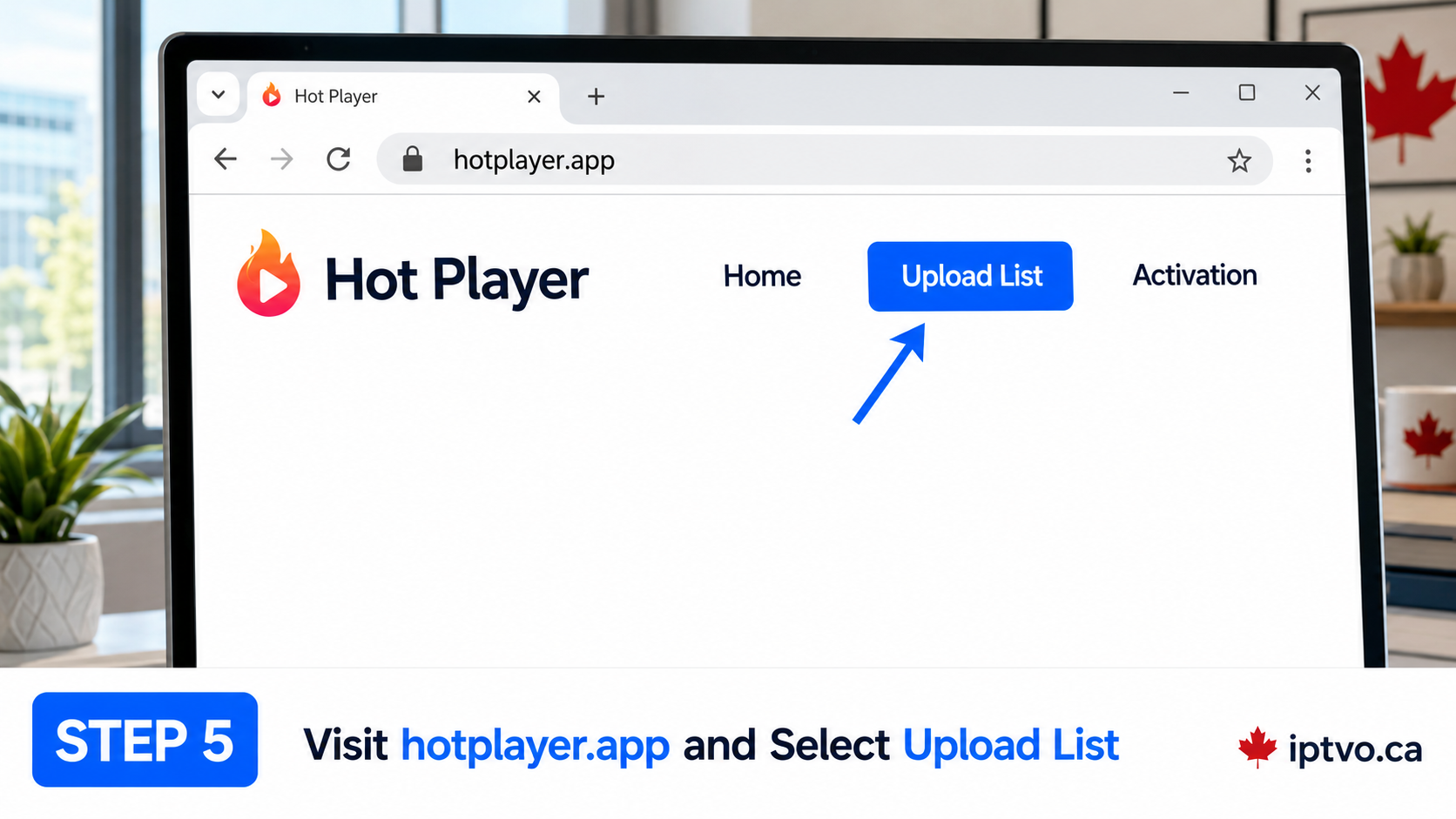
On a phone or computer, visit the official Hot Player website and open its playlist upload area.
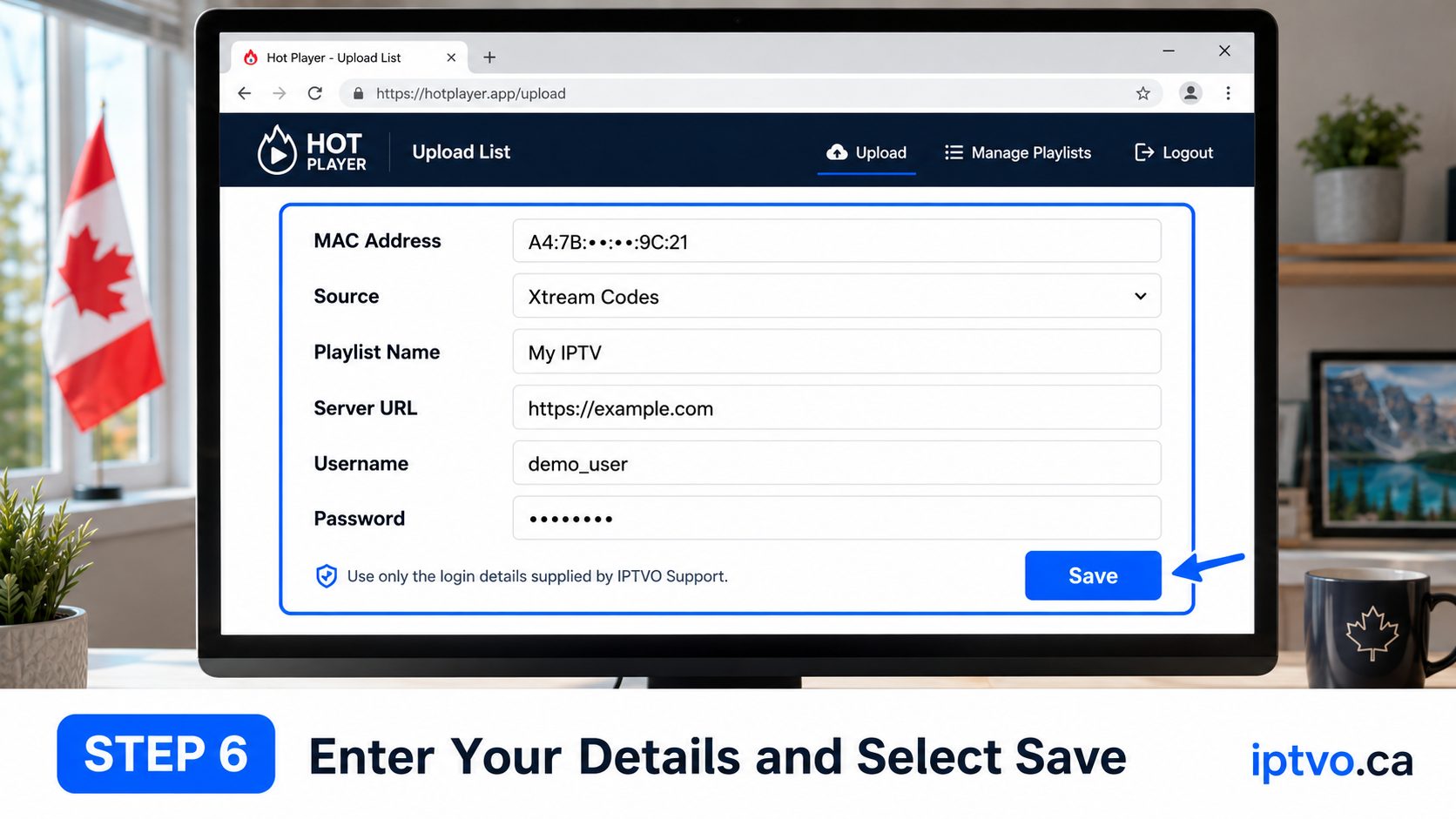
Enter the Roku MAC address, choose the Xtream Codes source when available, then enter the server URL, username and password exactly as supplied by IPTVO Support. Save the playlist.
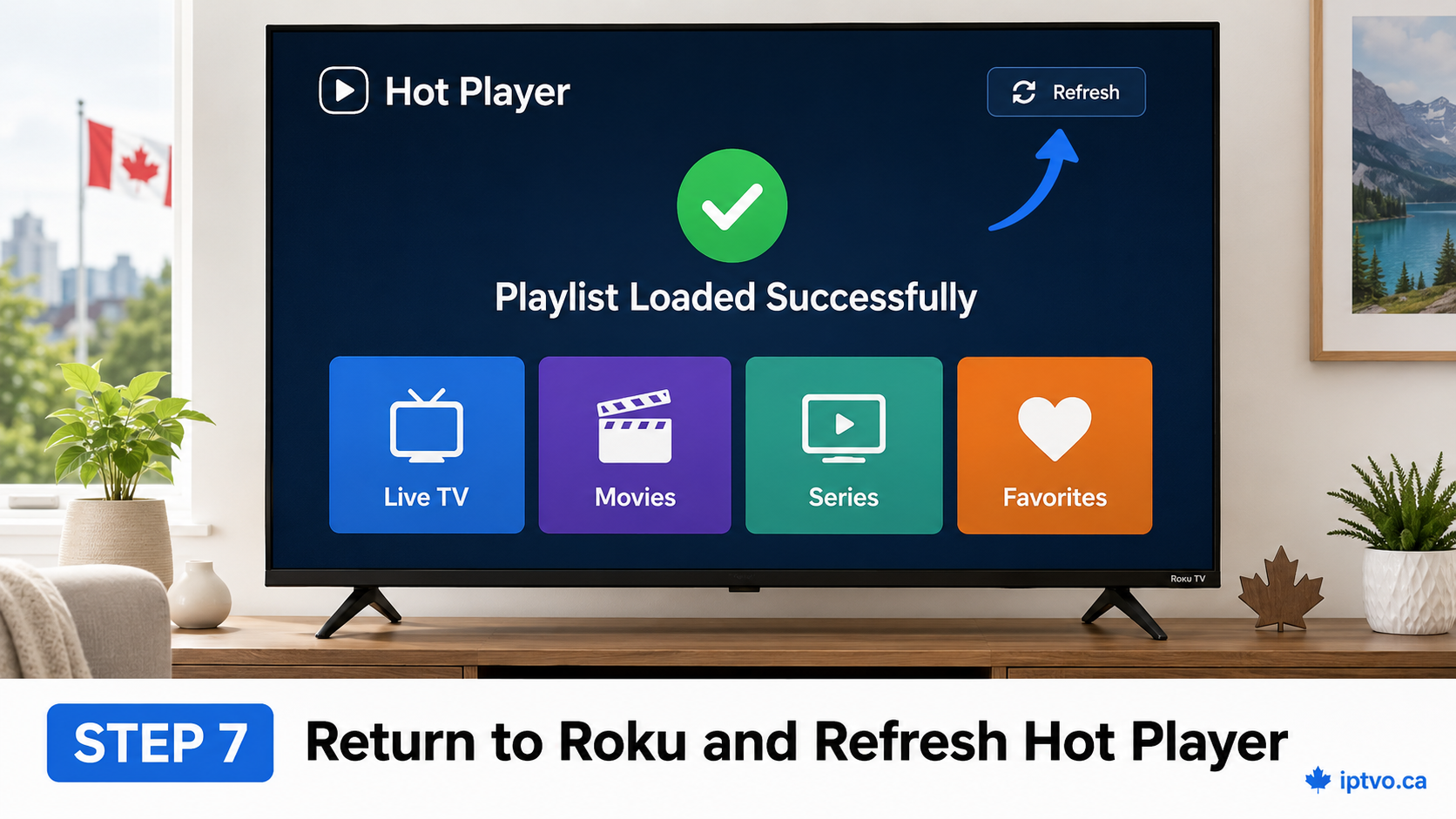
Return to Hot Player on Roku and select Refresh, or restart the app. Allow time for your authorized playlist to load.
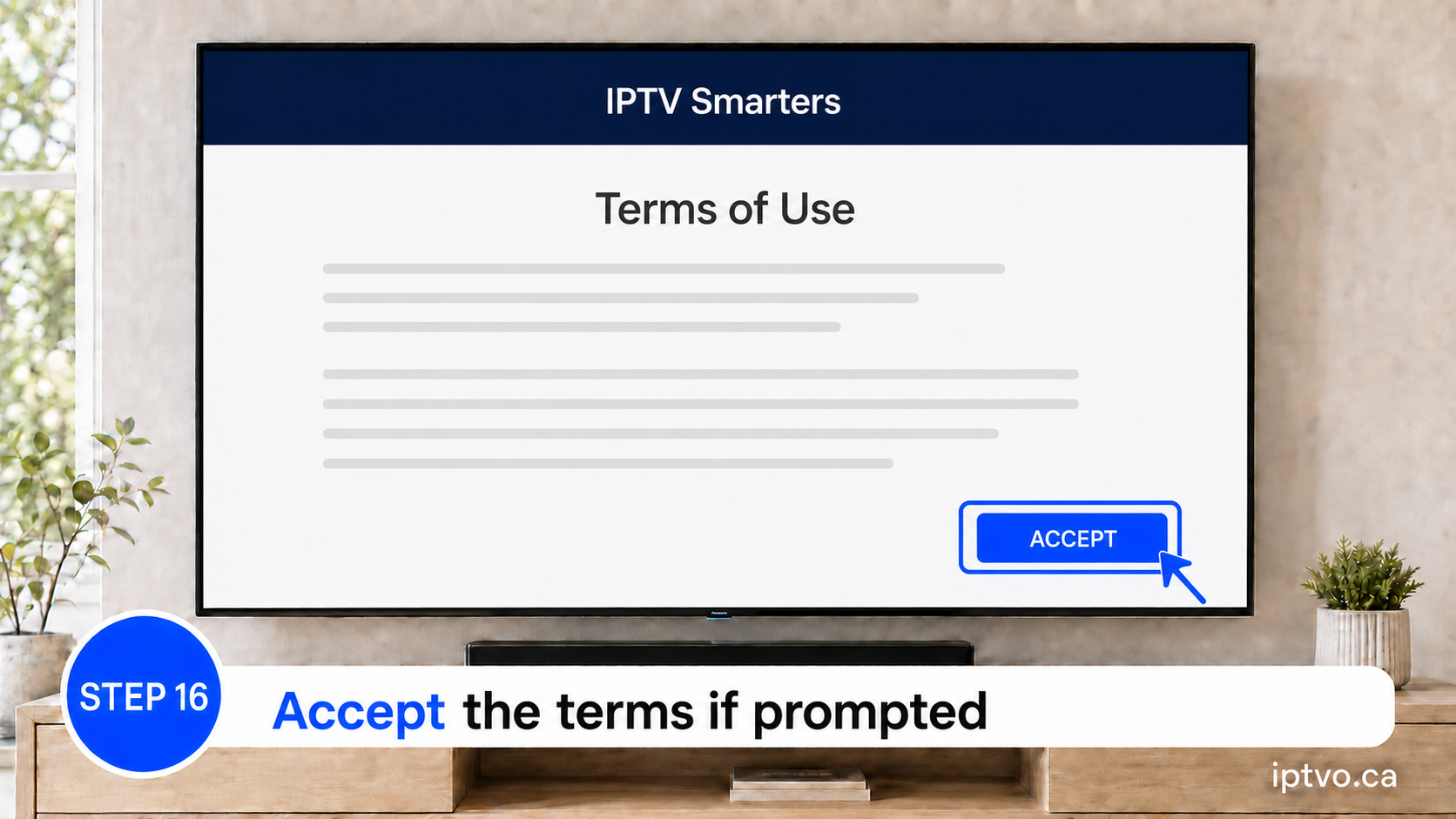
Read the application’s terms and accept them to continue.
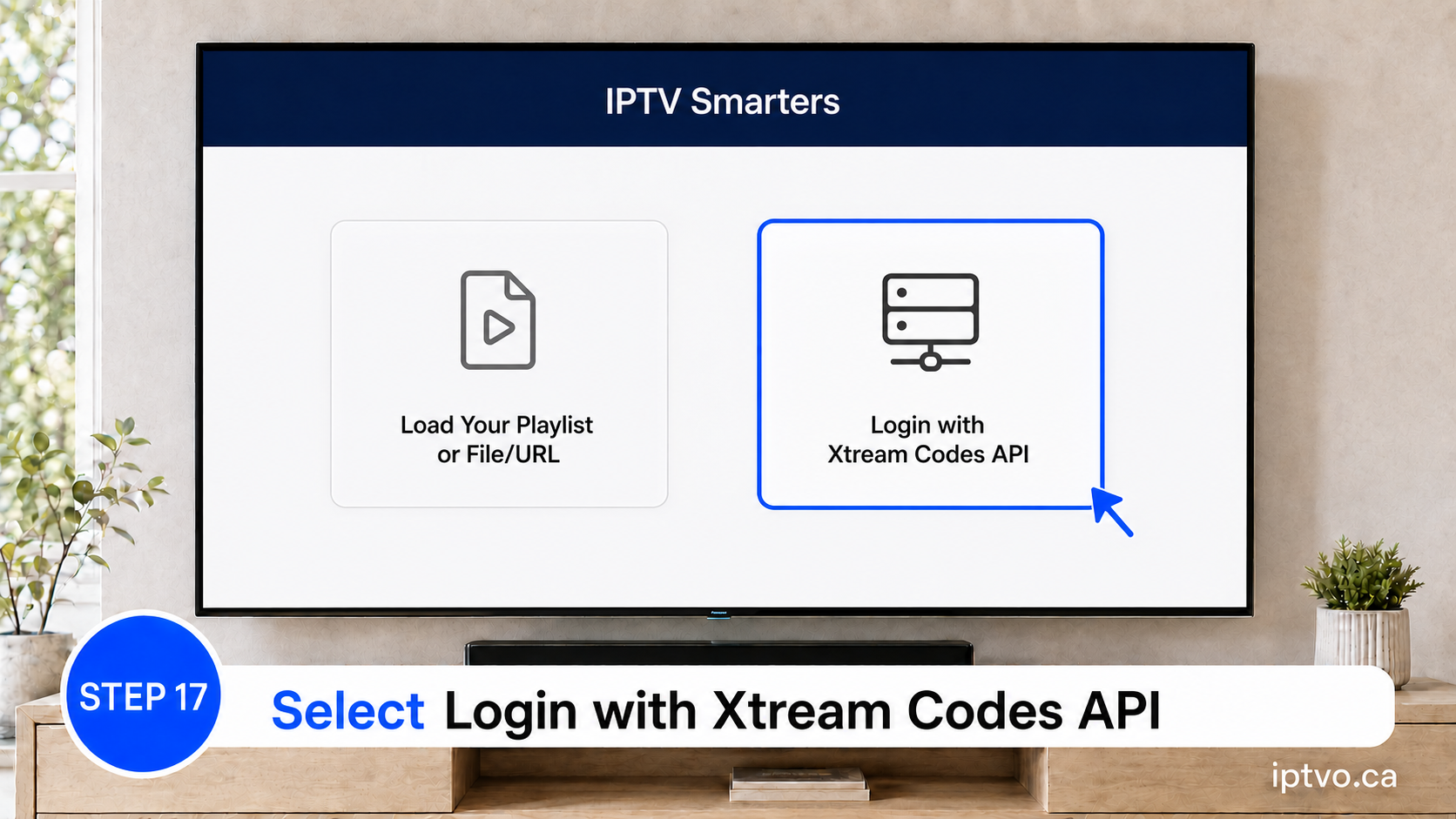
This option opens the username, password and server-address fields.
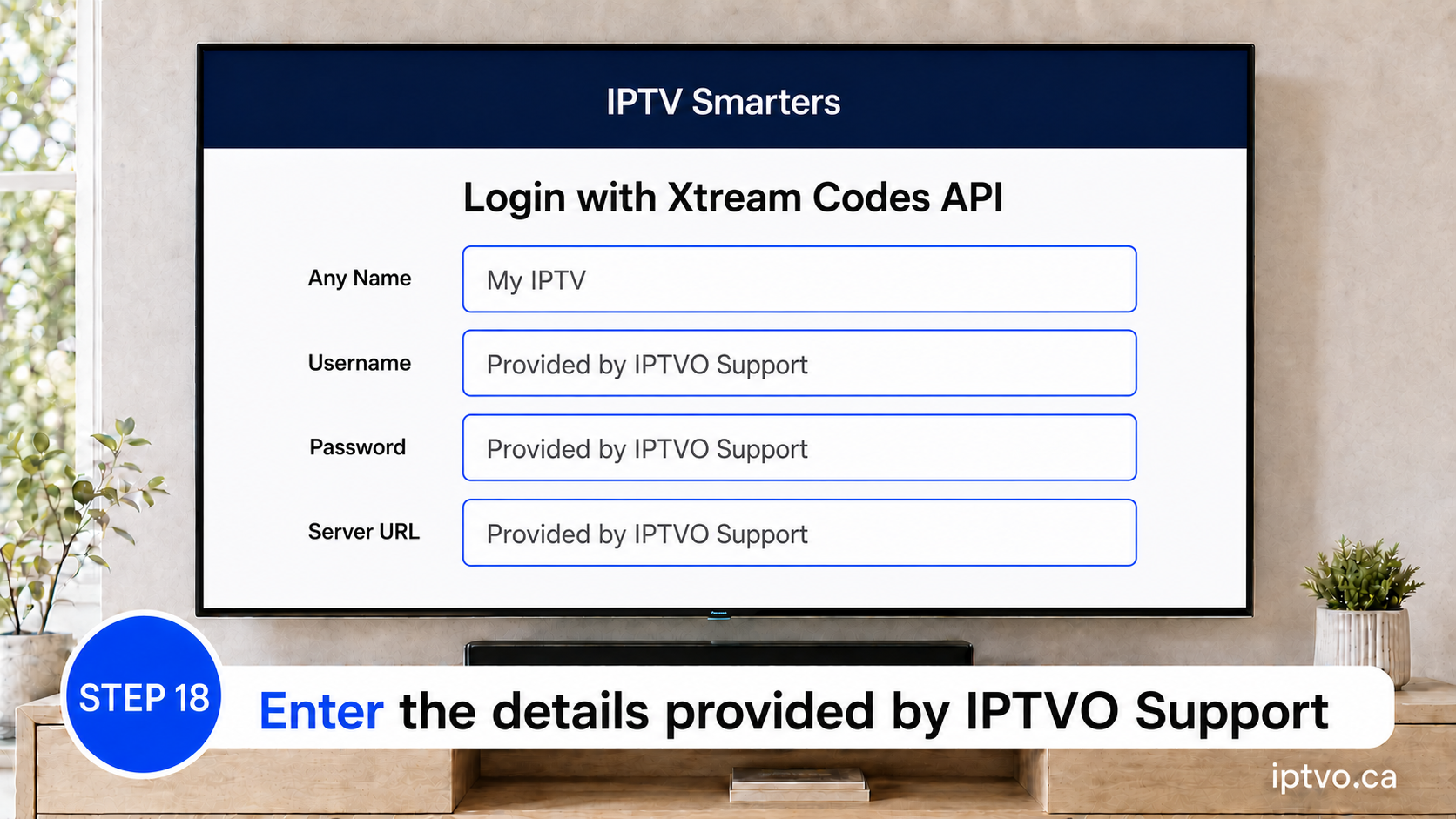
Use any recognizable playlist name, then enter the username, password and server URL exactly as supplied by IPTVO Support. These fields may be case-sensitive.
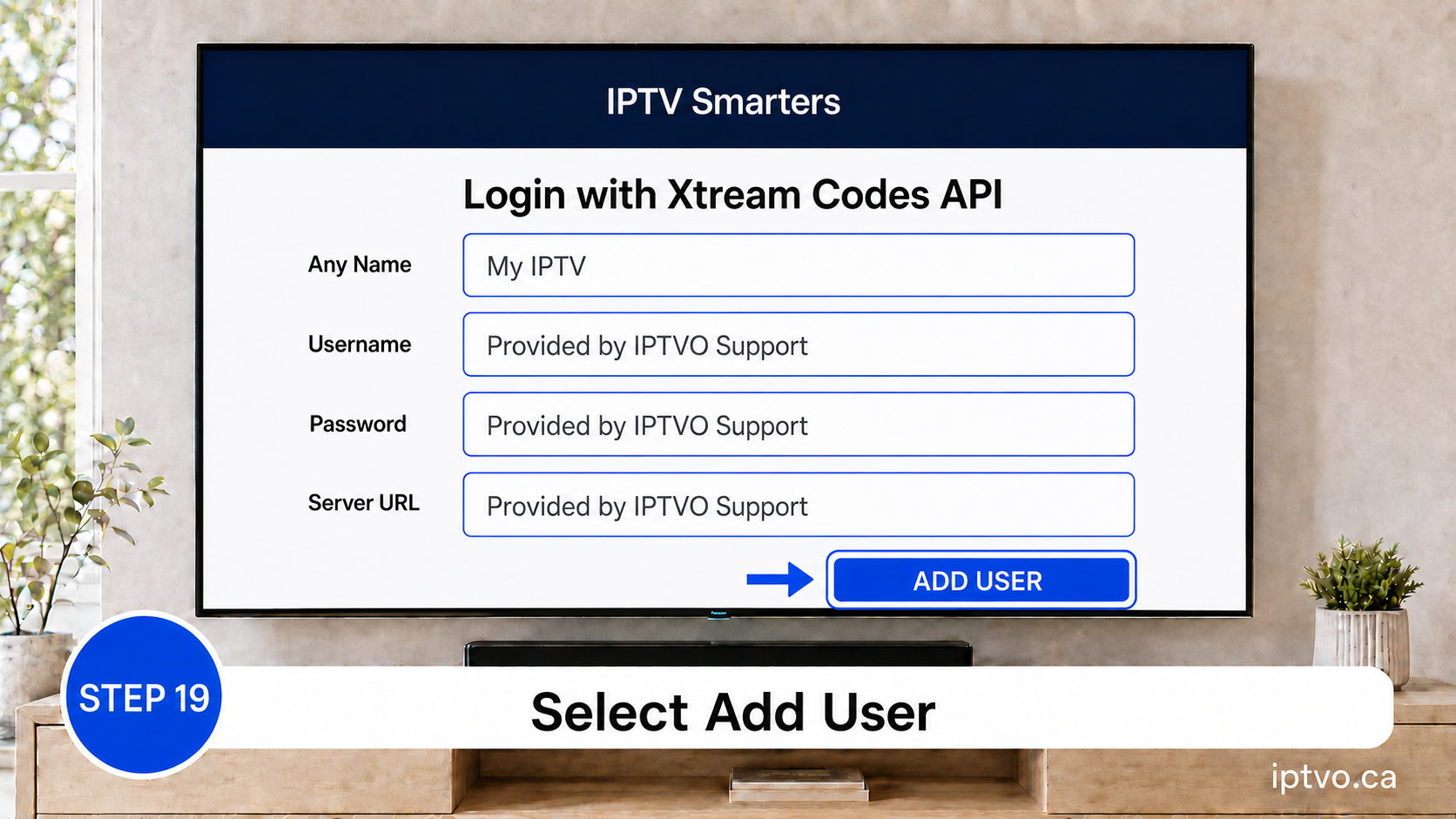
Allow the application to load the account. Loading time depends on your device and internet connection.
Try these checks before contacting support.
Confirm that your device is connected to a stable internet connection.
Re-enter the username, password and server URL exactly as supplied. Check capitalization and spaces.
Restart the Smarters Pro app, your streaming device and your router.
Update the application and your device software when updates are available.
If installation fails, confirm that you selected the correct method for your device and operating system.
Never publish your login details. Share them only through the official IPTVO support channel when assistance is required.
Use the Google Play Store method when your device includes Google Play Store. Use the Downloader method only on a compatible Fire TV device running Fire OS.
On many Fire TV software versions, open Settings → My Fire TV → About, highlight the device name and press the centre/select button seven times. Return one screen and Developer Options should appear.
The official download address, username, password and server URL are supplied directly by IPTVO Support. Do not use details copied from public websites or unknown sellers.
No. Smarters Pro is a media player. It does not include channels or playlists by itself; users must add access to content they are legally authorized to view.
That depends on your subscription’s connection allowance. Contact IPTVO Support before streaming simultaneously on multiple devices.
Menu labels and layouts can change by device model, region, operating-system version and application update. Follow the equivalent option shown on your device.
Contact the IPTVO support team through the official support channel supplied with your subscription. Include your device model and the step where you stopped, but never post your password publicly.
Platform interfaces may change. Technical references: Amazon Fire TV documentation, Smarters Pro on Google Play, Smarters Pro on the Apple App Store and the official Smarters Pro website.