

IPTV on Smart TV Canada 2026: Samsung & LG Setup Guide
Learn how to install IPTV on Samsung and LG Smart TVs in Canada. This step-by-step guide explains compatible players, subscription login methods, performance tips and common troubleshooting steps.
On This Page
Contact our support team if you need help choosing the right setup for your television.
CONTACT SUPPORTCan You Use IPTV on Smart TV?
Yes. Many compatible Samsung and LG Smart TVs can run IPTV player apps directly. You normally install a suitable player from the television’s available app marketplace and then enter the login details supplied with your IPTV subscription. App availability can vary by television model, software platform and region. For most households, IPTV on Smart TV Canada setup does not require advanced technical knowledge: the important part is choosing a compatible player, entering the supplied credentials correctly and confirming that the home network is stable before troubleshooting the service itself.
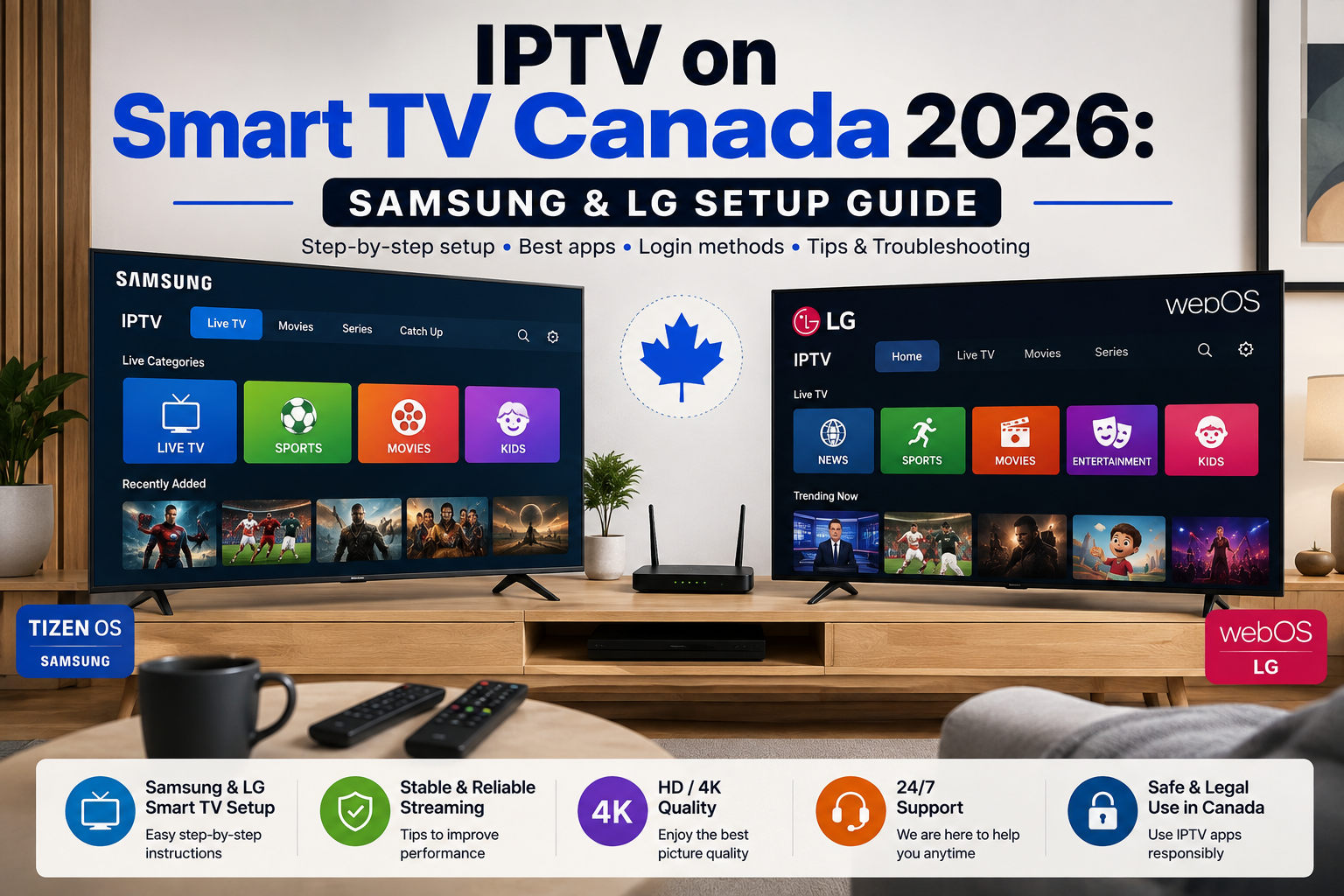
IPTV on Smart TV Canada: What You Need
Setting up IPTV on Smart TV Canada is easier when you prepare the basic requirements before opening the television settings. A few minutes of preparation can prevent the most common setup problems, especially typing errors, weak Wi-Fi and choosing an app that does not support the login method supplied with your subscription.
Before installing anything, check the exact model and software version of the TV. Smart TVs that look similar can run different generations of Tizen or webOS, and the apps offered to one model may not be offered to another. Also keep your login details nearby so you can compare each field carefully instead of entering information from memory.
Compatible Smart TV
A Samsung or LG television with internet access and a compatible app marketplace.
Stable Internet
Reliable Wi-Fi or Ethernet is important for consistent streaming playback.
IPTV Player
Choose an IPTV player available for your television and compatible with your subscription login format.
Subscription Details
Keep your authorized username, password, server URL or playlist information ready.
Samsung vs LG IPTV Setup
Samsung and LG Smart TVs follow a similar setup process, but they use different software platforms and app ecosystems.
Samsung Smart TV
Modern Samsung Smart TVs use Samsung’s Tizen platform. Search the Apps section available on your television for a compatible IPTV player.
LG Smart TV
LG Smart TVs use the webOS ecosystem. Open the television’s available app marketplace and search for a compatible IPTV player.
App availability can differ between manufacturers, model years, software versions and countries. An app shown in one tutorial may therefore not appear on every television.
The practical difference is less about picture quality and more about software compatibility. Samsung owners should confirm that the player is listed for their current Tizen environment, while LG owners should do the same for webOS. If two televisions in the same home offer different apps, that does not necessarily indicate a problem with the IPTV subscription.
For IPTV on Smart TV Canada, choose the player based on compatibility, ease of login and stable navigation rather than simply choosing the first search result. A simple, well-supported player is usually preferable to an app filled with features you do not need.
How to Install IPTV on Samsung Smart TV
For an IPTV Samsung Smart TV Canada setup, begin inside the Apps area on your television. The exact menu labels can vary by Samsung model year, so use the Apps or search function visible on your own TV rather than expecting every screen to match an online tutorial exactly.
Before signing in, verify that the TV’s date, time and network connection are correct. If an app installs successfully but cannot load your account, first check the credentials and server address character by character. Long URLs are particularly easy to mistype with a television remote.
For IPTV on Smart TV Canada, checking the television’s connection and your subscription details before installation makes Samsung setup easier to diagnose.
Connect the television to the internet
Make sure Wi-Fi or Ethernet is working before installing or configuring an IPTV player.
Open Samsung Apps
Use the Samsung home interface to open the Apps area available on your television.
Search for a compatible IPTV player
Choose a player currently available for your television and make sure it supports your subscription’s login format.
Install and open the player
Complete the normal installation process and open the player after installation.
Enter your subscription information
Add the login information or playlist supplied with the subscription you are authorized to use.
How to Install IPTV on LG Smart TV
An IPTV LG Smart TV Canada setup follows the same basic idea: install a compatible player and connect your authorized subscription. As with Samsung, menu names and available apps can differ across LG generations, so follow the options displayed by your own webOS television.
When configuring IPTV on Smart TV Canada on an LG television, confirm that the chosen player supports the credentials you received before paying for any optional app activation. A player can be compatible with the television while still not supporting the particular login method you need.
Check the internet connection
Confirm that the television is connected to stable Wi-Fi or Ethernet.
Open the LG app marketplace
Use the app marketplace available through your LG TV to search for a compatible IPTV player.
Install the player
Choose a suitable player that supports the login method supplied with your subscription.
Open the login screen
Launch the player and locate its account, playlist or subscription setup area.
Add your IPTV details
Enter the information supplied by your service and allow the player time to load.
If your television does not offer a suitable player, another option is to use an external device. This can be practical for IPTV on Smart TV Canada when the built-in app marketplace does not offer a suitable compatible player. See our IPTV Canada on Firestick guide .
How to Add Your IPTV Subscription
Once your player is installed, the next step in IPTV on Smart TV Canada setup is connecting the player to your authorized IPTV subscription. This is where many first-time setup errors occur, because a single incorrect character can prevent the player from connecting.
Copy the server address exactly as supplied, including the protocol at the beginning when one is provided. Keep capitalization, numbers and special characters in the username and password unchanged. If the player offers a profile name, that label is normally for your own reference and can be something simple such as “Living Room TV.”
During IPTV on Smart TV Canada setup, verify every login field before saving the profile so a typing error is not mistaken for a network problem.
Xtream Codes-style Login
This commonly uses a username, password and server or portal address in separate fields.
M3U Playlist
A compatible player can also use an M3U playlist URL supplied with your subscription.
Xtream Codes vs M3U
Both approaches are commonly used by compatible IPTV players. You do not need to switch formats simply because a tutorial uses another method.
Use the login format supplied with your service and supported by your chosen player. Xtream-style credentials may be easier to enter using a television remote because the information is separated into several fields.
An M3U URL can be convenient when a player is designed around playlists, but entering a long address with a TV remote can be slower. Xtream-style login separates the server, username and password, which can make mistakes easier to identify. Neither method automatically improves stream quality; playback still depends on the source, player, television and network.
For an IPTV on Smart TV Canada installation, use whichever supported method your authorized service provides rather than converting credentials unnecessarily. If the login fails, verify the details before changing player settings.
If you are still comparing subscriptions, visit our IPTV plans Canada page .
Improve IPTV Streaming Performance
Good Smart TV IPTV performance depends on more than the player itself. Your network, Wi-Fi environment, television hardware and source stream can all affect playback. A speed test can show whether the internet connection is generally working, but stability, Wi-Fi interference and congestion inside the home can matter just as much as the headline download speed.
Start by testing the television close to the router or with Ethernet when possible. If playback improves, the issue is likely related to the wireless path rather than the TV app itself. Households using several simultaneous streams, game downloads or cloud backups may also notice more congestion during busy periods.
Use Ethernet
When practical, a wired network connection can help reduce Wi-Fi interference and signal fluctuations.
Improve Wi-Fi Signal
Reduce distance and obstacles between the router and television when using wireless networking.
Restart Devices
Restarting the television and router can clear temporary problems before deeper troubleshooting.
Keep Software Updated
Install appropriate television software updates when provided by the manufacturer.
IPTV Smart TV Troubleshooting
When something stops working, test one cause at a time instead of changing several settings together. First determine whether the problem affects the entire television, the IPTV player, the subscription login or only one stream. That distinction can save a lot of unnecessary changes.
If every internet app on the TV is slow, investigate the home network first. If other apps work normally but the IPTV player freezes, restart that player and the television. If the app opens normally but rejects the account, recheck the subscription details. When only one authorized stream has a problem while others work, the issue is less likely to be the TV’s internet connection.
A methodical IPTV on Smart TV Canada troubleshooting process helps separate account, player, network and individual-stream issues before you change settings.
| Problem | What to Check | First Action |
|---|---|---|
| Login does not work | Username, password and server information | Re-enter the details carefully |
| Buffering | Wi-Fi quality and local network load | Test Ethernet or improve Wi-Fi |
| App freezes | TV memory and software | Restart the app and television |
| App is missing | Model, region and app availability | Search the marketplace on your TV |
| One stream fails | Whether other streams work | Test another authorized stream |
After each troubleshooting change, test again before moving to the next one. This method makes it easier to identify what actually fixed the issue and avoids creating new problems by changing network, player and account settings at the same time.
When a Firestick May Be Better
Using the built-in Smart TV platform is convenient because you avoid adding another device. However, an external streaming device can sometimes offer additional app options or a more responsive interface. This is especially relevant for older televisions, where the display panel may still look excellent even though the built-in smart platform has become slow or receives fewer app updates.
Staying with the built-in platform keeps the setup clean and uses one remote. An external streaming device adds another piece of hardware but can provide a newer interface and a different app ecosystem. For IPTV on Smart TV Canada, neither approach is automatically better; choose the one that is compatible, responsive and easiest for your household to maintain.
Stay With Smart TV
Choose the built-in TV platform when your compatible player works well and playback is stable.
Consider Firestick
Consider an external device when your TV has limited app availability or slower navigation.
See our complete IPTV Canada on Firestick 2026 setup guide .
Using IPTV Apps Responsibly in Canada
IPTV describes a method of delivering television or video using internet technology. Viewers should still use services and programming they are authorized to access.
Online content availability in Canada can depend on distribution rights and geographic licensing arrangements. When using IPTV on Smart TV Canada, choose services and programming that you are authorized to access.
You can also read our guide to choosing an IPTV service in Canada .
IPTV on Smart TV Canada FAQ
Can I install IPTV directly on a Samsung Smart TV?
A compatible Samsung Smart TV can use IPTV player apps available for its platform. App availability can vary by model, software version and region.
Can I install IPTV directly on an LG Smart TV?
Compatible LG Smart TVs can use suitable IPTV players offered through the television’s available app marketplace.
Do I need a Firestick?
Not necessarily. If your Smart TV has a compatible player and performs well, an external device may not be needed.
Why can’t I find the same app shown in another tutorial?
App availability may vary according to TV manufacturer, model, platform, region and current marketplace availability.
Why does IPTV buffer on my Smart TV?
Buffering can be caused by Wi-Fi conditions, network congestion, television performance, player behaviour or source-stream issues. Test the TV’s connection, restart the player and router, and compare several authorized streams before assuming one specific cause.
Is Ethernet better than Wi-Fi for IPTV on a Smart TV?
Ethernet can provide a more consistent connection when the television and router support a practical wired setup. Good Wi-Fi can also work well, but walls, distance, interference and congestion can affect wireless stability.
Does an IPTV player include channels?
Usually not. The player is the software interface used to load compatible subscription or playlist information. Installing a player does not by itself give the viewer access to television programming.
What is the easiest login method for a Smart TV?
The easiest method is generally the one already supplied by your service and supported by your player. Xtream-style credentials can be convenient on a TV because the server, username and password are entered separately.
Where can I find instructions for other devices?
Visit our IPTV Canada Installation Guide for additional device setup information.
Choose the setup that works best for your Smart TV
Now that you understand how IPTV on Smart TV Canada setups work, compare the available plans, review our installation guides or start with the free-trial page. Choose a compatible player, keep your login details accurate and test your network methodically if playback is not stable.